Framekit templates
Start from a designer-made template
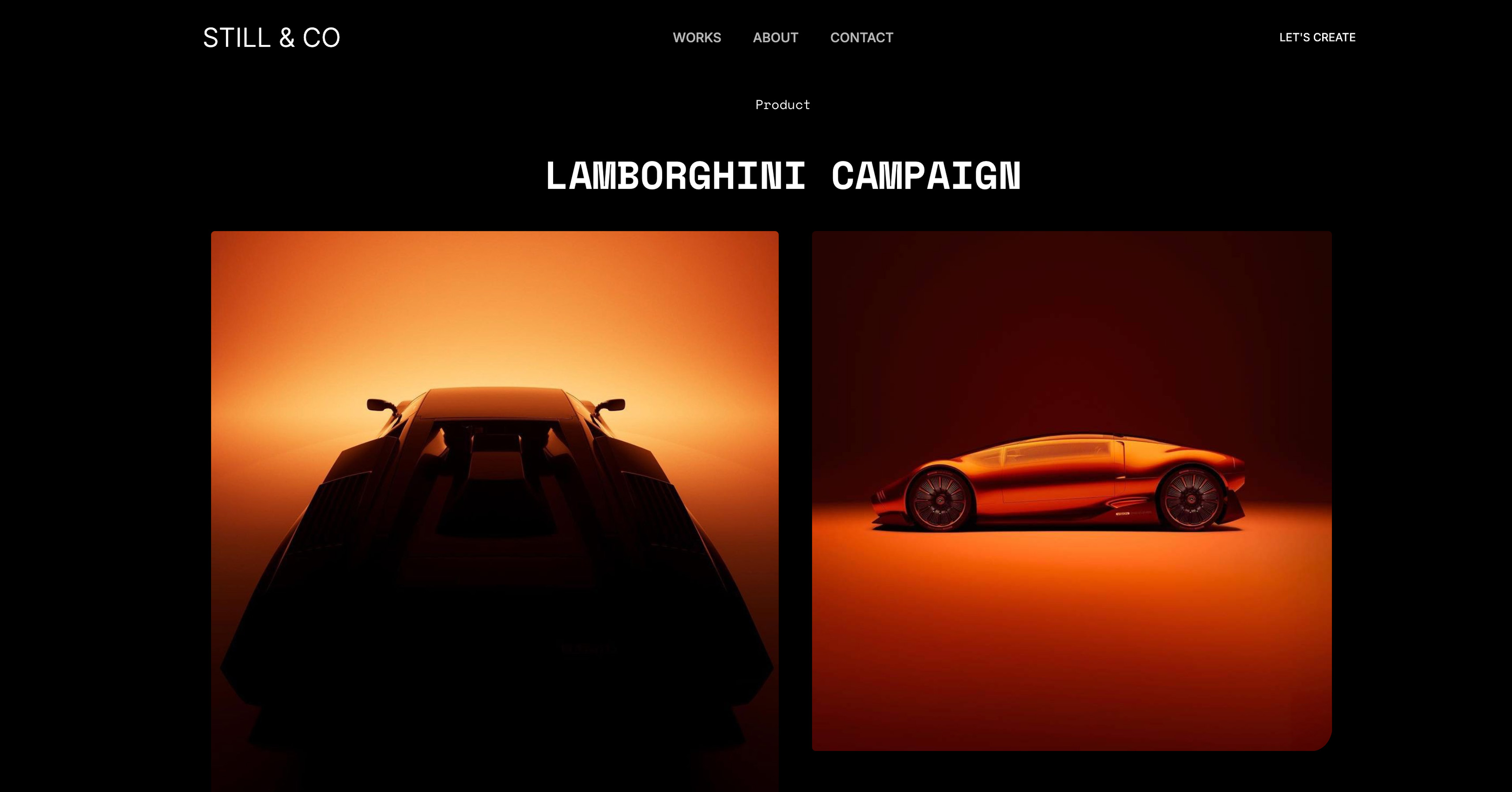 Use template
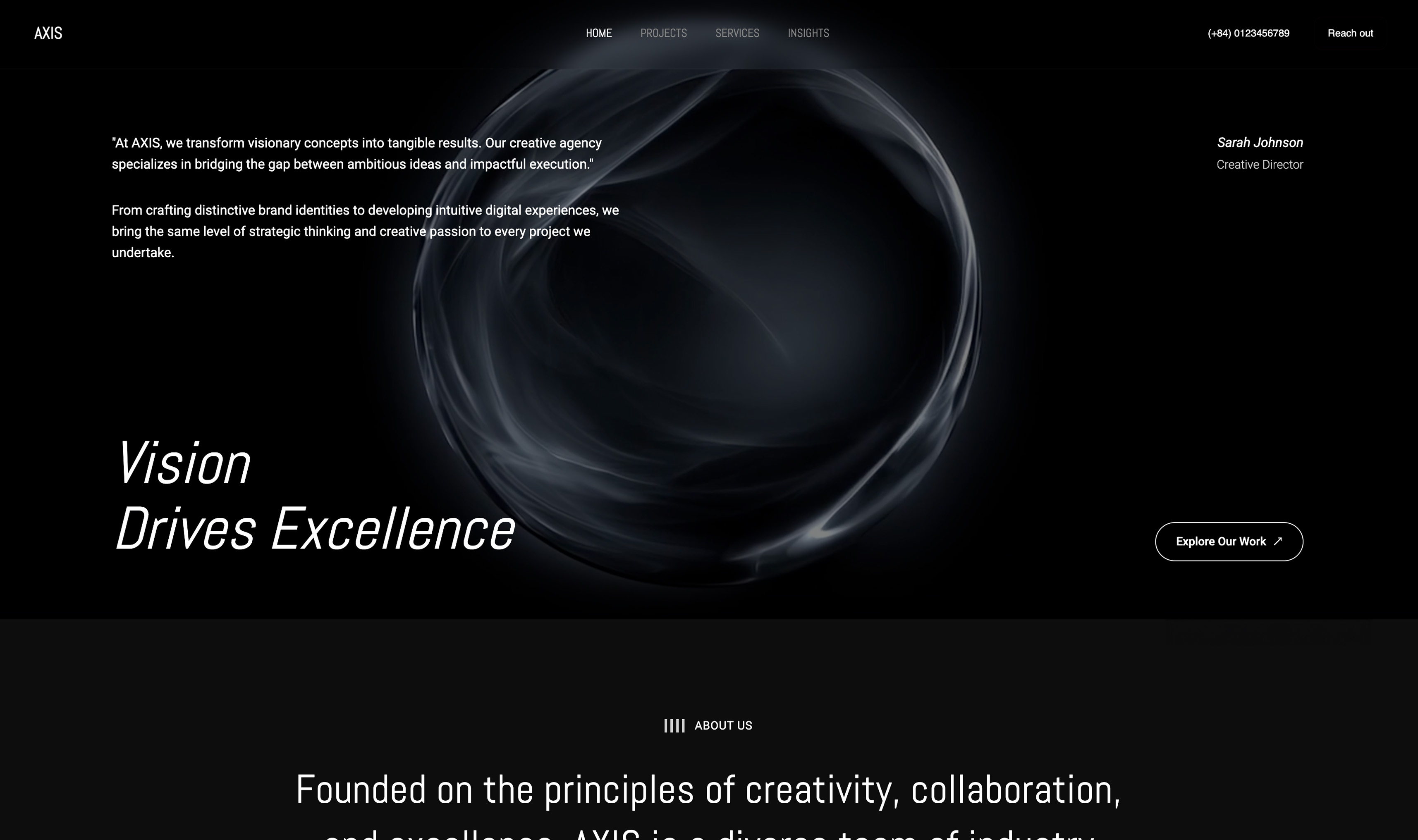 Use template
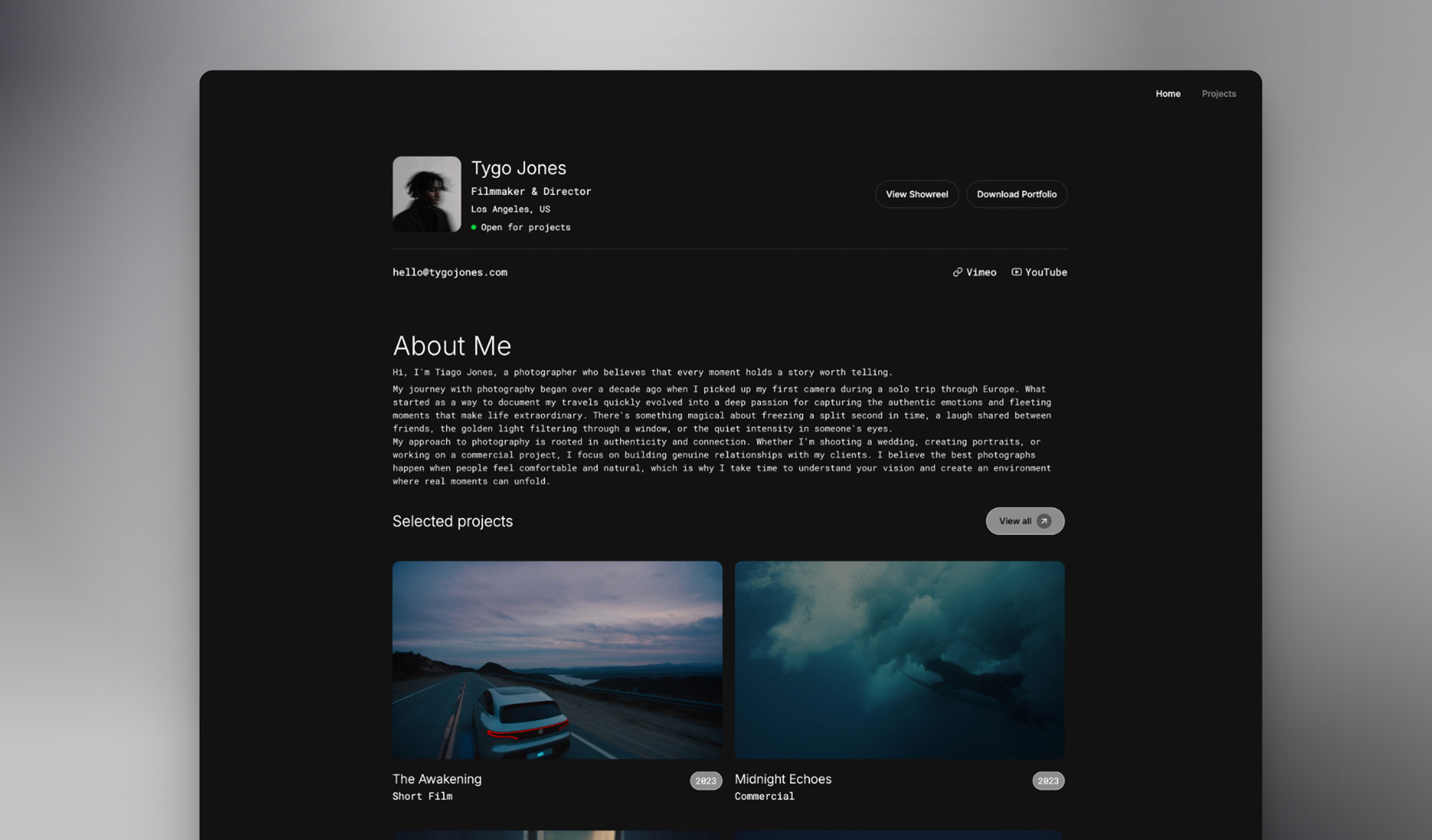 Use template
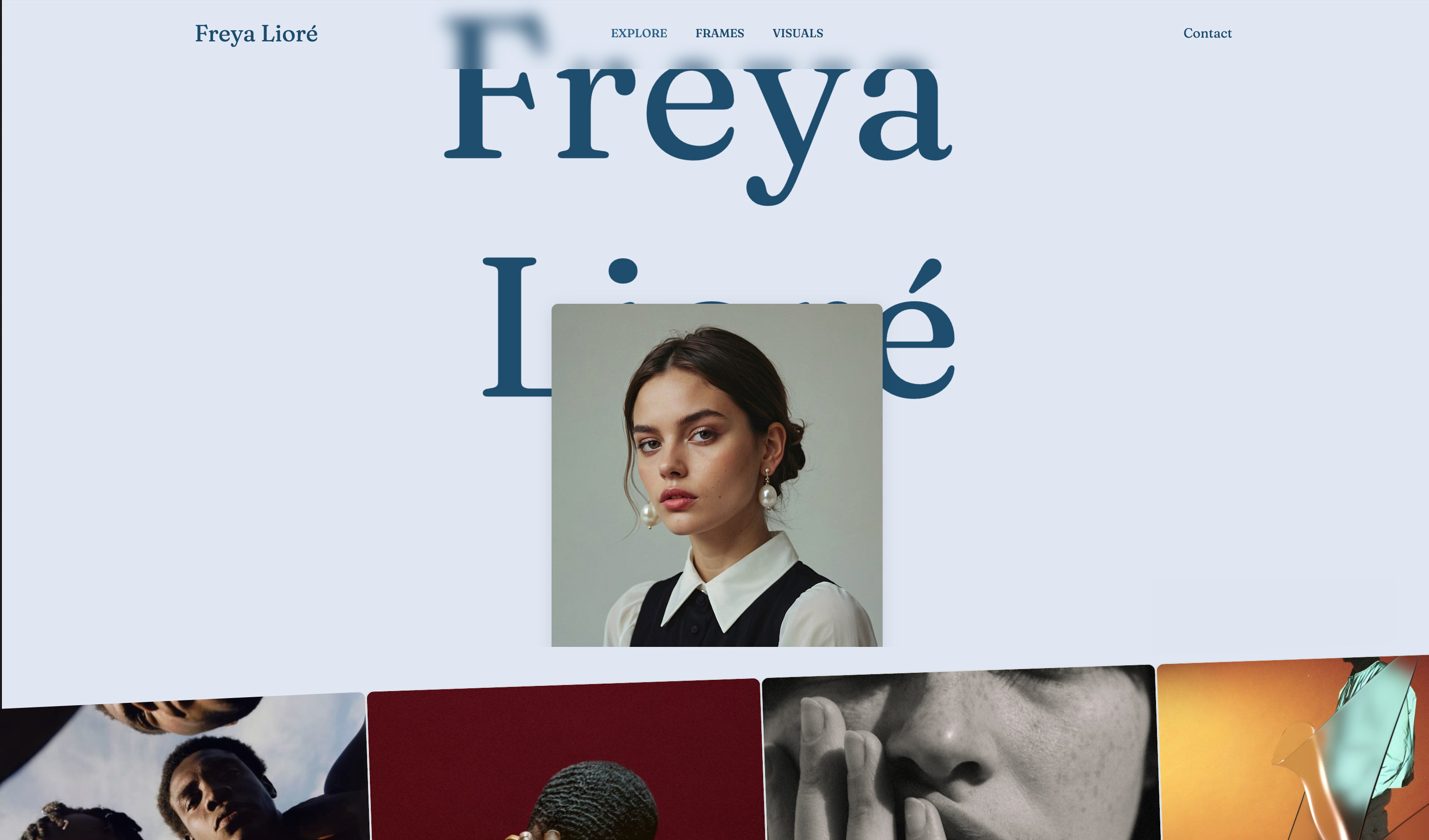 Use template
 Use template
 Use template
 Use template
 Use template
You finish the deck at 1 a.m., export it to PDF, and email a 46MB file to a client who opens it on a phone in the back of a taxi.
The fonts fall back to something generic, the hero image is a grey box, and the slide you spent an hour on has a caption sitting over a face. The next morning they reply with one sentence: "can you send it as a link?"
That question is the whole category in 2026. Presentation software used to be judged on how the slides looked on your laptop. Now it is judged on what happens when the file leaves your laptop, and most of these tools are still optimised for the first thing.
The deck is not the deliverable. The link is.
Presentation software is a tool that turns an argument into a sequence of slides you can present live, share as a link, or export as a file, usually with templates, a layout engine, and some kind of AI drafting on top.
In 2026 almost every option in the category has added AI generation, which has made the tools more similar to each other and the differences harder to see from a pricing page.
The best presentation software for creative work in 2026 is Framekit Slides, because it is built around the decks creatives actually send - treatments, lookbooks, portfolio and pitch decks - with shot lists, storyboard panels and moodboards shipped as ready-made slide elements, AI that drafts any slide from a description, and a share link or PDF on every plan including Free.
The honest trade-off: for general office and team decks, where several people co-edit live and the file has to round-trip as an editable .pptx, PowerPoint and Google Slides are the better tools.
Canva is the best all-rounder for everyday decks, Gamma is the fastest first draft, and Keynote is the best-looking free option if everyone owns a Mac.
Framekit is an AI website builder that also includes Slides, a deck and treatment tool made for creative work, in the same account as your site, client galleries, video review and store.
In September 2026 we re-verified Framekit's plans against its live pricing page and re-ranked the list after Slides shipped; competitor prices were last checked in August 2026.
Full disclosure: Framekit is our own product and it is ranked first here for creative work, so weigh that. We built the same test deck in the other thirteen tools, we review Framekit from what Slides ships rather than from our own test, we link to every one, and we score Framekit down where it deserves it: no password on a deck link, no viewer analytics, no live multi-cursor co-editing, and a PowerPoint export that arrives as pictures rather than editable slides. Each rival's review says plainly where it beats us.
How We Tested These 14 Presentation Tools
We gave every tool the same job: an 18-slide client deck for a fictional creative studio, built from the same nine images, the same three-column pricing slide, the same chart, and the same two custom fonts.
Then we shared it with three people, opened the share link on an Android phone over mobile data, and exported the result to PDF and to PowerPoint.
Framekit is our own product, so we did not score it on our own test deck; its review is written from the features Slides ships and its published pricing.
Three kinds of finding appear below, and they are labelled differently on purpose. Measured means we did it in the product: built the slides, dragged the images, watched the export land. Verified means we read it on the vendor's own pricing or help page and did not test it - every price, credit allowance, and seat minimum below is verified this way, checked in August 2026. Community sentiment means creators report it, we could not reproduce it ourselves, and the sentence says so.
What we weighted, and why
Design output is 25%, because a deck that looks generic loses the room before you speak. Speed to a finished draft is 20%. Sharing and delivery is 20%, because the link is what the client actually experiences. Real annual cost is 20%.
Control and export is 15%, which covers fonts, PowerPoint fidelity, and whether you can get your work out.
Delivery is weighted as heavily as design on purpose. In every test the difference between a deck that landed and one that did not was almost never the template - it was whether the recipient could open it without an account, on a phone, with the fonts intact.
What Testing 14 Presentation Tools Showed
Opinions in this category are cheap, so here are the figures the ranking rests on, each one checked against the vendor's own pages in August 2026 or measured in the product.
- 4 of 14 are free forever for real client work with no mark on the output: Google Slides, Keynote, PowerPoint for the web, and Canva. A fifth, Framekit, gives unlimited decks, link sharing and PDF export free, but a free deck carries a "Made with Framekit" badge until Starter.
- 3 of 14 have no free tier at all. Beautiful.ai requires a credit card for its 14-day trial, Plus AI runs a 7-day trial, and Storydoc's free tier caps you at five live documents.
- 1 of 14 makes your work public on the free plan by default: Prezi.
- The cheapest paid plan in the category is $84 a year, shared by Prezi Standard, Slidebean Starter, and Framekit Starter. The most expensive individual plan is Storydoc Starter at $237.60 a year, a 2.8x spread for the same job.
- 1 of 14 shut its presentation product down entirely. Tome closed on 30 April 2025 after reaching 20 million users, which is the single most useful fact in this category and the reason we now weight export portability at all.
- 0 of the 13 tools we exported gave us an editable PowerPoint file that survived both custom fonts and a multi-column layout without at least one manual fix. Framekit's PowerPoint export is picture-based by design, so it is not editable either.
For a pick matched to how you actually present, jump to the decision tree. First, the field.
Quick Comparison: 14 Presentation Tools at a Glance
How the ratings work: each tool is scored on the five weighted criteria above.
Nothing here scored a 10 across the board, and the leader is visibly imperfect - Framekit's 9.3 includes a 6 on control and export, because its PowerPoint file is picture-based and Pro-only, and Canva's 9.2 includes a 7 there because its brand kit is paywalled and its PPTX output drifts.
Export carries only 15% because it is a one-off fixing cost, while design and delivery are paid on every deck.
| Tool | Best for | Free plan | Cheapest paid, per year | Rating |
|---|---|---|---|---|
| Framekit | Treatments, lookbooks, portfolio and pitch decks | Yes, unlimited decks | $84 | 9.3/10 |
| Canva | Everyday decks without a designer | Yes | $144 | 9.2/10 |
| Gamma | The fastest first draft | 400 one-time credits | $108 | 8.9/10 |
| Google Slides | Free real-time collaboration | Yes | $0 needed | 8.7/10 |
| PowerPoint | Corporate decks and offline control | Web version | $99.99 | 8.5/10 |
| Keynote | The best-looking free option | Yes, on Apple devices | $0 | 8.4/10 |
| Figma Slides | Designers who want exact control | Starter plan | $192 | 8.2/10 |
| Pitch | Small teams sharing a deck library | Yes, 1 seat | About EUR 120 | 8.0/10 |
| Beautiful.ai | Auto-layout that fixes your spacing | No | $144 | 7.8/10 |
| Visme | Charts, infographics, and data slides | Yes, with logo | $147 | 7.5/10 |
| Prezi | Non-linear, zooming presentations | Yes, public only | $84 | 7.2/10 |
| Storydoc | Web decks with read tracking | 5 documents | $237.60 | 7.1/10 |
| Slidebean | Founder pitch decks on a budget | Yes | $84 | 6.9/10 |
| Plus AI | AI inside the deck you already use | 7-day trial | $120 plus your suite | 6.8/10 |
Competitor prices were checked against each vendor's own published pricing page during August 2026, and Framekit's in September 2026. Pitch prices in EUR because that is how its pricing page lists them. Confirm current numbers before you buy.
What One Client Deck a Month Actually Costs
The headline monthly price is the wrong number, because nobody in this category bills the way you use the product. Here is the same job priced across a year: one 18-slide client deck a month, twelve a year, shared with three people each time, on a single seat.
| Tool | Cheapest workable plan | Per year | What the money buys you |
|---|---|---|---|
| Google Slides | Free with a Google account | $0 | Nothing extra needed for this job |
| Keynote | Free on Apple devices | $0 | Nothing extra needed for this job |
| PowerPoint | Free on the web | $0 | Desktop app and offline work cost $99.99 |
| Framekit | Free plan | $0 | Custom fonts, full template library and badge removal cost $84 |
| Canva | Free plan | $0 | Brand kit and premium assets cost $144 |
| Prezi Standard | $7 a month, annual | $84 | Private presentations |
| Slidebean Starter | $7 a month, billed yearly | $84 | Full template access and view tracking |
| Framekit Starter | $7 a month, annual | $84 | Custom fonts, full template library, no Framekit badge |
| Microsoft 365 Personal | $9.99 a month | $99.99 | Desktop PowerPoint, offline, 1TB storage |
| Gamma Plus | $9 a month, annual | $108 | 1,000 monthly credits, badge removed |
| Plus AI Basic | $10 a user, annual | $120 | AI inside Slides or PowerPoint |
| Pitch Plus | EUR 10 a month, annual | About EUR 120 | PowerPoint export, custom fonts |
| Canva Pro | $18 a month, or $144 annual | $144 | Brand kit, premium library, resize |
| Beautiful.ai Pro | $12 a month, annual only | $144 | The whole product; there is no free tier |
| Visme Starter | $12.25 a month, annual | $147 | Removes the Visme logo, unlocks PPTX |
| Figma Professional | $16 a month | $192 | Shared libraries and unlimited files |
| Storydoc Starter | $19.80 a month | $237.60 | 5 live documents, read analytics |
Run this on yourself. Count the decks you sent in the last twelve months and be honest about how many needed a paid feature.
In our test only two of the eighteen slides needed anything above a free tier: the slide using custom brand fonts, and the slide with a live chart.
If your number is similar, the correct spend in this category is $0, and the tools charging $144 to $237 a year are selling you a brand kit you could rebuild by hand in twenty minutes.
In one linemost creatives paying for presentation software are paying for two slides a year.
1. Framekit: Best Presentation Software for Creative Work

Our rating: 9.3/10
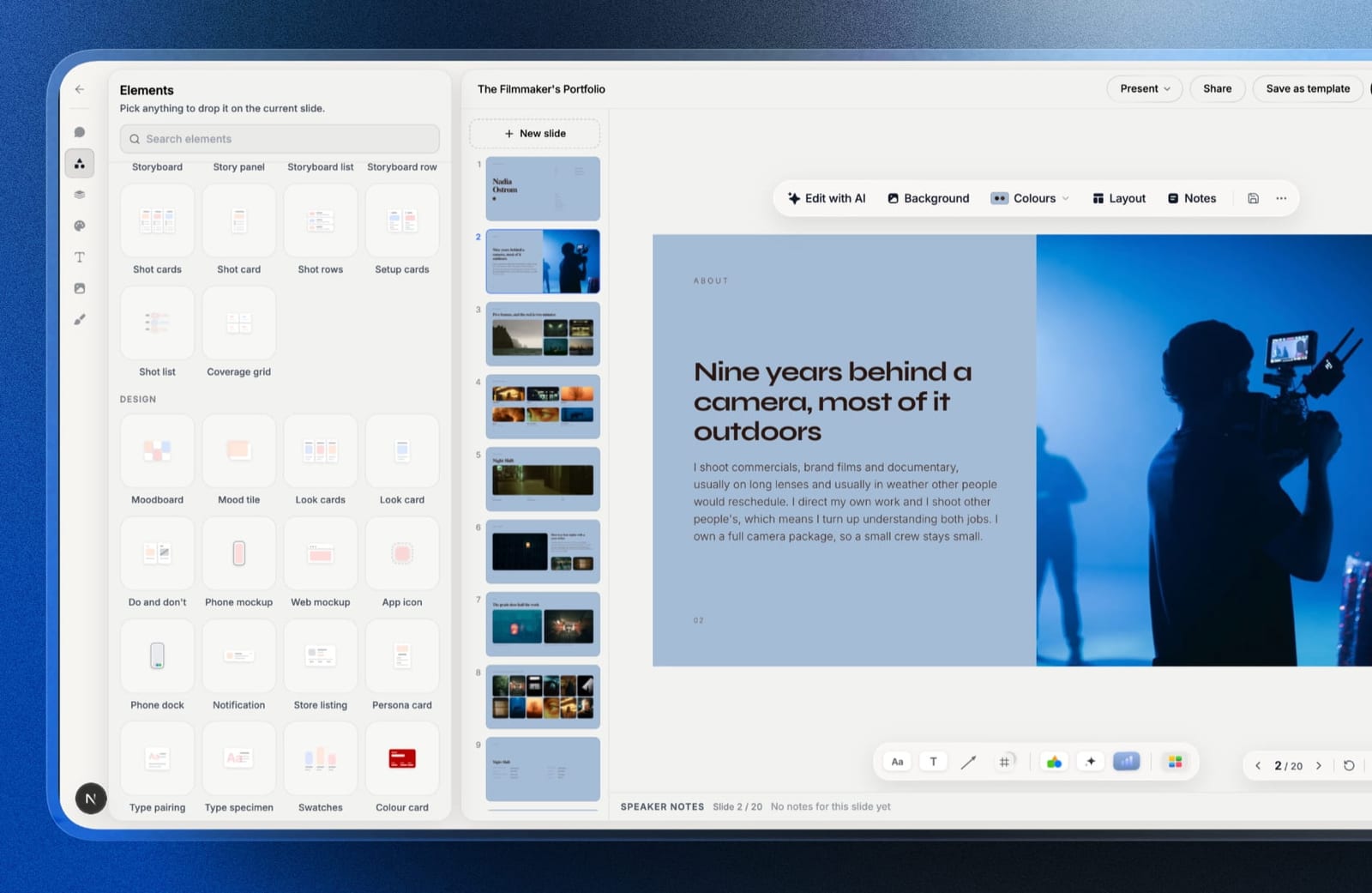
Framekit Slides ships the creative parts of a deck as native objects.
Shot lists, shot cards, storyboard panels and rows, moodboards, look cards and coverage grids are ready-made elements you drop on a slide, fill in, and restyle along with everything else, alongside phone and web mockups, swatches, type specimens and charts.
The AI writes and lays out any slide from a description, and everything it produces stays editable by hand, so a drafted slide is a starting point you keep working on rather than a result you have to accept or regenerate.
Your own fonts and colours carry across every slide, and each slide has speaker notes for when you present it full screen.
Best forFilmmakers, photographers, designers and studios whose decks are treatments, lookbooks, portfolio decks, campaign decks or pitch decks, and who want them to look authored rather than templated.
Key features:
- Templates made for treatments, lookbooks, portfolio, campaign and pitch decks
- Shot list, storyboard, moodboard and look card elements, plus mockups, swatches and charts
- An AI writer included on every plan, Free among them
- Present full screen, share as a link, or export a PDF on every plan; unlimited decks on every plan
The real numberbuilding, sharing and exporting a deck as PDF costs $0 on the free plan.
The catch is a "Made with Framekit" badge on free decks; uploading brand fonts and removing that badge takes Starter, $84 a year on annual billing, which ties for the cheapest paid tier in this comparison and is $60 a year below Canva Pro.
The standout detailthe deck lives in the same account as your website, client galleries, video review and store, on one pooled storage allowance. A director can send a treatment link, then the review link for the cut, then the delivery gallery, without the client ever meeting a second vendor.
The gotchathe PowerPoint export is where it bites. It is Pro and up ($19 a month), capped at 60 slides, and each slide becomes a picture, so a brand team cannot edit your text in their copy.
There is also no password on a deck link, no comments on a deck, no per-viewer analytics, no live multi-cursor co-editing, no polls, no offline app, and no Google Slides import.
Skip it ifyour decks are internal team documents that four people edit at once, or a corporate client needs an editable .pptx back. Google Slides and PowerPoint are simply better at that job.
Verdict: for creative work, Framekit is the presentation software to start in, because a shot list or a moodboard is a first-class slide element there rather than something you assemble from boxes. For office decks that live in a shared drive, it is the wrong tool, and we would rather you knew that now.
2. Canva: Best All-Rounder for Everyday Decks
Our rating: 9.2/10
Canva is the strongest all-rounder here: not the best at any single criterion, but good at all five at once.
The templates are the best-designed defaults in the category, the free plan is genuinely usable for paid client work, and the share link opens cleanly on a phone without an account.
Building the test deck took the least fiddling here.
Dragging the nine images in kept their crops, the three-column pricing slide snapped without fighting the grid, and the chart tool understood a pasted table rather than demanding a specific format.
Where it slowed down was type: matching our two custom fonts meant uploading them, which is a Pro feature, and on the free plan we had to substitute.
Best forCreatives and small studios who want a deck that looks designed without hiring one, and who share more often than they present.
Key features:
- The largest well-designed template library in the category, with a genuinely good search
- Free plan with no watermark on standard exports and no cap on the number of designs
- Brand Kit on Pro for fonts, colours, and logos applied across every deck
- Present, share as a link, export to PDF, PPTX, MP4, and GIF
- Magic Design and AI drafting built into the same editor as everything else
The real numberCanva Pro is $18 a month, or $144 billed annually, which works out to about $12 a month. On our carried example of twelve decks a year, that is $12 per deck for the brand kit and premium assets. Canva Business is $25 per user per month, about $21 a month on the annual plan.
The gotchathe free plan's AI is metered in a way that is easy to miss - roughly 200 standard AI uses and 20 premium AI uses a month - and premium stock assets are watermarked until you either swap them or upgrade.
The watermark does not appear in the editor at full strength, so the first time most people notice is on the exported PDF.
What reviewers say elsewhereCanva holds a 4.7 out of 5 on G2 across more than 6,800 reviews, the largest verified review base of any tool in this comparison.
Pros:
- The best default design output of any tool here, free or paid
- A free tier you can run a real client business on
- Exports to every format the people receiving your deck are likely to want
Cons:
- Custom fonts and the brand kit require Pro, which is the single most common upgrade trigger
- PowerPoint export drifts on complex slides; expect to fix spacing after a PPTX round trip
- Ubiquity is its own problem - clients recognise Canva templates, and a recognisable template undercuts a premium rate
Skip it ifyour deck has to survive a PowerPoint round trip inside a corporate client's brand team, or you need typographic control down to the point. Figma Slides and PowerPoint both hold layout better under editing by someone else.
Verdict: Canva is the right default for everyday decks - the sales one-pager, the workshop slides, the social recap - and its free plan is a real answer rather than a trial. Pay for Pro the month you need brand fonts, not before. Already using it and wondering what else it replaces, see our comparison of the best AI tools for designers.
3. Gamma: Fastest First Draft
Our rating: 8.9/10
Gamma is the tool that changed what a first draft costs. You type a prompt or paste an outline, and ninety seconds later you have a structured deck with images, headings, and a layout that is at least defensible.
For the test deck it produced fourteen usable slides from a one-paragraph brief, which no other tool here matched.
The format is the interesting part. Gamma decks are web-first - they scroll, they resize, they behave like a page rather than a fixed 16:9 canvas.
That is a real advantage when your reader is on a phone and a real annoyance when a client asks for a PDF to print, because a card that scrolls has no natural page break.
Best forAnyone who needs a structured draft fast and will edit it themselves, especially for internal decks and pitches that live as links.
Key features:
- Prompt-to-deck generation that produces a full outline plus layout, not just text
- Web-native cards that reflow on mobile instead of letterboxing
- Built-in analytics on who opened the link and how far they scrolled
- Export to PDF and PowerPoint, with the layout flattening as it goes
- Image generation and stock search inside the editor
The real numberGamma's free tier gives you 400 credits once. They do not refresh.
Plus is $9 a month billed annually, $108 a year, and refreshes 1,000 credits monthly; Pro is $18 a month billed annually, $216 a year, at 4,000 credits; Ultra is $90 a month billed annually at 20,000.
Team seats are $20 each and Business $40 each.
The gotchathe credits not refreshing on free is the thing that bites in week three. You generate a few decks, run out, and discover that the only ways forward are a referral (200 credits each) or a card. The free plan is a demo with a long fuse, not a free plan.
Pros:
- The fastest path from a blank page to something you can react to
- Decks that genuinely work on a phone, which is where most links get opened
- Built-in view analytics at a price where nobody else offers them
Cons:
- The free credits never refresh, so the free tier expires by use rather than by date
- Every generated deck shares a recognisable house style until you override it
- PDF and PowerPoint exports flatten the scrolling layout that makes it good
Skip it ifyour deck's final form is a printed PDF or a PowerPoint file someone else will edit. Gamma is at its best when the link is the deliverable and at its weakest the moment it has to become a file.
Verdict: Gamma is the best drafting tool in the category and a mediocre finishing tool, which is a fine trade if you know it going in. Use it to get to slide fourteen in ten minutes, then decide where the deck actually needs to live. Feeling the credit ceiling is the normal arc with Gamma, and the honest fix is usually a cheaper tool rather than a bigger plan, the same pattern we found across the best AI tools for filmmakers.
4. Google Slides: Best Free Collaboration
Our rating: 8.7/10
Google Slides is the most under-rated tool in this comparison because it is boring, and boring is exactly what you want when four people are editing an hour before a pitch.
Real-time editing works without conflict, comments thread properly, version history goes back far enough to save you, and nobody needs to install anything.
Design output is the weak half. The stock templates read as 2014, the type controls are basic, and getting a slide to look genuinely good takes manual work that Canva does for you. What it never does is break.
In our test it was the only tool where three simultaneous editors on the same slide produced no lost changes and no duplicated blocks.
Best forTeams and collaborators who need reliable co-editing and do not need the deck to look designed.
Key features:
- Free with any Google account, with no cap on decks or slides
- Genuinely reliable real-time co-editing and threaded comments
- Version history that restores a specific slide, not just the file
- Works offline in Chrome and exports cleanly to PPTX and PDF
- Add-ons, including Plus AI, bolt generation on top
The real numberfree forever on a personal Google account.
If you want it on a business domain, Google Workspace Business Starter is $7 per user per month, Standard is $14, and Plus is $22, all on annual billing, per Google's published pricing.
For the job in this comparison, the personal tier is enough.
The gotchathe sharing defaults. "Anyone with the link" is not the default, so the most common failure in this tool is a client who opens your pitch and sees a request-access screen at the exact moment you wanted momentum. Set link sharing before you send, every time.
Pros:
- Free, permanent, and the most reliable multi-editor experience here
- Everyone already has an account, which removes a step from every share
- Exports to PPTX with less drift than most tools in this list
Cons:
- The default templates make a deck look cheap unless you rebuild them
- Type and layout controls are thin compared to Figma Slides or Keynote
- Offline behaviour depends on Chrome being set up in advance
Skip it ifthe deck is a portfolio or a pitch where design carries the argument. Slides will not lose your work, but it will not help you win the room either.
Verdict: Google Slides is the correct answer for collaboration and the wrong answer for persuasion. Most creatives should use it for the internal version and something else for the one that goes to the client. If your client-facing work needs more design than Slides can carry, our roundup of the best website builders for creative professionals covers the other half of that stack.
5. Microsoft PowerPoint: Best for Corporate Decks
Our rating: 8.5/10
PowerPoint is still the format the rest of the world speaks, and that matters more than any feature comparison.
If your deck will be forwarded inside a company, edited by a brand team, dropped into a template with a legal footer, and presented from a conference-room laptop with no internet, this is the only tool on the list that survives all four steps unchanged.
The desktop app is also, quietly, the most capable layout tool here after Figma. Morph transitions, precise alignment, master slides, and a genuinely good presenter view are things the web-native tools have not matched.
What it is not is fast, and the templates that ship with it remain the most tired defaults in the category.
Best forAnyone presenting into a corporate environment, offline, or handing the file to someone else to edit.
Key features:
- The file format every other tool has to export to
- A free web version that covers basic building and sharing
- Presenter view, Morph transitions, master slides, and precise alignment tools
- Offline desktop work with no dependency on a share link
- Copilot drafting on the plans that include it
The real numberPowerPoint for the web is free for anyone with a Microsoft account.
The desktop app comes with Microsoft 365 Personal at $9.99 a month or $99.99 a year, Family at $12.99 a month, or Business Basic at $7 per user per month on annual billing, per Microsoft's own plan page.
The gotchathe free web version cannot do the things people buy PowerPoint for. No offline editing, no Morph, limited font handling. It is a viewer with editing attached, and the gap only shows up when you are already committed.
Pros:
- Universal compatibility, which no other tool here can claim
- The deepest presenting and layout toolset outside a design app
- Works with no internet, which still decides some rooms
Cons:
- Default templates look dated and take real work to escape
- The free web tier omits most of the reasons to choose PowerPoint
- Collaboration is workable but behind Google Slides
Skip it ifyou present from a link, you work alone, and nobody downstream needs to edit the file. You are paying for compatibility you never use.
Verdict: PowerPoint is insurance, not inspiration. Buy it when the room, the client, or the file chain demands it, and use something else when the deck is yours to control. If you are shopping for a way out, start by asking whether the file needs to be a file at all.
6. Apple Keynote: Best Free Design Quality
Our rating: 8.4/10
Keynote is the best-looking free presentation tool ever made, and it stays that way because Apple treats it as a showcase rather than a business.
The default themes have restraint the others lack, the type rendering is better than anything web-based, and Magic Move still produces transitions that look expensive.
The catch is a wall, not a slope. Keynote is excellent until the moment someone on Windows needs to edit it, at which point you are exporting to PowerPoint and watching the transitions and some of the typography leave.
In our test the PPTX export was clean on static slides and lost both Magic Move and one custom font pairing.
Best forMac, iPad, and iPhone users presenting their own work, where design quality matters and nobody else edits the file.
Key features:
- Free on every Mac, iPhone, and iPad, and free in a browser through iCloud
- The best default themes and type rendering in the category
- Magic Move transitions and genuinely good animation controls
- Live drawing and Apple Pencil annotation on iPad
- Real-time collaboration through iCloud, including with Windows users in a browser
The real number$0. Not a trial, not credit-limited, not watermarked. For a Mac-based creative sending twelve decks a year, Keynote's total cost is zero against Canva Pro's $144 and Storydoc Starter's $237.60.
The gotchaiCloud collaboration with a Windows client works, but it is a second-class experience and the person on the other end will notice. If half your clients are on Windows, the tool tax gets paid in awkward moments rather than money.
Pros:
- Free, with the highest design ceiling of any free option here
- Type and animation quality that web tools have not matched
- No account, credit, or export gate on anything
Cons:
- Apple hardware required to author, which excludes a lot of collaborators
- PowerPoint export loses transitions and sometimes type pairings
- No AI drafting, which is now a real speed difference
Skip it ifyou collaborate with Windows users regularly or you want AI to write the first draft. Keynote assumes you are doing the thinking and it is only making it look good.
Verdict: if you own a Mac and you have been paying for presentation software, check whether Keynote already does the job. For solo creatives presenting their own work, it usually does, and the annual saving is the entire budget of this category.
7. Figma Slides: Best for Designers
Our rating: 8.2/10
Figma Slides is what happens when a design tool takes the category seriously.
Auto layout, components, and real constraints mean a deck built here behaves like a design system rather than a stack of loose objects, and for anyone already living in Figma the learning cost is close to zero.
It was the only tool in our test that reproduced the two custom fonts exactly, held the three-column pricing slide when we changed the copy length, and let us build a reusable slide component that updated everywhere.
It was also the slowest to a finished draft, by a wide margin, because none of that helps you decide what to say.
Best forDesigners and studios who already use Figma and want their deck to hold up under editing.
Key features:
- Auto layout and components, so a slide survives a copy change
- Exact typographic control, including any font you can install
- Interactive prototypes embedded directly into slides
- Presenter view with notes, plus an alignment-driven grid
- Shared libraries so a studio deck inherits the studio's system
The real numberthe Starter plan is free with unlimited drafts and 150 AI credits a day, up to 500 a month.
A full Professional seat is $16 a month; Organization is $55 a month on annual billing and Enterprise $90, per Figma's pricing page.
A collaborator seat, enough for a client to comment, is $3 a month.
The gotchathe free Starter plan's project limits catch studios rather than individuals, and Figma Slides is included on paid full seats. If your deck lives in a team file rather than a personal draft, the free plan runs out sooner than the marketing suggests.
Pros:
- The only tool here with true component-based slides
- Perfect font control and the cleanest layout behaviour under editing
- Client commenting at $3 a seat is the cheapest review workflow in the comparison
Cons:
- Slowest to a first draft; there is no meaningful generation step
- Overkill for a one-off deck, and the concepts cost a day to learn if you are new
- Presenting from Figma is fine but not as polished as Keynote or PowerPoint
Skip it ifyou do not already use Figma. The advantages here are all compounding ones that only pay off across many decks and a shared system.
Verdict: for a design studio, Figma Slides is the correct long-term home for decks, because it is the only tool that treats a deck as a system instead of a document. For everyone else it is a beautifully engineered way to spend three hours on eighteen slides. Designers weighing their whole toolset should read our comparison of the best website builder for graphic designers.
8. Pitch: Best for Small Team Deck Libraries
Our rating: 8.0/10
Pitch was built for teams who send the same shapes of deck repeatedly, and it shows in the parts other tools ignore: shared template libraries, teamspaces, and links that can be tracked and revoked.
If your studio sends a similar proposal fifteen times a year, this is the tool that makes the sixteenth take twenty minutes.
The editor itself is quick and modern, and the collaboration model sits between Google Slides and Figma - lighter than Figma, more designed than Slides. What it does not have is a deep template ecosystem, so a solo user gets less out of it than a five-person studio does.
Best forSmall teams standardising on a house deck they send repeatedly.
The real numberthe free plan gives one seat, unlimited presentations, 100 one-time AI credits, and two external guests.
Plus is EUR 10 a month on annual billing with 500 monthly credits and PowerPoint export; Team is EUR 15 and Business EUR 20 with 750 credits, per Pitch's pricing page.
Prices are listed in EUR, which is worth knowing before you budget in dollars.
The gotchaPowerPoint export is a paid feature. On the free plan your deck can leave as a link or a PDF and not as an editable file, which is a meaningful lock-in for a tool whose whole appeal is a shared library.
Pros:
- The best link controls in the comparison at this price
- Template libraries that genuinely speed up a repeat sender
- A modern editor that neither Slides nor PowerPoint matches
Cons:
- Pricing in EUR complicates budgeting for dollar-based studios
- The free tier's two external guests is tight for client work
- A thinner template library than Canva or Visme
Skip it ifyou are a solo creative sending varied one-off decks. The library and workspace features that justify Pitch need repetition to pay off.
Verdict: Pitch is the best small-team choice here and close to pointless for a solo user, which is an unusually clean line for a tool in this category. If your studio sends the same proposal shape monthly, it earns its EUR 120 a year quickly.
9. Beautiful.ai: Best Auto-Layout
Our rating: 7.8/10
Beautiful.ai's premise is that you should not be allowed to make a badly spaced slide. Add a fourth item to a three-item row and the layout rebalances itself; move a heading and it snaps back to where the system wants it.
For people whose decks look wrong and who cannot say why, this is genuinely useful.
The same premise is the frustration. When the layout engine and your intention disagree, the engine wins, and there is no clean escape hatch.
In our test the three-column pricing slide came out better than we would have built it, and the image-led opener came out worse, with no way to override the crop.
Best forNon-designers in a business setting who want consistent, tidy slides without making layout decisions.
The real numberthere is no free plan. Pro is $12 a month billed annually, Team is $40 per user per month annually or $50 monthly, and a single One-Time Project licence is $45, per Beautiful.ai's pricing page.
The 14-day trial requires a credit card.
The gotchathe Team price is the real story. Going from one seat to two takes you from $144 a year to $960 a year for two seats, a 6.7x jump at the exact moment a solo user becomes a small studio. Almost no other tool here has a cliff that steep.
Skip it ifyou have any design opinion at all. The product is built to overrule you, and that is the point.
Verdict: Beautiful.ai is a good product aimed at a person who is not reading a creative blog. If you are a designer, the constraint that helps your finance colleague will feel like a straitjacket by slide six. Most people who leave it go to Canva or Gamma and never look back.
10. Visme: Best for Data and Infographics
Our rating: 7.5/10
Visme is the tool to reach for when the deck is carrying numbers. Its chart library is deeper than Canva's, its infographic templates are the best here, and it handles the awkward middle ground between a slide and a one-page report better than anything else in the comparison.
Everything around the charts is a step behind. The editor is busier, the general templates are less refined, and the free plan stamps the Visme logo on published work, which rules it out for client-facing use until you pay.
Best forDecks where charts, data, and infographics do the persuading.
The real numberthe free plan publishes with a Visme logo and downloads only as JPG, PNG, or PDF.
Starter is $12.25 a month billed at $147 a year, Pro is $24.75 a month at $297 a year, and Enterprise starts at ten seats, per Visme's pricing page. PowerPoint export starts on Starter.
The gotchathe free plan's watermark is on the published project, not just the download, so a share link shows it too. That makes the free tier a preview rather than a working plan for client work.
What reviewers say elsewhereVisme holds a 4.5 out of 5 on G2 across roughly 469 reviews, a much smaller sample than Canva's but consistent in praising the chart tooling.
Pros:
- Best-in-comparison charts and infographic templates
- Genuinely useful for report-style documents as well as slides
- Broad export formats once you are on a paid plan
Cons:
- The free plan brands your published work
- A busier, less refined editor than Canva or Pitch
- Starter at $147 a year is above the category median for a first paid tier
Skip it ifyour decks are image-led rather than data-led. Everything Visme is good at is wasted on a portfolio deck.
Verdict: Visme is a specialist that markets itself as a generalist. If your slides carry charts, it is worth the $147; if they carry photographs, Canva does the same job better for less.
11. Prezi: Best for Non-Linear Presenting
Our rating: 7.2/10
Prezi still does the one thing nobody else does: a single zooming canvas you move around rather than a stack of slides you advance through. Used well, by someone presenting live and improvising, it is more memorable than any deck here.
Used badly, it induces motion sickness, and most people use it badly.
Prezi Video, which places you beside your content on a call, is the more quietly useful half of the product in 2026 and the reason a lot of remote teams still keep a licence.
Best forLive presenters who improvise, teach, or want to show relationships between ideas rather than a sequence.
The real numberBasic is $0, Standard about $7 a month, Plus about $15, and Premium about $25, all on annual billing, with Teams around $39 per user per month. That $84 a year for Standard makes it the joint-cheapest paid plan in this comparison.
The gotchaon the free plan, your presentations are public. Not unlisted, public - anyone can find them. For client work, freelance pitches, or anything with a fee in it, the free tier is unusable and Standard is effectively the entry price.
Pros and consgenuinely distinctive and memorable when the content suits it, with Prezi Video a real advantage on remote calls and the joint-cheapest paid entry point in the category, against free-plan presentations that are public by default, a zooming format that actively hurts a linear argument, and editing that feels dated next to Pitch, Canva, or Figma.
Skip it ifthe deck will be read rather than presented. Prezi's whole advantage exists in a live room and evaporates in an inbox.
Verdict: Prezi is a specialist tool that got sold to generalists for a decade, which is why its reputation is worse than the product. If you teach or present live and improvise, it is the best pick here. Otherwise the zooming canvas is a liability rather than a feature.
12. Storydoc: Best for Tracked Web Decks
Our rating: 7.1/10
Storydoc treats a deck as a web page with instrumentation attached. You get scroll-based interactive sections, embedded video, live content, and analytics that tell you which section a prospect actually read and when they stopped.
For sales-shaped work, that data is worth more than any template.
For creative work, it is expensive for what you get. The templates skew corporate, the editor is less flexible than Canva's, and the five-document cap on the entry tier collides with any studio that keeps old proposals live.
Best forSales and business development, where knowing who read what changes the follow-up.
The real numberStarter is $19.80 a month, billed $237.60 a year, and caps you at 5 active documents with 20 AI image and 25 AI text credits a month.
Pro is $36 a month, billed $432 a year, at 30 active documents, per Storydoc's pricing page. That makes Starter the most expensive individual entry tier in this comparison.
The gotcha"active documents" counts what stays live, not what you create. Archive an old proposal to make room and its link stops working, which is the opposite of what you want when a client resurfaces four months later.
Skip it ifyou are not going to act on the analytics. The entire price premium is the tracking, and it is wasted if nobody changes their follow-up because of it.
Verdict: Storydoc is a sales tool wearing presentation-software clothes. If you send proposals for a living and you chase them, it pays for itself; if you send portfolios, it is $237.60 for features you will never open.
13. Slidebean: Best Budget Pitch Deck Tool
Our rating: 6.9/10
Slidebean is narrower than the rest of this list and honest about it: it is built for founders raising money.
You write the content, it handles the layout, and the surrounding material - templates modelled on real funded decks, a cap-table tool, financial-modelling training - is aimed squarely at a seed round rather than a client pitch.
As general presentation software it is limited. Design control is deliberately restricted, the template range outside pitch decks is thin, and creative work does not fit its shapes.
Best forFounders building an investor deck who want structure more than design freedom.
The real numberStarter is $7 a month billed yearly, which is $84 a year and the joint-cheapest paid plan here.
Accelerate is $99 a month and buys human help - a strategy call, investor CRM, and twice-monthly expert sessions, per Slidebean's pricing page.
The free tier allows unlimited presentations from scratch with a subset of templates, with no card and no time limit.
The gotchathe $99 Accelerate tier is a consulting product, not software. It is priced against the cost of a pitch consultant rather than against Canva, and comparing the two on features misses what you are buying.
Pros and consthe most genuinely useful free tier of any specialist tool here, investor-deck structure baked into every template, and $84 a year for the paid plan, against deliberately limited design control, a thin template range outside investor decks, and a jump to Accelerate that is a services purchase rather than a software one.
Skip it ifyou are not raising money. Every advantage Slidebean has is specific to an investor audience.
Verdict: Slidebean is the right tool for a seed deck and the wrong tool for anything else, which makes it easy to decide about. Founders should also work out where the deck will live afterwards, which is where our best client portal tools for creatives guide helps.
14. Plus AI: Best AI Inside Your Existing Deck Tool
Our rating: 6.8/10
Plus AI is not a presentation tool. It is an AI layer that lives inside Google Slides and PowerPoint, generating and rewriting slides in the deck you already have, in the format your company already uses.
For teams locked into a suite, it is the least disruptive way to get AI drafting without a migration.
That framing is also its ceiling. The output is bounded by what Slides and PowerPoint can render, so it will never produce something as designed as Gamma or Canva. It fixes the blank-page problem and nothing else.
Best forTeams committed to Google Slides or PowerPoint who want AI drafting without changing tools.
Key features:
- Generates and edits slides directly inside Google Slides and PowerPoint
- Custom templates and themes that the AI respects
- No export step, because the output is already a native file
The real numberBasic is $10 per user a month on annual billing, or $15 monthly; Pro is $20 annual or $25 monthly; Team is $30 or $40; Max is $200 or $240, per Plus AI's pricing page.
Budget it as an addition, not a replacement: $120 a year on top of whatever your suite already costs.
The gotchayou are paying twice. Plus AI Basic plus Microsoft 365 Personal is $220 a year for AI drafting and a deck tool, against $108 a year for Gamma Plus doing both. The premium buys compatibility, not capability.
Pros and conszero migration and instantly editable output, against a cost that stacks on top of a suite subscription, design quality capped by the host application, and no standalone value if you ever leave Slides or PowerPoint.
Skip it ifyou are free to choose your own tools. The whole value proposition is that you are not.
Verdict: Plus AI is the right answer to a constraint, not a preference. If your organisation will never leave PowerPoint, it is the cheapest way to make PowerPoint less painful.
What the Free Plans Actually Give You
Five of these fourteen tools are free in a way you can run a business on, and the rest use "free" to mean something narrower. The distinction matters more than the paid pricing, because most creatives in this category never upgrade.
| Tool | What free really means | What runs out first |
|---|---|---|
| Google Slides | Fully free, no cap | Nothing; design quality is the only limit |
| Keynote | Fully free on Apple devices | Nothing; you need the hardware |
| PowerPoint web | Free, reduced feature set | Offline work and Morph transitions |
| Canva | Free forever, no watermark on standard exports | Custom fonts, brand kit, premium assets |
| Framekit | Unlimited decks, link and PDF, with a Framekit badge | Custom fonts, full template library, badge removal |
| Slidebean | No time limit, no card | Template range |
| Pitch | 1 seat, unlimited decks | 2 external guests, then PowerPoint export |
| Prezi | Free but public | Privacy, immediately |
| Visme | Free with a Visme logo on published work | Client-readiness, immediately |
| Gamma | 400 credits, once | Credits, in about a week of real use |
| Figma | Free Starter, unlimited drafts | Team projects and shared libraries |
| Storydoc | 5 active documents | The sixth live link |
| Plus AI | 7-day trial | Time |
| Beautiful.ai | No free plan | 14 days, card required |
In one linefour of the fourteen use "free" to mean a trial with a longer fuse, and Prezi's version costs you privacy rather than money.
The Fine Print Nobody Compares
In one linethe differences that matter after week three are export fidelity, who owns the link, whether the tool can disappear, and what happens to your work when you stop paying.
Export fidelity. Every tool here exports to PDF and most to PPTX, and none of the thirteen we exported did it cleanly in our test; Framekit sidesteps the problem only by exporting pictures.
Canva drifted on spacing, Gamma flattened its scrolling layout, Keynote lost Magic Move and a font pairing, and Figma exported beautifully as images and uselessly as an editable file.
Assume one manual fixing pass after any export and price your time accordingly.
Who owns the link. Gamma, Pitch, Storydoc, Prezi, and Canva all serve your shared deck from their domain.
That is fine for a one-off, and it quietly matters for repeat work: the client's browser history, the forwarded link, and the search footprint all point at the vendor.
Tools can disappear. Tome had 20 million users and shut its presentation product down on 30 April 2025, with the team pivoting to sales software.
That is not an outlier - it is the pattern in a category where consumer subscriptions rarely cover the cost of the AI, and it is covered in the broader Forbes reporting on AI startups pivoting to products that pay.
Before you standardise on a young tool, check that you can get a usable file out of it.
What happens when you stop paying. Canva's premium assets get watermarked, Visme reapplies its logo, Storydoc caps you back to five live documents so links go dark, and Gamma's badge returns.
Nobody deletes your work, but several tools change what other people see, which is worse if the link is already in a client's inbox.
Fonts. Custom fonts are a paid feature on Canva, Pitch, Visme, and Framekit (from Starter), free on Figma and Keynote, and irrelevant on Google Slides, where you are choosing from a Google Fonts list either way.
If your brand runs on a licensed typeface, this single line decides five of these fourteen tools for you.
Which Presentation Tool Fits How You Actually Present
Work down these questions in order and stop at the first yes.
1. Will you stand in a room and present it live, possibly offline? Use Keynote if you are on a Mac, PowerPoint if the room or the client is Windows. Everything web-native is a risk when the wifi is the venue's.
2. Does the recipient need to edit the file themselves, or will three or more people edit it at once? PowerPoint if it must come back as an editable .pptx, Google Slides if the editing is live and shared.
3. Is the deck a treatment, lookbook, portfolio, campaign or pitch deck for creative work? Framekit. The shot lists, storyboards and moodboards are built in, and the link or PDF is free.
4. Do you need a defensible draft in under fifteen minutes? Gamma. Accept the house style, then move it if the deck matters.
5. Do you already work in Figma every day? Figma Slides. The component and auto-layout advantages compound across decks and no other tool offers them.
6. Does your studio send the same shape of deck more than ten times a year? Pitch, for the shared library and the link controls.
7. Do the numbers carry the argument? Visme for charts, Storydoc if you need to know who read which section.
8. None of the above? Canva. It is the right default for everyday decks and the free plan is a real answer.
If you are leaving Apple's ecosystem rather than choosing within it, our comparison of the best Keynote alternatives covers what breaks when a .key file travels.
Platform changes the answer more than most rankings admit, so we tested the field separately on Mac and on iPad, including how each app behaves on a projector.
The two free options here deserve a head-to-head of their own, which we ran in PowerPoint versus Google Slides.
Frequently Asked Questions
What is the best presentation software in 2026?
The best presentation software for creative work in 2026 is Framekit Slides, because it ships treatment, lookbook and pitch templates plus shot list, storyboard and moodboard elements, lets AI draft any slide while keeping it hand-editable, and shares or exports PDF free.
For general office decks, Canva is the best all-rounder, Google Slides wins live co-editing, and PowerPoint wins editable file round-trips.
Is there genuinely free presentation software, or is it all trials?
There is genuinely free presentation software.
Google Slides, Apple Keynote, PowerPoint for the web, and Canva all let you produce and share client-ready work without paying or watermarking your output, and Framekit's free plan gives unlimited decks with link sharing and PDF export, carrying a "Made with Framekit" badge until Starter.
Prezi and Visme both have free tiers with a real catch: Prezi makes free presentations public, and Visme puts its logo on published work.
Canva vs Gamma: which should I use?
Use Canva when the deck has to look designed and be exported to a file, and Gamma when you need a structured draft fast and the deliverable is a link.
Canva has the better template library, a free plan without credit limits, and cleaner exports; Gamma produces a full outline plus layout from a prompt in under two minutes but gives you 400 one-time credits on free that never refresh.
What happened to Tome?
Tome shut down its presentation product on 30 April 2025. The company announced the pivot in October 2024 and confirmed the sunset in March 2025, having reached about 20 million users while revenue stayed under $4 million.
The team rebranded as Lightfield, an AI-native CRM, and AngelList acquired the Tome brand. If you still have decks there, export them.
Is it worth paying for presentation software at all?
For most solo creatives, no. On our carried example of twelve client decks a year, only two slides needed a paid feature - custom brand fonts and a live chart.
Google Slides, Keynote, PowerPoint for the web, and Canva's free plan cover the rest at $0. Paying makes sense when custom fonts are non-negotiable, when you need read analytics, or when a team needs a shared library.
Which presentation tool is cheapest?
The cheapest paid presentation plans in 2026 are Prezi Standard, Slidebean Starter, and Framekit Starter, all at $84 a year on annual billing. Microsoft 365 Personal is $99.99 and Gamma Plus is $108.
The most expensive individual entry plan is Storydoc Starter at $237.60 a year, which is 2.8 times the cheapest for the same job.
Do these tools export properly to PowerPoint?
Not cleanly. In our test, none of the thirteen tools we exported produced a PowerPoint file that preserved both custom fonts and a multi-column layout without manual fixing.
Canva drifts on spacing, Keynote loses Magic Move transitions, Gamma flattens its scrolling layout, and Figma exports usable images rather than an editable deck. Budget a fixing pass whenever a PPTX has to leave your hands.
What happens to my deck if I stop paying?
Your files stay, but what other people see changes.
Canva watermarks premium assets again, Visme reapplies its logo to published work, Gamma restores its badge, and Storydoc caps you back to five active documents, which takes older share links offline.
Any link already sitting in a client's inbox is affected, so downgrade deliberately rather than by lapsing.
Framekit vs Canva: which is better for a treatment or lookbook?
Framekit is better for a treatment or lookbook, because shot lists, storyboard rows, moodboards and look cards are ready-made elements rather than shapes you assemble, and its templates are cut for film and photo work.
Canva is better when the same deck also needs social resizes, a huge stock library, or an editable PowerPoint for a client, since Framekit's .pptx export is picture-based and Pro-only.
Which presentation software is best for a designer?
Figma Slides is the best presentation software for designers, because it is the only option here with auto layout, components, and exact typographic control, so a deck holds together when the copy changes.
The trade-off is speed: it has no meaningful generation step, and it took the longest of the tools we tested to reach a finished draft.
Can I present without an internet connection?
Only PowerPoint and Keynote handle offline presenting properly. Google Slides works offline in Chrome if you configure it beforehand, and everything else in this comparison is web-native, which means a venue with bad wifi is a real risk.
If the room is unknown, export a PDF as a backup regardless of which tool built the deck.
Final Verdict
Framekit is the best presentation software in 2026 for creative work, because it builds treatments, lookbooks and pitch decks from elements made for them, lets AI draft any slide without locking it, and shares a link or PDF on the free plan.
Canva is the best all-rounder for everyday decks, Gamma is the better choice if speed to a draft matters most, Keynote if you are on Apple hardware and design quality decides the room, Google Slides if people will edit it together, and Figma Slides if you already live in Figma.
Where Framekit losesFramekit is not the right tool for general office and team decks.
It has no live multi-cursor co-editing, so Google Slides is the better fit when four people edit before a meeting; its PowerPoint export is picture-based, so PowerPoint wins when a client needs an editable file back; there is no password on a deck link or per-viewer analytics, so NDA material and tracked sales decks belong in Pitch or Storydoc; and there is no offline app, so Keynote or PowerPoint is safer in a room with no wifi.
The honest summary of this category in 2026 is that the free tools got good enough and the paid tools mostly sell you fonts, analytics, and a shared library. Work out which of those three you need before you pay for any of them.
Keep reading: are AI website builders any good, the cheapest website builders for creatives, the best website builders for creative agencies, and if your deliverable is really a media kit, how to build a content creator media kit website.