Framekit templates
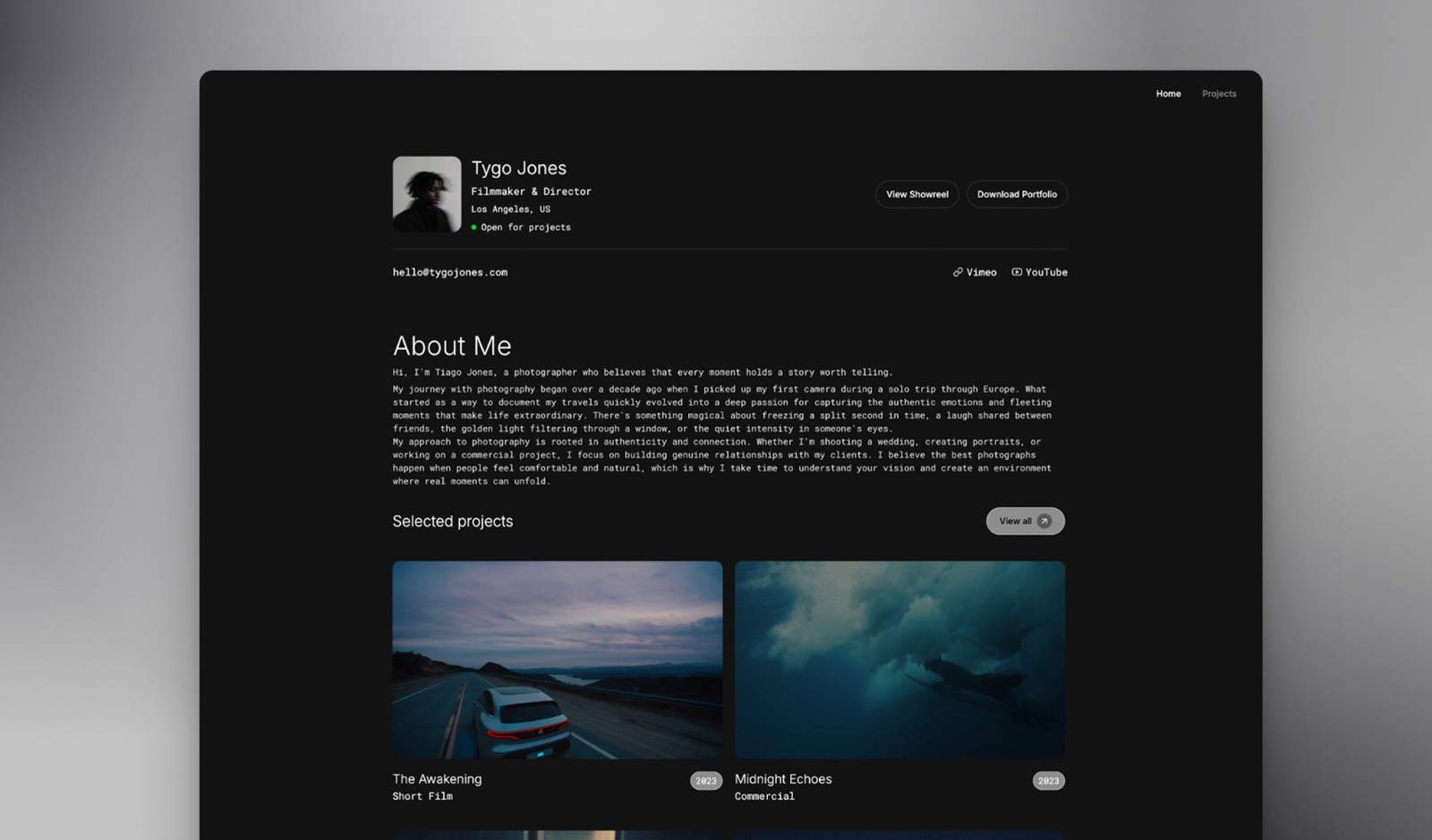
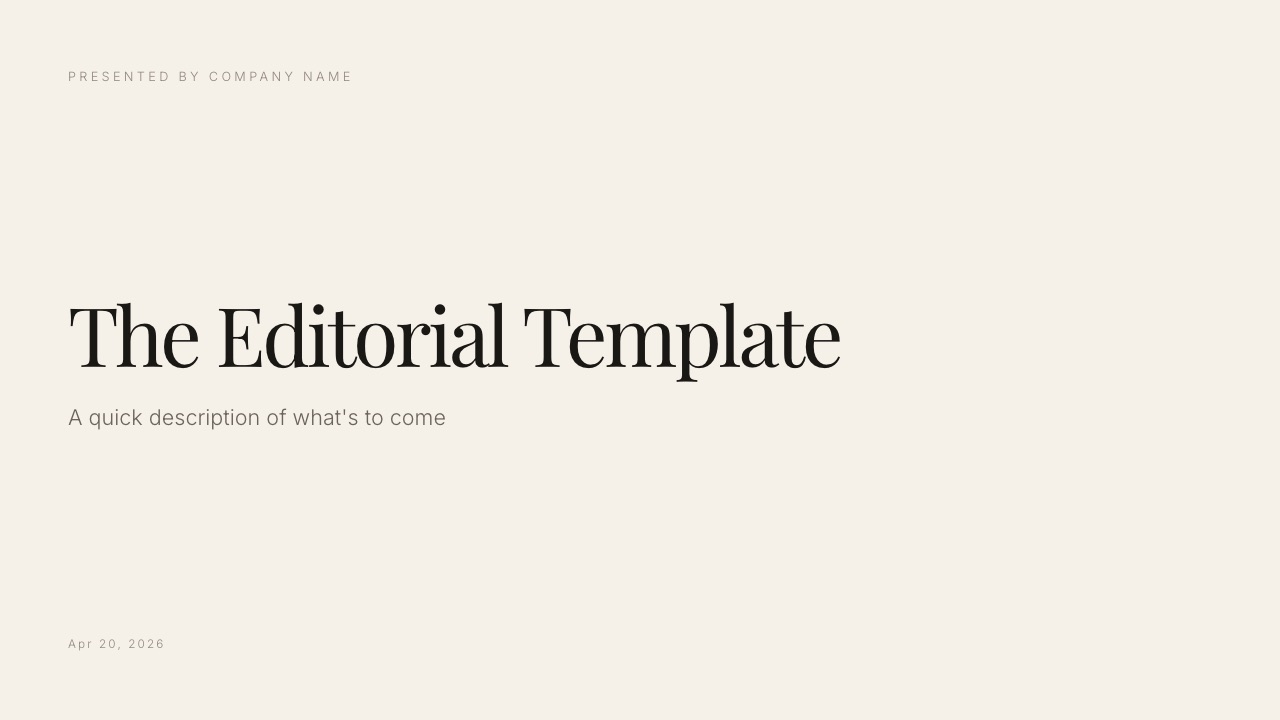
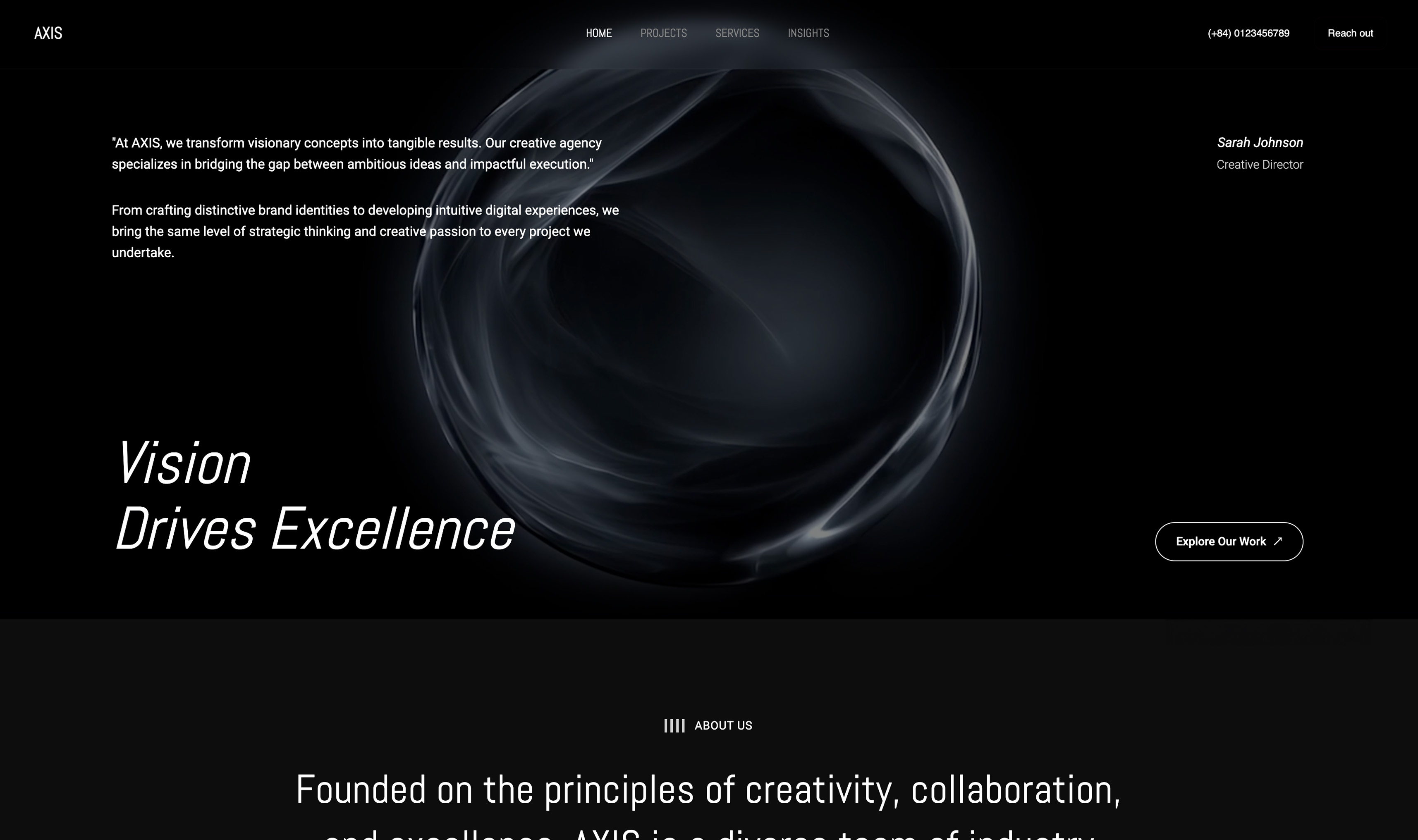
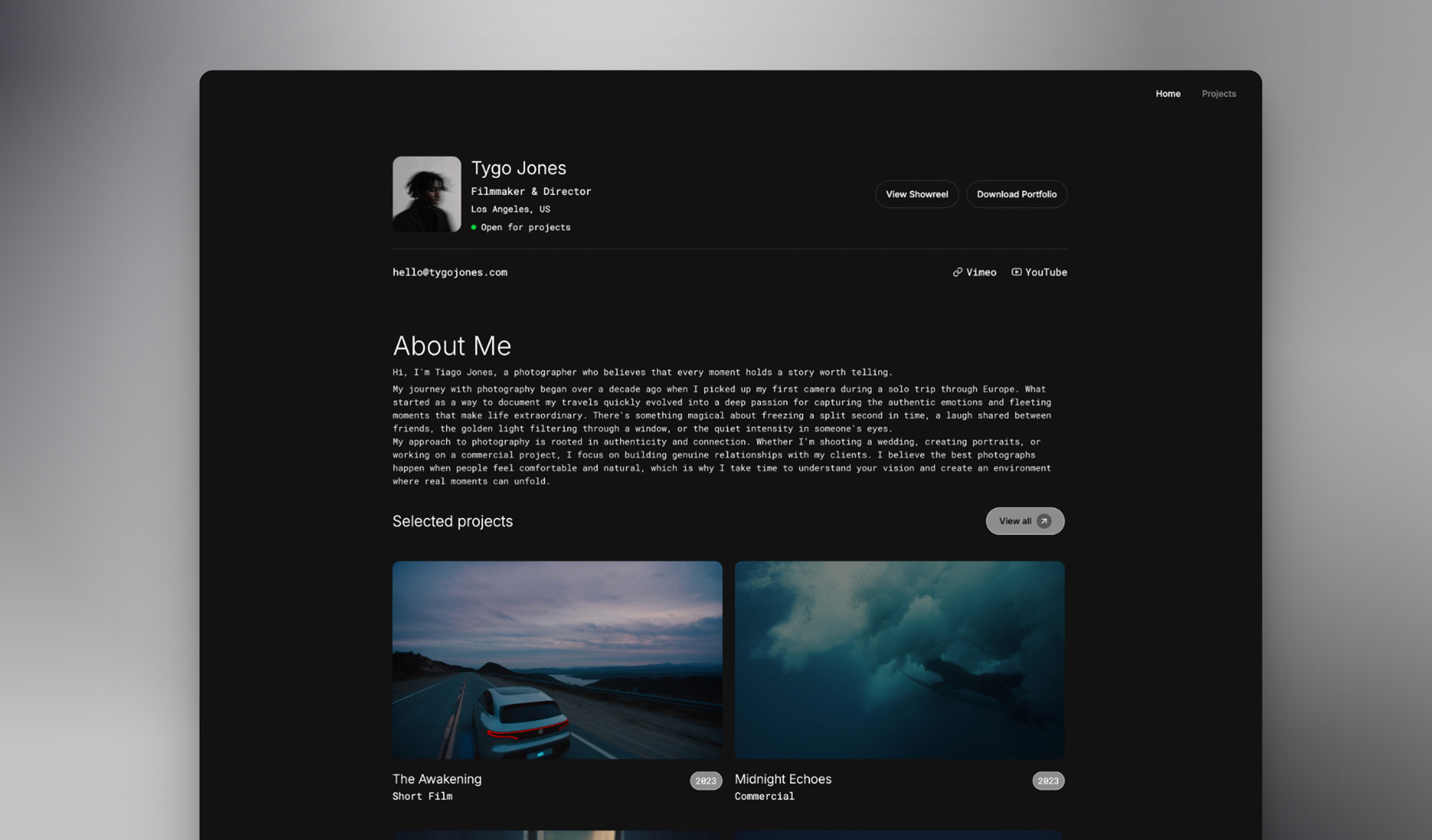
Start from a designer-made template
 Use template
 Use template
 Use template
 Use template
 Use template
 Use template
 Use template
 Use template
The PowerPoint versus Google Slides argument usually gets settled by whichever one your employer already pays for, which is a shame, because the two tools have drifted a long way apart and the differences now land in specific, checkable places rather than in vibes.
We built the same twenty-slide deck in both, converted it in both directions, and opened every version on a machine with none of the source fonts installed. What follows is what actually differed, priced, and with the failure modes named.
Our note on Framekit was re-verified on 19 September 2026, after it shipped a deck editor of its own, and both vendors' prices were re-verified on 20 September 2026.
A presentation tool is software that turns a sequence of designed slides into something you can present live, send as a file, or share as a link.
PowerPoint is the desktop-first version of that idea, sold inside Microsoft 365 with a free web companion.
Google Slides is the browser-first version, free at any team size, storing every deck in Google Drive and built around several people editing the same file at once.
Framekit Slides is a narrower third thing, made for the creative deck one person builds and sends, and it lives in the same account as that person's website and client galleries.
Google Slides wins for most people in 2026, because it is free at any team size, it is the only one of the two where an outside reviewer can comment without an account or a licence, and its charts stay linked to a spreadsheet so a recurring deck refreshes rather than gets rebuilt.
PowerPoint wins on three specific things worth paying $99.99 a year for: the Morph transition, proper font embedding so your deck looks the same on every machine, and full offline editing.
If your decks leave your organisation as files, choose PowerPoint. If they are circulated for comment, choose Slides.
Framekit is the runner-up for a treatment or lookbook that stays a link and a PDF, and it is no help at all when a group has to edit the same deck.
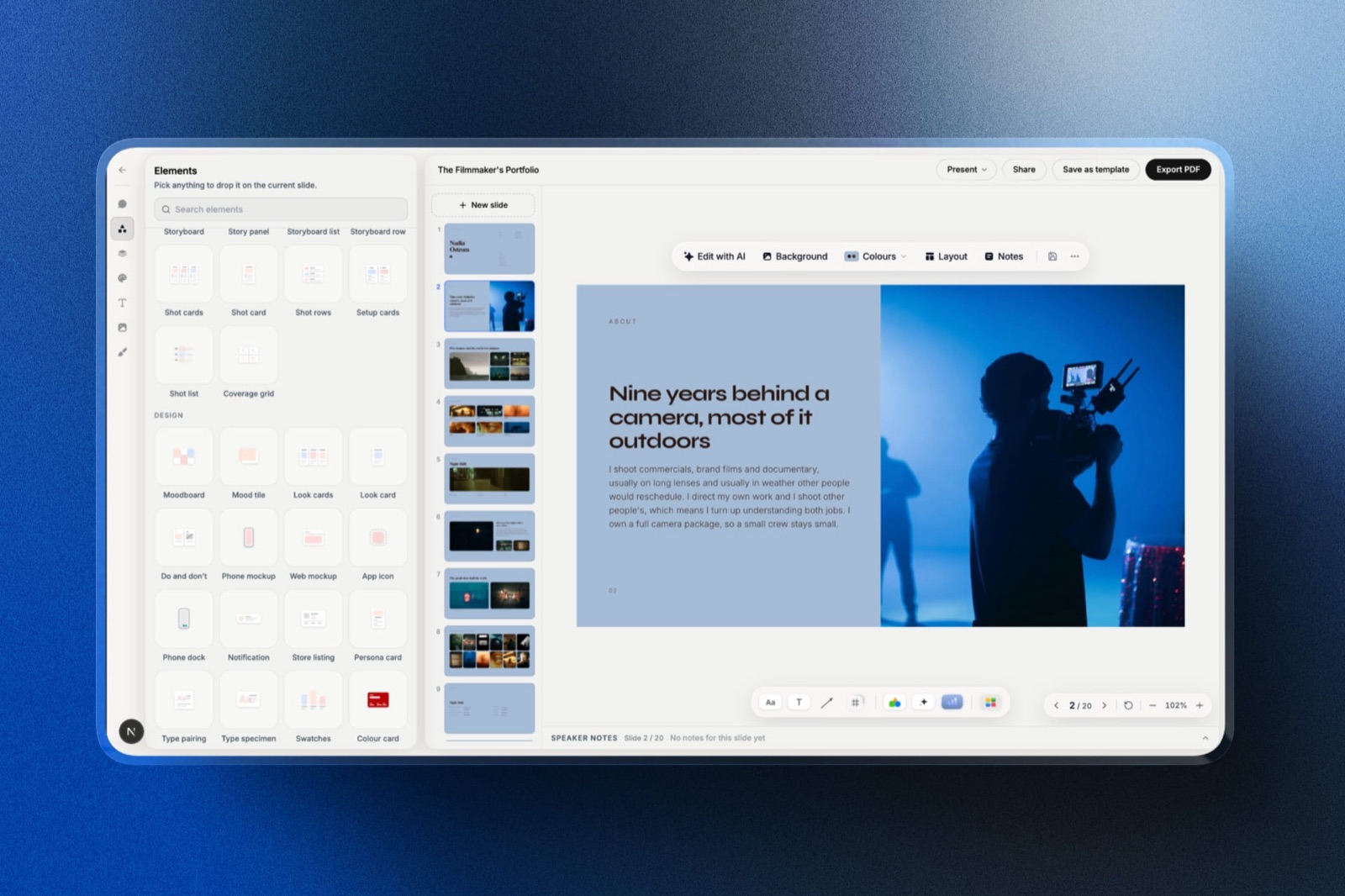
Framekit is an AI website builder for creative studios and portfolios that now includes Slides, a deck editor for pitch decks, treatments and lookbooks, free to start with PDF export on every plan.
How We Compared PowerPoint and Google Slides
We built a twenty-slide company overview twice, once natively in each tool: a full-bleed cover, four image spreads, two data charts driven by the same spreadsheet, a five-person team grid, a build-heavy process slide with six sequential reveals, one morph-style logo transition, and a closing slide using a licensed display font.
Then we did the part most comparisons skip. We converted the PowerPoint version into Google Slides and the Google Slides version into PowerPoint, opened both on a Windows laptop and a Mac with none of our fonts installed, and logged every visible change.
Cost was priced for one person and for a five-person team, at published annual rates.
Collaboration was tested with three simultaneous editors and one outside reviewer who had neither a Microsoft nor a Google account.
Offline was tested by disabling networking mid-edit in both tools and attempting to finish a slide.
Where the evidence comes from: the builds, conversions, font tests, and offline tests are ours, done by hand in August 2026. Prices come from Microsoft's and Google's own published pages, linked below.
Anything we describe as a common complaint is drawn from public reviews and labelled as such rather than presented as our finding.
PowerPoint vs Google Slides at a Glance
| PowerPoint | Google Slides | |
|---|---|---|
| Price, one person | $99.99/yr (Microsoft 365 Personal) | $0 |
| Price, five people | $199.99/yr (Family, up to 6) | $0, or $420/yr on Workspace |
| Free version | Yes, web only | Yes, full |
| Real-time co-editing | Yes, via OneDrive | Yes, native |
| Guest comments without an account | No | Yes |
| Morph or equivalent transition | Yes | No |
| Font embedding | Yes | No |
| Full offline editing | Yes, desktop app | Partial, browser extension |
| Charts linked to a live spreadsheet | Yes, via Excel | Yes, via Sheets |
| Version history | Yes | Yes, named and granular |
Round 1: What Each One Costs
Google Slides costs nothing and PowerPoint costs $99.99 a year, and the interesting part is how little that gap moves when you add people. Microsoft 365 Family covers up to six people for $199.99 a year, which is about $33 each, so PowerPoint's per-head cost actually falls faster than most subscription software.
Google Slides stays free at any headcount. Google Workspace Business Starter at $7 per user a month is not a Slides licence; it buys a company domain, admin controls, and more Drive storage, and plenty of small teams never need it.
There is also a one-time route on the Microsoft side.
Office Home 2024 is a perpetual licence at around $149.99 with no upgrade path to the next release, which usually works out worse than the subscription for anyone who keeps a machine more than three years, and better for someone who wants to buy software once and never think about it.
In one linefor a five-person team the honest gap is $199.99 a year against zero, which is small enough that cost should not be the deciding factor unless you are at real scale.
Round 2: Collaboration, Where the Gap Is Widest
Google Slides wins this round outright, and the deciding detail is not real-time editing, which both tools now do competently. It is what happens when someone outside your organisation needs to look at the deck.
Our outside reviewer, with no Google account, opened a Slides link and left five comments in a browser tab.
The same person opening a PowerPoint file shared from OneDrive was asked to sign in with a Microsoft account before they could comment.
For agencies, freelancers, and anyone whose decks are reviewed by clients, that is the difference between feedback arriving and feedback arriving as an email saying "on slide 8, the third bullet".
Three simultaneous editors worked cleanly in both. PowerPoint's co-authoring is genuinely good now, provided everyone works from the shared OneDrive copy.
The moment one person downloads the file and emails it back, you are versioning by filename again, and nothing in the product prevents that.
Version history goes to Slides as well. Named versions and per-edit granularity meant we could restore the state of the deck from before a round of client notes, without losing the two unrelated fixes made afterwards.
In one lineif your deck is reviewed by people who do not work for you, Google Slides removes a step that PowerPoint cannot, and that single difference decides this comparison for most agencies and freelancers.
Round 3: Design Ceiling and Templates
PowerPoint wins on design, though by less than its reputation suggests.
Its advantages are concrete: real font embedding, more precise object alignment tools, a genuinely useful Designer pane that proposes layouts from your content, and slide masters that enforce inheritance across a long deck.
Google Slides has almost none of that. Its theme system is shallow, its default fonts are limited to what Google Fonts offers, and there is no equivalent of Designer. Our Slides rebuild looked fine and looked like Google Slides, which is a specific and recognisable aesthetic.
The gap narrows if you import a template. Both tools accept third-party template packs, and a well-made Slides template closes perhaps two thirds of the distance. What it cannot close is font embedding, which is the next round.
In one linePowerPoint's design ceiling is higher and the practical difference for a deck built from a decent template is smaller than the reputation gap implies.
Round 4: Fonts, and the Failure Nobody Warns You About
This is the round with the most expensive consequences, and it is the one people discover after sending the deck rather than before.
PowerPoint can embed fonts in the file when the licence permits it. Our licensed display font travelled with the .pptx and rendered correctly on a Windows machine that had never seen it. Google Slides cannot embed fonts at all.
A Slides deck using a font outside the Google Fonts library will silently substitute for anyone who does not have it installed, and neither you nor they will be told.
Silent substitution is worse than a visible error, because the deck still looks plausible. Our test deck opened on a colleague's machine with the display face replaced by a default sans, the title reflowed to two lines, and nothing indicated anything was wrong.
The practical workaround in Slides is to restrict yourself to Google Fonts, which is a real library and a real constraint, or to place headline type as an image, which makes it uneditable.
In one lineif your brand depends on a licensed typeface, Google Slides will break it on other people's machines without telling you, and that alone is worth $99.99 a year to some studios.
Round 5: Motion and Transitions
PowerPoint wins, primarily on one feature. The Morph transition interpolates between two slides by matching objects, so a logo that moves and scales between slide three and slide four animates smoothly with no keyframing.
Our six-step build slide and the morph sequence both took under five minutes.
Google Slides has a fixed set of slide transitions and per-element animations, and no morph. Rebuilding the same sequence took eleven minutes and produced something that reads as a series of moves rather than one continuous motion.
For most business decks this does not matter at all. For a studio whose deck is partly a demonstration of craft, it does.
In one lineMorph is the single clearest capability PowerPoint has that Google Slides does not, and whether it matters depends entirely on whether anyone in your audience notices motion.
Round 6: Working Offline
PowerPoint wins, and the margin is larger than the feature lists suggest. We disabled networking mid-edit in both. The PowerPoint desktop application carried on with no perceptible change, saved locally, and synced when the connection returned.
Google Slides offline requires enabling offline access in Chrome ahead of time, works only in Chrome or Edge, and only for files you have marked. In our test, a deck that had not been marked for offline access was simply unavailable.
On a plane, before a pitch, that is a genuinely bad half hour.
In one lineif you regularly work without a connection, PowerPoint's desktop application is not a preference, it is a requirement, and Google Slides offline is a feature you must remember to turn on before you need it.
Round 7: Charts and Recurring Decks
Google Slides wins this round, and it is the most underrated advantage in the comparison. A chart inserted from Google Sheets stays linked. When the sheet updates, a small update button appears on the slide, and the chart refreshes with the new data and keeps its formatting.
PowerPoint offers the same idea through linked Excel data, and in practice it is more fragile: the link depends on file paths, breaks when the workbook moves, and behaves differently between the desktop and web versions.
Our linked chart survived in Slides through a location change and broke in PowerPoint.
For a monthly or quarterly deck that is mostly the same slides with new numbers, this turns a rebuild into a refresh.
In one linefor any deck you produce repeatedly with updated data, Google Slides plus Sheets is the more reliable pipeline, and that is worth more over a year than any single design feature.
Round 8: AI Features
Both have them and neither is a reason to choose. PowerPoint includes Designer, which suggests layouts from your content and is genuinely useful, and Presenter Coach, which critiques your delivery pace and filler words.
Deeper generative features arrive through Microsoft's Copilot, which is a separate paid add-on rather than part of the base subscription.
Google's Gemini features in Slides can generate imagery and draft slides, and are tied to specific Workspace tiers rather than the free version. On a free Google account, most of the generative features are limited or absent.
Neither tool's AI matches a dedicated generator like Gamma for producing a first draft from a prompt, which is why plenty of people draft elsewhere and finish in one of these two.
In one linetreat AI as a tiebreaker rather than a deciding factor, because the useful features on both sides sit behind additional paid tiers rather than in the products you are comparing.
What Breaks When You Convert Between Them
We converted in both directions and logged every visible change, because this is what actually happens when a deck moves between an agency and a client.
PowerPoint to Google Slides. The Morph transition became a fade. Embedded fonts were dropped and substituted. SmartArt diagrams converted to grouped shapes that could no longer be edited as diagrams.
Our six-step build survived as six animations but with different timings. Two of twenty slides needed manual fixing.
Google Slides to PowerPoint. Far cleaner in general, with one significant exception: linked Sheets charts converted to static images and lost their connection to the data.
Theme fonts mapped correctly because they were Google Fonts available on both machines. One slide's text box reflowed by a few pixels.
The direction that mattersSlides to PowerPoint is the safer conversion, which is a useful thing to know if you are choosing where to originate a deck that will end up in a client's hands. Build in Slides, deliver as .pptx, and you lose only the chart links.
In one lineconverting from PowerPoint into Google Slides loses more than the reverse, so originate in Slides when the deck's destination is uncertain.
When Neither One Is the Right Answer
There is a third case worth naming, because a lot of decks in both tools are not really presentations.
A capabilities overview, a services page, a rate card, a case study you send to a different prospect every month: these are documents you maintain and re-send, and both PowerPoint and Google Slides are poor containers for them.
A slide file goes stale in someone's downloads folder, is invisible to search, and shows a different version to whoever downloaded it in March. A page on your own domain does not have any of those problems.
We build Framekit, so treat this as a disclosed interest rather than neutral advice.
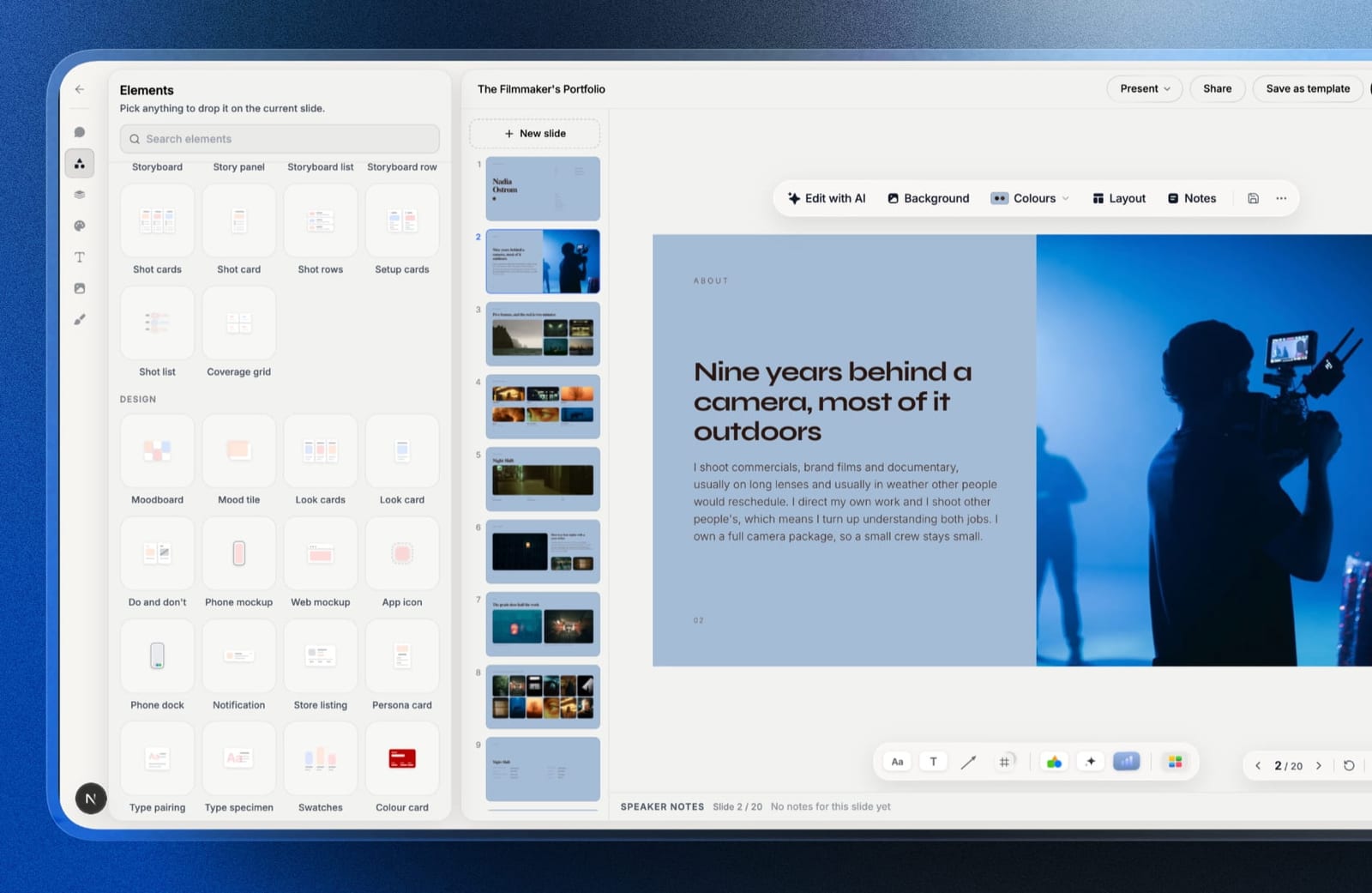
Framekit now ships Slides, a deck editor made for creative work: templates for treatments, lookbooks and pitch decks, AI that drafts a slide from a description, your own fonts and colours on every slide, speaker notes, full-screen presenting, a share link, and PDF export on every plan.
Note the limits as plainly: there are no comments on decks, no live co-editing, no Google Slides import, and its PowerPoint export (Pro and up) turns each slide into a picture rather than editable text, so a team that edits decks together or hands native .pptx files to a Microsoft organisation should stay with one of the two tools above.
We have not put Slides through the twenty-slide test in this article.
Where Framekit fits best is the creative's deck one person builds and sends, and, for the document you keep re-sending, a page on your own domain rather than a file.
Which Should You Choose?
Answer these in order and stop at the first yes.
1. Do people outside your organisation review your decks? Choose Google Slides. Guest commenting without an account removes a step nothing in PowerPoint replaces.
2. Does your brand use a licensed font that is not on Google Fonts? Choose PowerPoint. Slides will substitute it silently on other people's machines.
3. Do you work offline regularly? Choose PowerPoint, for the desktop application.
4. Is the same deck reproduced monthly or quarterly with new numbers? Choose Google Slides, and link the charts to Sheets.
5. Do your decks land inside large companies that will edit them? Choose PowerPoint, because .pptx is the native format there and nothing is lost in translation.
6. Are you a team of five or more on a tight budget? Choose Google Slides. The saving is $199.99 a year, which is real if small.
7. Is motion part of how your work is judged? Choose PowerPoint, for Morph.
8. Is the deck a treatment, lookbook or portfolio piece that one person owns end to end? Choose Framekit Slides, whose templates are built for that and whose PDF export is on every plan, and expect no comments and no co-editing.
9. Is the artefact something you send repeatedly rather than present? Neither. Publish it as a page.
Frequently Asked Questions
Is Google Slides as good as PowerPoint in 2026?
Google Slides is as good as PowerPoint for collaboration, version history, and recurring data-driven decks, and behind it on design ceiling, motion, font embedding, and offline work.
For a deck built from a decent template and reviewed by several people, the practical difference is small; for a design-led deck using a licensed typeface, PowerPoint is meaningfully better.
Can you open a PowerPoint file in Google Slides without breaking it?
You can open a .pptx in Google Slides, and some things break predictably: the Morph transition becomes a fade, embedded fonts are dropped and substituted, and SmartArt diagrams convert to grouped shapes that cannot be edited as diagrams.
In our twenty-slide test, two slides needed manual fixing after conversion.
Is PowerPoint free?
PowerPoint for the web is free with a Microsoft account and handles most everyday decks, minus the Morph transition and some advanced features.
The full desktop application requires Microsoft 365, which is $99.99 a year for one person or $199.99 a year for up to six, or a one-time Office Home 2024 licence at around $149.99 with no upgrade path.
Which is better for a team of five?
Google Slides is better for a team of five in most cases, because it costs nothing at any headcount and outside reviewers can comment without accounts.
Microsoft 365 Family covers six people for $199.99 a year, or about $33 each, so the cost argument is weaker than it first appears if the team needs offline editing or font embedding.
Does Google Slides work offline?
Google Slides works offline only if you enable offline access in Chrome or Edge in advance and mark the specific file, which means a deck you did not prepare for offline use will be unavailable without a connection.
PowerPoint's desktop application works offline by default with no preparation.
Can Google Slides embed custom fonts?
Google Slides cannot embed fonts, so any typeface outside the Google Fonts library will substitute silently on machines that do not have it installed.
The workarounds are to design within Google Fonts or to place headline type as an image, which makes that text uneditable for collaborators.
Which is better for converting decks between clients?
Building in Google Slides and delivering as .pptx is the safer direction, because Slides-to-PowerPoint conversion loses only linked chart connections, while PowerPoint-to-Slides loses transitions, embedded fonts, and editable SmartArt.
If you do not know where a deck will end up, originate it in Slides.
Does PowerPoint or Google Slides have better AI features?
PowerPoint's Designer layout suggestions and Presenter Coach are the more useful built-in AI features, while Google's Gemini features in Slides are tied to paid Workspace tiers rather than the free version.
Neither matches a dedicated AI generator for producing a first draft, which is why many people draft in a tool like Gamma and finish in one of these.
Should a client-facing deck be a slide file or a web page?
A client-facing deck should stay a slide file when it is presented live or handed over for editing, and should become a web page when it is sent repeatedly without changes, because a page stays current for everyone holding the link and can be found in search.
Most studios have a mix and treat all of it as slides by default.
Do charts update automatically in either tool?
Charts inserted from Google Sheets into Google Slides stay linked and refresh with a single click when the source data changes, which makes recurring decks much faster to produce.
PowerPoint supports linked Excel data too, but the connection depends on file paths and broke in our test when the workbook moved, so it is the less reliable of the two.
Final Verdict
Google Slides is the better default in 2026 for freelancers, agencies, and any team whose decks are reviewed by people outside the company, because guest commenting, free seats, and live Sheets-linked charts solve real weekly problems.
PowerPoint earns its $99.99 a year in three specific situations: a licensed brand typeface, regular offline work, and decks that need Morph or must land natively inside a Microsoft organisation.
The trade-off worth stating plainly is that Google Slides will not tell you when it breaks your fonts on someone else's screen, and PowerPoint will not let a client comment without an account. Neither is a small thing, and which one you can tolerate is the actual decision.
Framekit Slides competes with both only at the creative end, for a pitch deck, treatment or lookbook that one person builds, presents and shares as a link or PDF; for comment rounds, co-editing or native .pptx it will not replace them.
Where we would push back is on the assumption that every deck should be a deck, because a fair number of them are pages that never got published.
Related reading: our roundups of the best PowerPoint alternatives, the best Google Slides alternatives, the best free presentation software, and the best presentation software overall.
Prices here reflect Microsoft's and Google's published rates in August 2026, and both companies adjusted subscription pricing within the past two years, so check the current figure before renewing.