Framekit templates
Start from a designer-made template
 Use template
 Use template
 Use template
 Use template
 Use template
 Use template
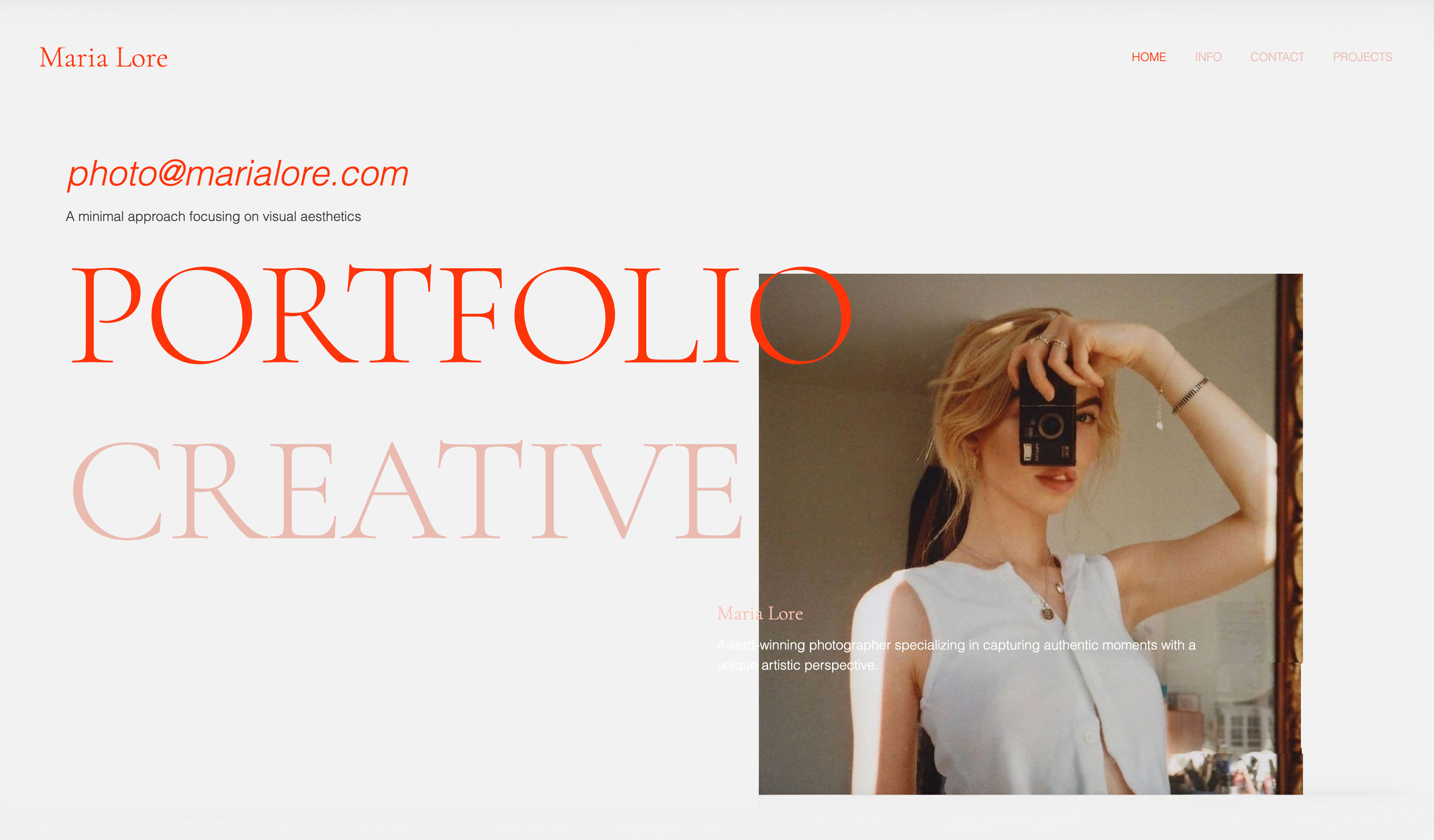 Use template
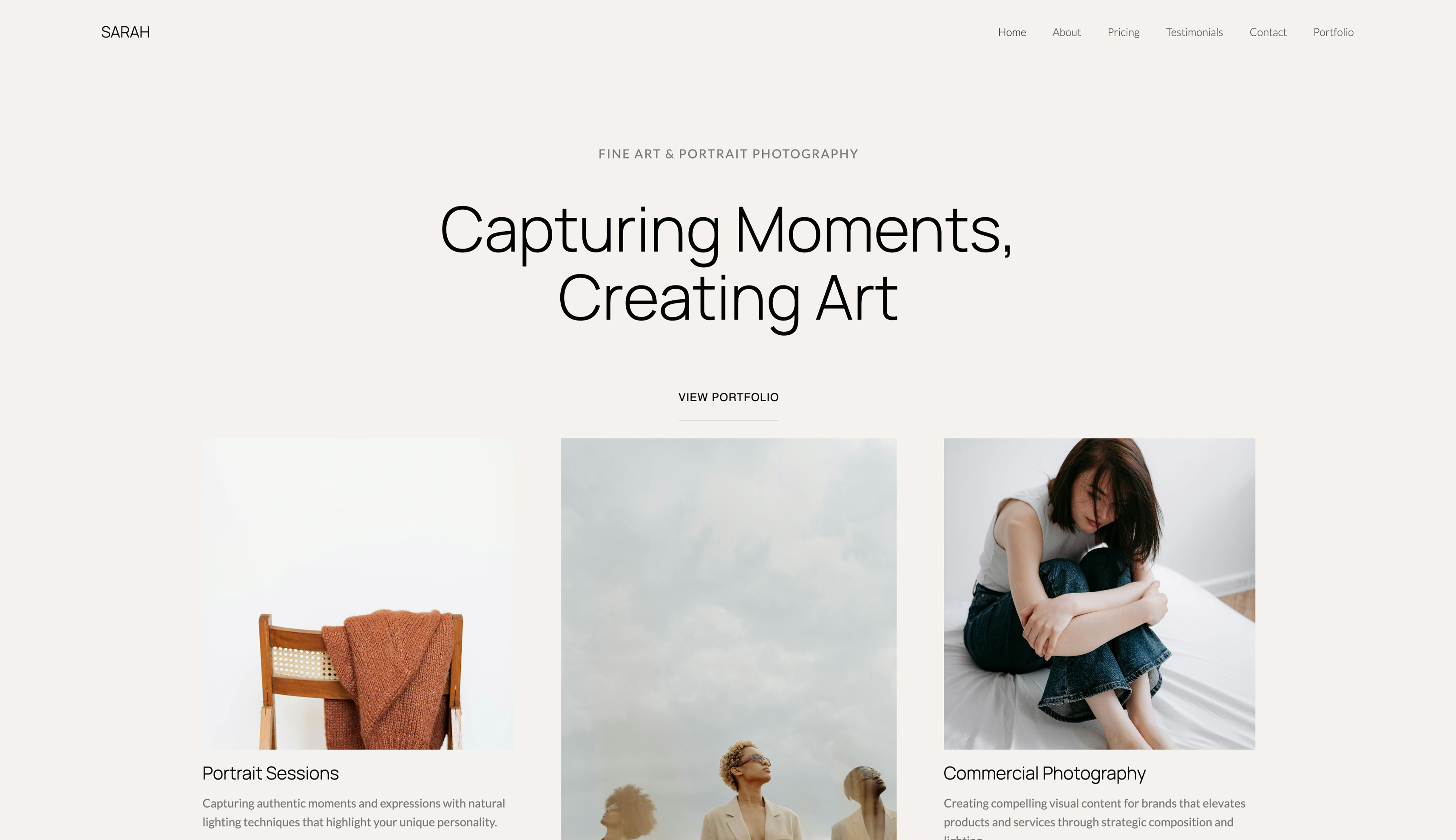 Use template
Most people asking whether to use Canva or PowerPoint have already used both and are trying to justify dropping one.
That is a reasonable instinct and it usually goes wrong in the same way: the comparison gets made on the editor, when almost every consequence lands somewhere else, at export, at handover, or on the invoice.
So we built the same twenty-slide deck in both, sent both to the same five people, and priced a year of each for one person and for a team of five.
A presentation maker is software that lays out slides, handles typography and motion, and gets the finished deck to an audience as a live show, an exported file, or a shareable link.
Canva arrives at that job from design, with the deck as one output among many. PowerPoint arrives from documents, with the deck as the whole product.
Canva is better in 2026 for most freelancers, small studios, and marketing teams, because its template depth and Brand Kit produce a better-looking deck faster and the free tier is genuinely usable.
PowerPoint is better for anyone whose deck has to be edited inside a client organisation or presented offline, because .pptx is the native format there, fonts embed properly, and the desktop application does not need a connection.
The cost difference is smaller than people assume: Canva Pro is $144 a year and Microsoft 365 Personal is $99.99, so PowerPoint is actually the cheaper of the two paid tiers.
Framekit is the runner-up worth a look for a studio whose decks are treatments and case studies that live beside the portfolio site, and the wrong answer for a file that leaves your hands editable.
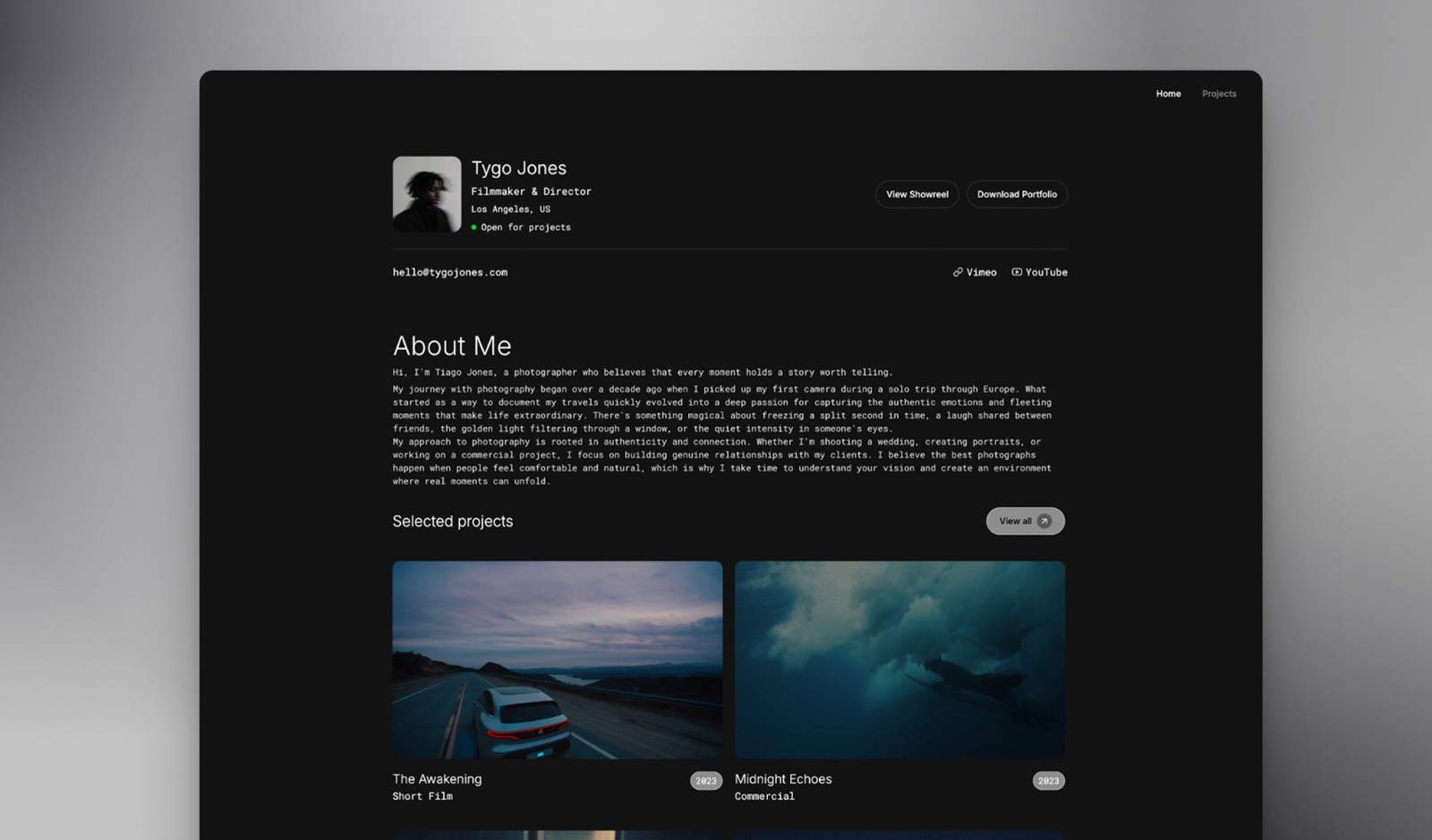
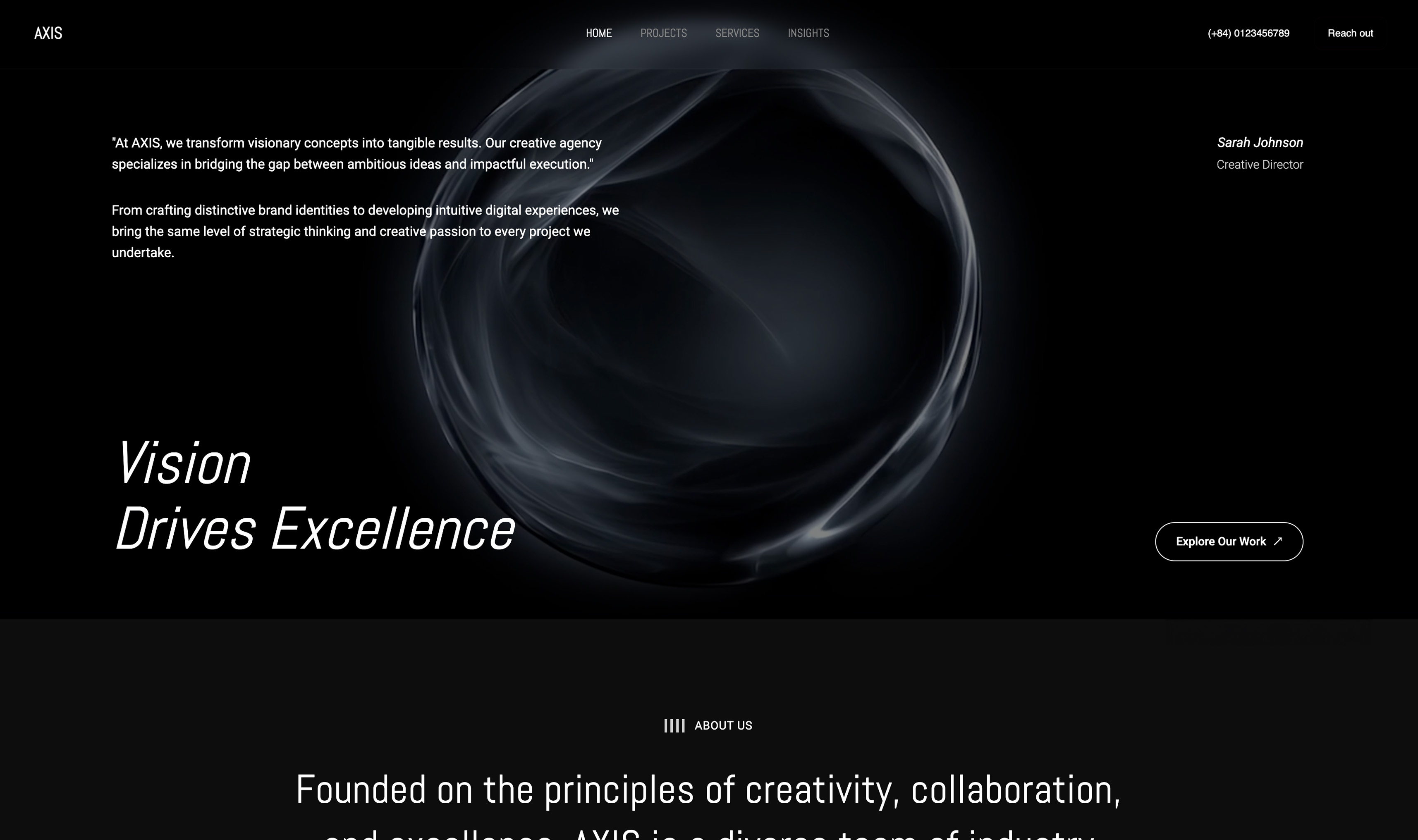
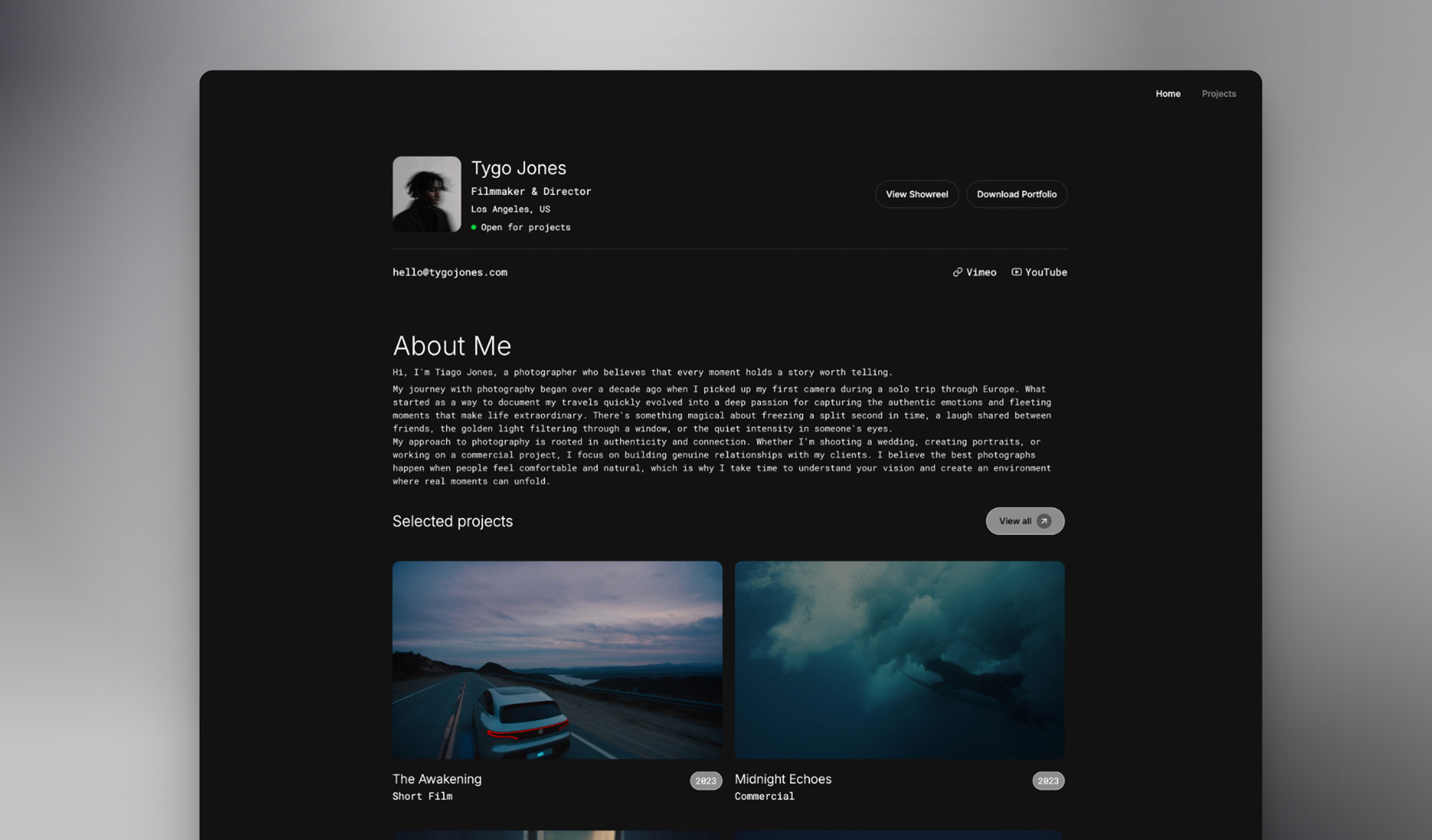
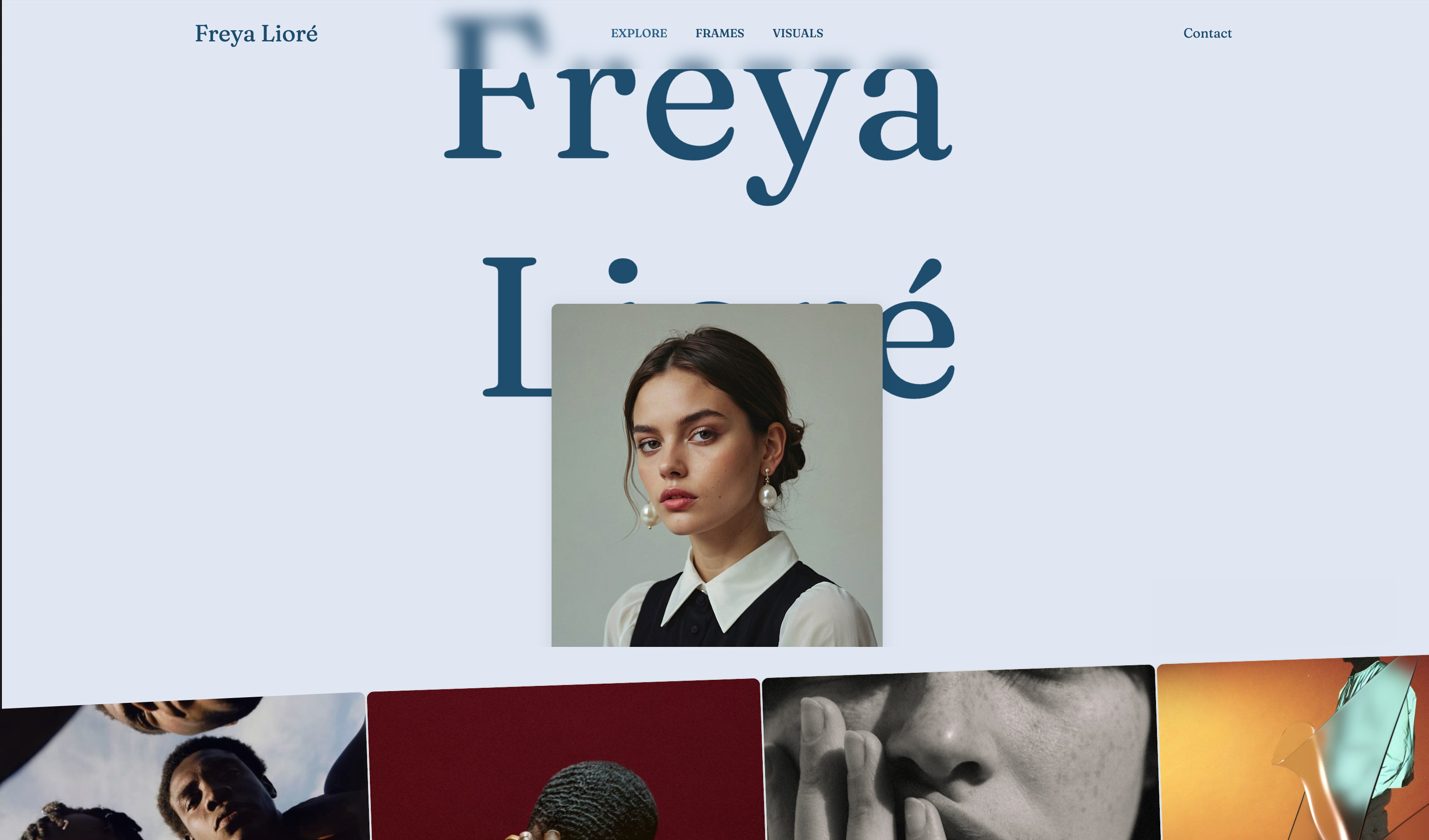
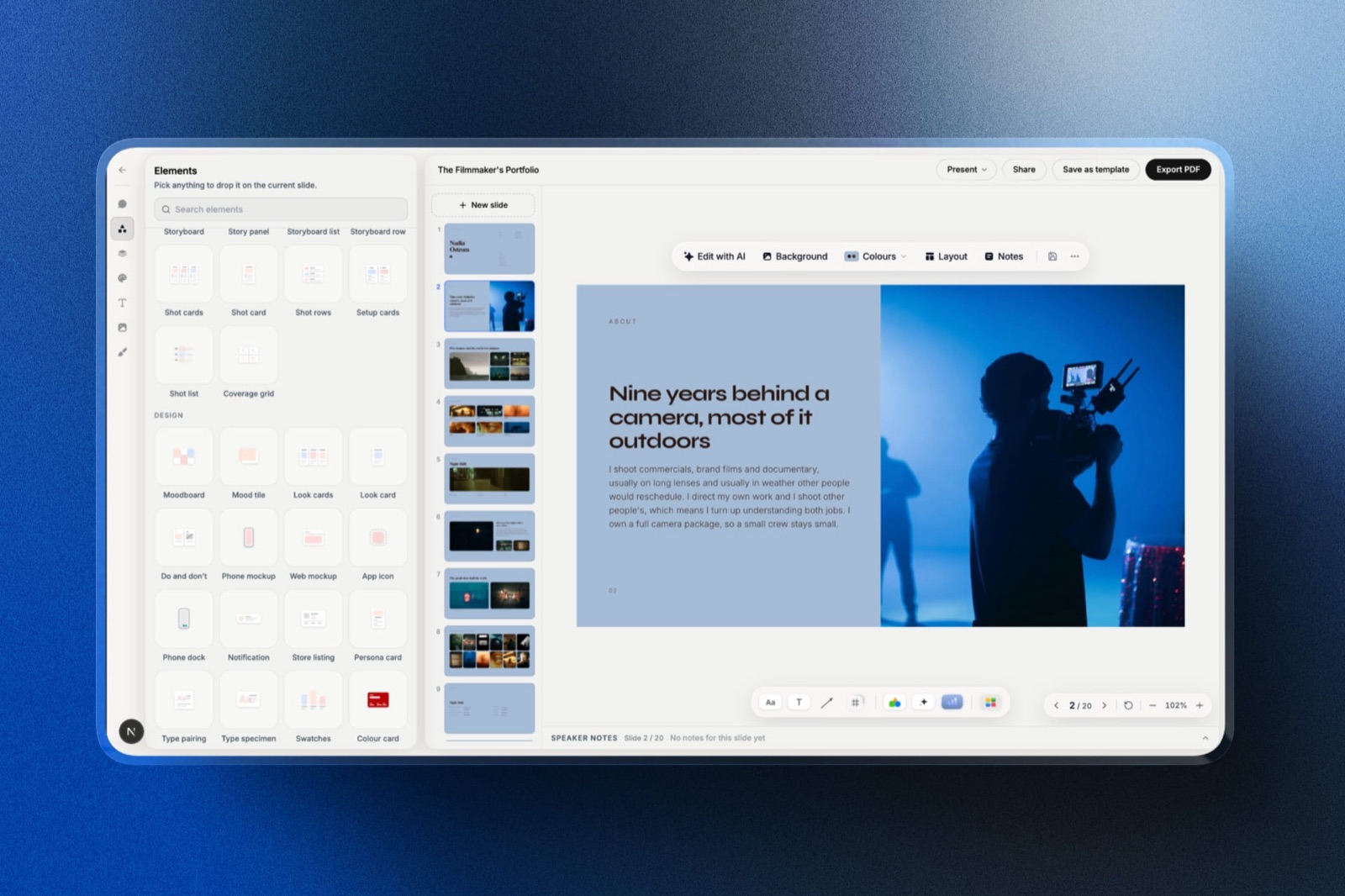
Framekit is an AI website builder for creative studios whose account also holds Slides, a deck editor aimed at treatments, lookbooks and portfolio decks, plus client galleries and a digital store, and it is free to start.
It was not one of the two tools we built the test deck in, and the limits are set out further down.
How We Compared Canva and PowerPoint
We built a twenty-slide client-facing deck twice, natively in each tool: a full-bleed cover, four photo-led spreads with tight crops, a services grid, a two-column pricing table, two data charts, a six-step build slide, an object-morph logo sequence, and three slides in a licensed display face.
Then we tested the parts that decide real projects. We exported both to .pptx and PDF and opened them on a Windows machine with none of our fonts installed.
We shared the editable version with five reviewers, two of whom had neither a Canva nor a Microsoft account. And we disabled networking mid-edit in both to see what survived.
Design output, judged on the finished slides rather than the feature list.
This comparison was re-verified on 20 September 2026, when both subscription prices were rechecked and a stale line denying that Framekit has a slide editor, speaker notes or a .pptx export was corrected.
Speed, timed from blank file to finished deck by the same person, twice, a week apart.
Export fidelity, measured by counting slides that needed manual repair after conversion.
Cost, priced for one person and for five, at published annual rates.
Where each finding comes from: the builds, exports, reviewer sends, and offline tests are ours, run in August 2026. Prices are Canva's and Microsoft's own published figures, linked below.
Recurring criticisms we could not test ourselves are described as reviewer sentiment and labelled as such.
Canva vs PowerPoint at a Glance
| Canva | PowerPoint | |
|---|---|---|
| Price, one person | Free, or $18/mo and $144/yr for Pro | $99.99/yr (Microsoft 365 Personal) |
| Price, five people | $1,500/yr (Teams at $25/user/mo) | $199.99/yr (Family, up to 6) |
| Free version | Yes, substantial | Yes, web only |
| Template depth | Very large | Moderate |
| Brand controls | Brand Kit on Pro | Slide masters and themes |
| Font embedding on export | No, substitutes | Yes, when licensing permits |
| Object-morph transition | Match and Move | Morph |
| Full offline editing | No | Yes, desktop app |
| Charts from a spreadsheet | Basic | Strong, via Excel |
| Print and physical output | Yes, with fulfilment | No |
Round 1: Which One Produces a Better Deck
Canva wins, and the margin is wider than PowerPoint users expect.
Our Canva build took thirty-two minutes against PowerPoint's fifty-one, and the result was better on almost every slide that involved a photograph, because Canva's crop and focal-point handling is far more forgiving when a portrait image lands in a landscape frame.
The template library is the real advantage rather than the editor. Searching for a client pitch layout in PowerPoint returns a modest set, several of which have been in the product for a decade.
The same search in Canva returns enough good starting points that the problem becomes choosing.
PowerPoint's counter-argument is precision. Its alignment and distribution tools are better, its animation pane gives you frame-level control that Canva simply does not offer, and slide masters enforce structure across a long deck in a way Canva's page duplication does not.
In one lineCanva raises the floor dramatically for anyone who is not a designer, and PowerPoint retains a higher ceiling for anyone who is, which means the right answer depends less on the tools than on who is making the slides.
Round 2: What Each One Costs
PowerPoint is cheaper, which surprises almost everyone. Microsoft 365 Personal is $99.99 a year and includes 1TB of storage and the full desktop applications. Canva Pro is $18 a month, or $144 a year, for one person.
At five people the gap becomes enormous in the same direction. Microsoft 365 Family covers up to six people for $199.99 a year, about $33 each. Canva Teams is $25 per user a month, so five people cost $1,500 a year, which is 7.5 times as much.
Canva's free tier is the counterweight and it is genuinely substantial: real templates, real editing, and exports without a watermark. What you lose is Brand Kit, background removal, the premium asset library, and Magic Switch. Plenty of solo users never miss any of it.
In one linefor one person the paid tiers are close and PowerPoint is $44 cheaper, and for a team of five PowerPoint costs $199.99 against Canva's $1,500, which reverses the assumption most people bring to this comparison.
Round 3: Collaboration and Review
Canva wins, but less decisively than its reputation suggests. Both tools support several people editing at once. Canva's advantage is that a share link opens in a browser and works immediately, with comment permissions granted per link.
The specific weakness both share: neither lets a genuinely anonymous reviewer comment. Canva requires an account to comment, as does PowerPoint through OneDrive.
Two of our five reviewers had to sign up for something in both cases, which is exactly the friction Google Slides avoids.
PowerPoint's co-authoring works properly only when everyone edits the shared OneDrive copy. In practice, someone always downloads and emails it back, and no feature in the product prevents that.
In one lineCanva makes sharing easier and neither tool lets a client comment without signing up for an account, which is the single friction point that decides a lot of agency workflows.
Round 4: What Survives the Export
PowerPoint wins, and this is the round with the most expensive consequences.
Exporting our Canva deck to .pptx produced a file that opened correctly on Windows, with one important failure: the licensed display face substituted silently.
Canva does not embed fonts, so type set in anything outside the recipient's installed set is quietly replaced. Three slides looked wrong and none of them looked broken, which is worse.
The standard fix, outlining headline type as an image, works and makes that text uneditable.
PowerPoint embeds fonts in the file when the licence permits it, so the same deck rendered identically on a machine that had never seen the typeface.
Animations degraded in both directions. Canva's Match and Move became a fade in .pptx, and PowerPoint's Morph does not exist when a .pptx is imported into Canva.
In one lineif a client edits your deck, PowerPoint's font embedding is the single most valuable thing on this page, because a silent substitution is the failure you find out about after the meeting.
Round 5: Working Offline
PowerPoint wins outright and it is not close. The desktop application carried on editing with networking disabled, saved locally, and synced later. Canva is a browser product; with the connection cut, editing stopped.
Canva's offline story is a mobile app with limited capability and a general assumption that you are online. For anyone who works on planes, trains, or in venues with hostile wifi, this is a hard constraint rather than an inconvenience.
In one lineCanva assumes a connection and PowerPoint does not, so if you have ever finished a deck in the hour before a pitch on airport wifi, that experience should decide this comparison for you on its own.
Round 6: Charts and Data
PowerPoint wins. Its chart engine is built on Excel, supports linked workbooks, offers many more chart types, and gives real control over axes, series formatting, and secondary scales.
Canva's charts accept pasted data or a linked Google Sheet and cover the common types competently. Beyond a bar, line, pie, or simple scatter, you will be pasting an image from somewhere else. In our rebuild, one of two charts had to be substituted with a simpler type.
In one lineif more than a quarter of your slides carry data, PowerPoint's chart engine is a genuine capability gap rather than a stylistic preference, and Canva will send you looking for a second tool.
Round 7: Everything Canva Does That PowerPoint Does Not
This is the round that is usually left out, and for a lot of small businesses it is decisive. A Canva subscription is not a presentation subscription.
The same account produced our deck, the social carousel promoting it, the printed leave-behind, and the client-facing one-pager, from one Brand Kit.
Magic Switch converts a finished deck into a different format with the layout intact rather than as a naive resize, which removed roughly a third of the production time when we repurposed the deck as a social set.
Present and record produces a shareable link with your face in the corner over the playing slides, which is closer to what a forwarded deck needs than any file.
PowerPoint has none of this. It has add-ins, macros, and deep enterprise integration instead, which matter enormously in a corporate context and not at all to a two-person studio.
In one linethe honest way to compare these tools is not deck against deck but subscription against subscription, and Canva's covers four jobs where PowerPoint's covers one very thoroughly.
The Real Cost Over Three Years
Software price is only half of it. The other half is what each tool costs you at handover, which does not appear on any invoice.
| Canva | PowerPoint | |
|---|---|---|
| One person, 3 years | $432 (Pro) or $0 (free tier) | $299.97 (Microsoft 365 Personal) |
| Five people, 3 years | $4,500 (Teams) | $599.97 (Family, covers 6) |
| Cost when a client edits the file | Fonts substitute silently; rebuild risk | None; native format |
| Cost when you work offline | Editing stops | None |
| Covers social, print, and documents too | Yes | No |
A test you can run in ten minutes. Open your last five decks. Count how many were handed over as editable files, and count how many were repurposed into something that was not a deck.
If handovers outnumber repurposes, PowerPoint is the cheaper tool in both money and time. If repurposes outnumber handovers, Canva's higher price is buying you a second and third tool you would otherwise pay for separately.
When Neither Is the Right Container
Some of the work in both tools is not a presentation. A capabilities overview, a services one-pager, a rate card, a case study you re-send to a new prospect every month.
These are documents you maintain, and both a .pptx and a Canva link are awkward homes for them, because a downloaded copy ages while the original changes and neither shows up when someone searches your studio name.
We build a website builder, so treat this as a disclosed interest rather than an impartial recommendation, and note the limits plainly: Framekit Slides has no live co-editing, no presenter view, and no editable .pptx, because its PowerPoint export arrives as pictures on Pro and up, so a deck a client has to edit belongs in Canva or PowerPoint.
The narrow claim is about the document you keep re-sending.
Which Should You Use?
The decision comes down to what happens to the deck after you finish it and who else has to touch it, so work through these in order and stop at the first yes rather than weighing everything at once.
1. Will a client or colleague edit the file in their own software? Use PowerPoint. Canva does not embed fonts and the substitution is silent.
2. Do you make social posts, print pieces, or documents as well as decks? Use Canva. One subscription covers all of it.
3. Do you need to work without a connection? Use PowerPoint.
4. Are you a team of five or more watching costs? Use PowerPoint. Microsoft 365 Family is $199.99 against Canva Teams at $1,500.
5. Is nobody on your team a designer? Use Canva. The floor it sets is the strongest argument in its favour.
6. Is a quarter or more of your deck charts? Use PowerPoint, for the Excel-backed chart engine.
7. Do you send decks to people who were not in the room? Use Canva, for Present and record.
8. Is the deck a treatment, lookbook or case study that sits beside your portfolio? Use Framekit Slides, which drafts it with AI and keeps it in the same account as the site, on the understanding that nobody else can edit it live.
9. Is the artefact really a page you keep re-sending? Neither. Publish it once.
Frequently Asked Questions
Is Canva better than PowerPoint?
Canva is better than PowerPoint for design speed, template depth, and covering social and print work from the same subscription, which makes it the stronger choice for freelancers and small marketing teams.
PowerPoint is better for font embedding, offline editing, chart depth, and any deck that will be edited inside a client organisation.
Is Canva cheaper than PowerPoint?
Canva is more expensive than PowerPoint at every paid tier.
Canva Pro is $144 a year against Microsoft 365 Personal at $99.99, and Canva Teams at $25 per user per month costs $1,500 a year for five people against Microsoft 365 Family at $199.99 for up to six.
Canva's free tier is the exception and is genuinely usable.
Does Canva export to PowerPoint properly?
Canva exports to .pptx and the files open correctly, with one significant caveat: Canva does not embed fonts, so any typeface the recipient does not have installed is substituted silently.
Animations also degrade, with Canva's Match and Move becoming a simple fade. Outlining headline type before export avoids the font problem and makes that text uneditable.
Can you use Canva offline?
Canva cannot be used offline in any meaningful way, because it is a browser-based product that assumes a connection, and editing stops when the connection is cut. The mobile apps offer limited capability without a network.
PowerPoint's desktop application works fully offline and syncs when the connection returns.
Which is better for a business presentation?
PowerPoint is better for a business presentation that will be circulated inside a company, edited by others, or presented from a machine you do not control, because .pptx is the native format there and fonts embed correctly.
Canva is better for a client-facing pitch where the visual quality of the deck is part of what is being sold.
Does Canva have a Morph transition like PowerPoint?
Canva's Match and Move animation preset does the same job as PowerPoint's Morph, matching elements between two pages and interpolating the movement, and in our testing it produced results close enough that most audiences would not distinguish them.
Neither transition survives being exported into the other tool's format.
Is Canva's free plan good enough for presentations?
Canva's free plan is good enough for most presentations, offering real templates, full editing, and exports without a watermark.
What it withholds is the Brand Kit, background removal, the premium asset library, and Magic Switch, which matter to teams enforcing a visual identity and rarely to a solo user making occasional decks.
Which one is better for charts and data?
PowerPoint is clearly better for charts and data, with an Excel-backed engine that supports linked workbooks, many more chart types, and real control over axes and series formatting.
Canva covers bar, line, pie, and simple scatter charts competently and runs out beyond that, which pushes data-heavy decks toward PowerPoint or a dedicated tool.
Can Canva and PowerPoint be used together?
Canva and PowerPoint can be used together by building in Canva and exporting to .pptx for delivery, which is a common agency workflow.
Outline any headline type set in a licensed font before exporting, since Canva will not embed it, and expect to rebuild animations because they do not survive the conversion in either direction.
Should a client-facing deck live on a website instead?
A client-facing deck should live on a website when it is sent repeatedly without being tailored, because a page shows every recipient the current version and can be found in search, while a downloaded file ages the moment it is saved.
Anything presented live, with pacing and a narrator, is still better as a deck.
Final Verdict
Canva is the better choice for most independent creatives and small teams, because it makes a better-looking deck faster, its free tier is usable, and the same subscription covers the social, print, and document work you would otherwise buy separately.
PowerPoint is the better choice whenever the deck has to be edited by someone else, presented offline, or filled with real charts, and it is genuinely cheaper at every paid tier.
The trade-off to be clear-eyed about is font embedding. Canva's silent substitution is the failure mode you discover after the deck has already been read, and there is no setting that fixes it.
That single mechanic is why plenty of studios design in Canva and deliver PDFs rather than editable files.
Framekit does not compete with either and will not replace them for anything with a presenter. The only argument we would make is that a document you re-send indefinitely deserves a URL rather than a file.
Related reading: our roundups of the best Canva alternatives, the best Canva alternatives for presentations, the best PowerPoint alternatives, and our PowerPoint versus Google Slides comparison.
Prices reflect Canva's and Microsoft's published rates in August 2026. Both have changed within the last two years, so confirm the current figure before you commit to an annual plan.