Framekit templates
Start from a designer-made template
 Use template
 Use template
 Use template
 Use template
 Use template
 Use template
 Use template
 Use template
You finish the deck, attach it to an email, and one of three things happens. It bounces because it is too big. It arrives and the recipient opens it in a typeface you did not choose.
Or it arrives intact and the video that carried the whole argument is a grey rectangle with a play triangle that does nothing.
None of those are software faults. They are the predictable consequences of sending a presentation as a file, and every one of them is avoidable by choosing a different way to share it.
A shared presentation is a deck delivered as a link rather than as an attachment, so the recipient sees the current version, rendered as you built it, on whatever device they happen to open it on.
Framekit is an AI website builder for creatives that includes Slides, a deck editor whose decks share as a link and export as a PDF, and a deck that has become a permanent document can be published as a page on your own domain instead.
The best way to share a presentation online in 2026 is a link rather than a file, because a link avoids attachment size limits entirely, renders fonts and video correctly on any machine, updates when you fix a typo, and can be revoked.
Use your presentation tool's own share link for internal work, a published web page when the deck is really a document you send repeatedly, and a recorded walkthrough when the recipient was not in the meeting.
Send a PDF alongside only when a client's process genuinely requires an attachment.
Re-verified on 19 September 2026, when we rewrote our own passages: an earlier version said Framekit does not make presentations, which stopped being true when Slides shipped.
The Four Ways to Share a Presentation
Every method is one of four, and each has a different failure mode. Choosing well is mostly a matter of knowing which failure you can tolerate.
An attached file. Universally understood, bounces above the size limit, freezes the version, substitutes fonts, and usually breaks embedded video.
A share link from your presentation tool. No size limit, renders correctly, updates in place, and requires the recipient to accept a permissions prompt or, in some tools, an account.
A published web page. No size limit, renders correctly, can be found in search, works on any device, and requires you to publish it somewhere you control.
A recorded walkthrough. Carries your narration to people who were not there, works asynchronously, and compresses the visuals as video, so fine type suffers.
| Method | Size limit | Fonts survive | Video plays | Updates after sending |
|---|---|---|---|---|
| PDF attachment | Yes, mail server limit | Yes, embedded | No | No |
| .pptx or .key attachment | Yes, mail server limit | Only if embedded | Sometimes, if bundled | No |
| Tool share link | No | Yes | Yes | Yes |
| Published web page | No | Yes | Yes | Yes |
| Recorded walkthrough | No | Rendered as video | Yes | No, re-record |
In one linethree of the four methods have no size limit and one of them is the method almost everyone reaches for first, which is why the first thing most people learn about sharing a deck is an error message.
Why Attachments Fail
Attachments fail in four specific and predictable ways, and the limits behind them are worth knowing precisely, because they are the reason this problem exists at all rather than being an occasional inconvenience.
Size. Gmail caps a personal message at 25MB and converts anything larger into a Google Drive link automatically. Outlook.com's limit is 20MB.
Corporate Exchange and Google Workspace limits are set by administrators and are frequently lower than the consumer ones, which is why a deck that sends fine to a friend bounces from a client.
A twenty-slide deck with full-bleed photography passes 25MB easily, and adding one short video guarantees it.
Fonts. PowerPoint can embed fonts when the licence permits, and Keynote, Canva, and Google Slides cannot. Anything not embedded substitutes silently on the recipient's machine, so the deck still looks plausible and is not the deck you made.
Video. Video in a .pptx has to travel inside the file, which is what pushes it past the size limit. Video in a PDF is unsupported by most readers. In practice, a video reference sent as an attachment is a still image with a play button that does nothing.
Version. The attachment is a copy. Every fix you make afterwards exists only for people you re-send to, and the version someone forwarded internally is the one that keeps circulating.
In one lineattachments fail on size, fonts, video, and version, and a link fails on none of those, which is the entire argument in one sentence.
Sharing With a Link From Your Presentation Tool
The fastest fix and the right default for internal and short-lived decks. Every major tool does this and they differ in the details that matter.
Google Slides shares by link with granular permissions, and is the only major tool where an outside reviewer can comment without an account.
Set link access deliberately, because the default in a Workspace organisation is often restricted to your domain and produces an access-request email instead of a deck.
Canva shares a link that plays embedded video inline and renders at full quality rather than as video, which makes it noticeably sharper than screen sharing.
PowerPoint shares through OneDrive, which works well when the recipient has a Microsoft account and produces a sign-in wall when they do not.
Keynote shares through iCloud, and the recipient needs an Apple Account to do anything beyond view.
Pitch, Gamma, and Storydoc all offer links with per-recipient analytics, and in Pitch's case that requires the Team tier rather than the free plan.
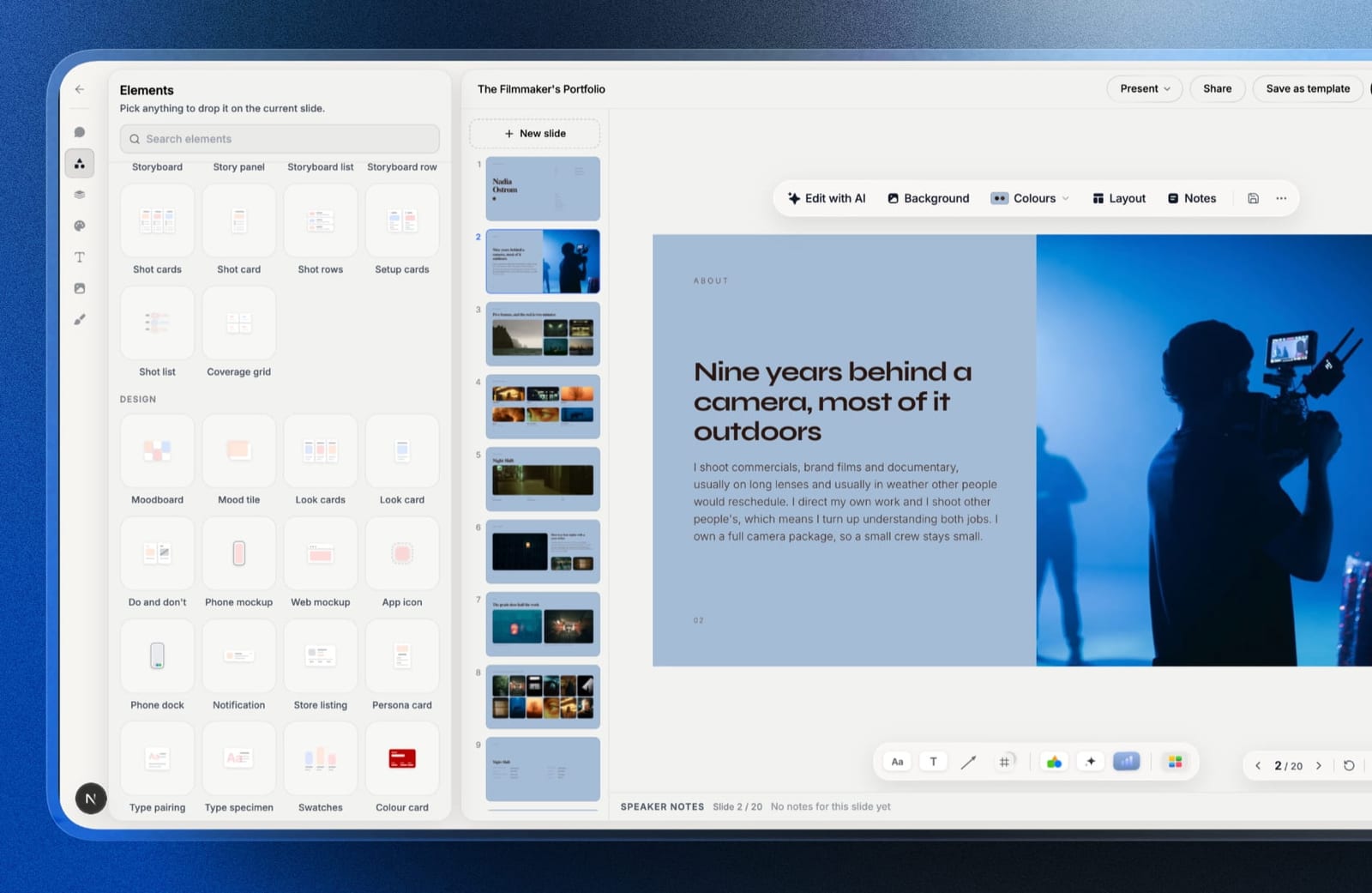
Framekit Slides, our own deck editor, shares a deck as a link that keeps your fonts and plays YouTube and Vimeo references in place, presents full screen, and exports a PDF on every plan.
The link has no password, no expiry and no viewer analytics, and decks on the free plan carry a Made with Framekit badge, so it suits creative pitches more than confidential proposals.
The universal mistake is not checking the link in a private browser window before sending. Half of all access problems are visible in ten seconds that way and invisible from your own logged-in session.
In one lineopen every share link in a private window before you send it, because your own account hides exactly the permission problem the recipient will hit.
Publishing a Deck as a Web Page
Worth doing when the deck is not really a presentation. If you send the same capabilities overview, services one-pager, or case study to a different person every few weeks, the deck has become a document, and a document belongs at a permanent URL.
Three advantages a share link does not give you. The page can be found in search, so people arrive without you sending anything.
It renders as a page rather than as fixed-ratio slides, which reads far better on the phone where most first opens happen. And it has no expiry, no permissions prompt, and no dependence on a subscription staying active.
The trade-off is that a page is not a presentation. There is no presenter view, no speaker notes, no transitions, and no running order you control, so anything you deliver live still needs a real deck.
We build Framekit, so treat this as a disclosed interest rather than neutral advice.
Its Slides editor handles the deck you present, but it has no Keynote export and its PowerPoint export (Pro and up) turns each slide into a picture, so a recipient who needs to edit your file natively should get it from PowerPoint or Keynote.
The claim in this section is narrower: the deck you re-send indefinitely is a page that has not been published yet.
In one linepublish the decks you send repeatedly and keep the ones you present, because those are two different artefacts that most people maintain as one.
Recording a Walkthrough Instead
Recording a short walkthrough is the most under-used option in this list, and it is the one that solves the specific problem of a deck being read by someone who was never in the room to hear you explain it.
A three-minute recorded walkthrough carries the reasoning that a deck alone cannot.
It is also, in our own testing of asynchronous sends, opened far more reliably than a meeting recording, because a short purposeful video reads as a message and a forty-minute call recording reads as homework.
Two rules make it work. Keep it under five minutes, since anything longer gets postponed and then never watched. And send it alongside the deck rather than instead of it, so the recipient can skim the slides at their own pace and use the video for the parts that need explaining.
In one linenarration is the thing lost when a deck is sent rather than presented, and a short recording restores it more cheaply than another meeting.
Controlling Who Sees It
Once you are sharing links rather than files, access control becomes possible at all, which it never is with an attachment, and there are five separate controls worth knowing because they solve genuinely different problems.
Restrict by email when the deck is confidential and you know the recipients. Most tools support this and it produces a sign-in step, which is friction you are choosing deliberately.
Use link expiry for anything with a commercial life, such as a proposal or a rate card. Tools including Pitch and DocSend support this directly.
Revoke individually rather than globally. A per-recipient link means you can kill the copy sent to a prospect who went quiet without disturbing the three still in play.
Disable downloads when you want the version to stay current, understanding that anyone determined can still screenshot. This is a nudge rather than a control.
Password-protect when the audience is broad and you cannot enumerate it, accepting that passwords get forwarded with the link roughly as often as not.
In one linean attachment cannot be recalled, expired, or restricted after sending, so any deck with a commercial life should be a link from the start.
What You Can and Cannot Know
Sharing by link makes tracking possible, and it is worth being precise about what the resulting numbers actually tell you, because the most common mistake in this area is reading a dwell time as evidence of interest.
You can know whether a link was opened, how long the session lasted, which slides or sections were viewed, and in the better tools whether the link was forwarded and opened by someone new.
You cannot know whether the person understood it, whether the person who opened it is the person you sent it to, or whether a long session means engagement rather than a tab left open. Reading too much into dwell time is the standard mistake.
You should not assume that no open means no interest. Links go to spam, get opened on a phone that failed to register, or get read over someone's shoulder.
Tools with per-recipient tracking include Pitch on its Team tier, Storydoc, Gamma, and DocSend. Google Slides, PowerPoint, Keynote, and a plain published page offer nothing beyond aggregate views.
In one linetreat link analytics as a prompt for a follow-up rather than as evidence of interest, because the number tells you a file was opened and nothing at all about a decision.
Embedding a Deck on a Website
Occasionally the right answer is to put the deck inside a page of your own, using the embed code that most presentation tools provide, and there are two consequences of doing that which are easy to miss until much later.
It works, and there are two things worth knowing before you rely on it.
An embedded deck is loaded from the vendor inside a frame, so its text is not part of your page as far as search engines are concerned, which means an embedded deck contributes nothing to what your page ranks for.
And a fixed-ratio embed on a phone becomes small enough to be unreadable unless you have set it up carefully.
If the content matters for search or for mobile readers, rebuild it as page content and keep the embed as a secondary way to view it.
In one linean embedded deck is a viewer rather than content, so anything you want found in search has to exist as text on the page rather than inside the frame.
Which Method Should You Use?
The answer is decided by who is reading, whether you will be there, and whether the deck will change, so work down these questions in order.
1. Are you presenting live? Present from the application, and send something afterwards rather than sharing your screen for the reading copy.
2. Will the recipient read it alone? Send a link, and add a short recorded walkthrough if the reasoning matters.
3. Do you send this same deck repeatedly with no changes? Publish it as a page.
4. Does the client's process require an attachment? Send a PDF, and send the link too so there is a current version.
5. Is the deck confidential? Restrict by email, set an expiry, and use per-recipient links so you can revoke individually.
6. Is it bigger than about 20MB? It cannot be attached reliably, and that decision has been made for you.
7. Do you need to know who read it? Use a tool with per-recipient analytics, and read the numbers as a prompt rather than as proof.
8. Do you want it on your website? Publish the content as a page and treat any embed as a secondary viewer, which is the branch where Framekit answers cleanly, because the deck and the site sit in one account and the published page carries your own domain.
Frequently Asked Questions
What is the best way to share a presentation online?
The best way to share a presentation online is a link rather than an attachment, because links have no size limit, render fonts and video correctly on any machine, update when you fix something, and can be restricted or revoked.
Send a PDF alongside only when the recipient's process genuinely requires a downloadable file.
Why is my presentation too big to email?
Gmail caps a personal message at 25MB and converts larger attachments into a Google Drive link automatically, Outlook.com's limit is 20MB, and corporate mail servers are often configured lower.
A twenty-slide deck with full-bleed photography passes 25MB easily, and adding a single embedded video guarantees it.
How do you share a presentation without losing the fonts?
Share a link rather than a file, because a link renders the deck on the vendor's side with the correct fonts.
If you must send a file, PowerPoint can embed fonts when the licence permits, while Keynote, Canva, and Google Slides cannot and will substitute silently on any machine that lacks the typeface.
How do you send a presentation with video that plays?
Send a link. Video embedded in a .pptx must travel inside the file, which usually pushes it past the mail server's size limit, and video in a PDF is unsupported by most readers. Canva links, Gamma links, and published web pages all play video inline on a phone with no download.
Can you track who opened a shared presentation?
Pitch on its Team tier, Storydoc, Gamma, and DocSend all report per-recipient opens including which slides were viewed and for how long.
Google Slides, PowerPoint, Keynote, and a plain published page report aggregate views at best, and none of these tools can tell you whether the reader understood anything.
Should you share a presentation as a PDF or a link?
Share a link when the deck may change, contains video, or is larger than about 20MB, and send a PDF when the recipient's process requires a downloadable file for archiving or procurement. Sending both is common and sensible, with the link presented as the current version.
How do you stop someone downloading a shared deck?
Most tools with link sharing offer a download-disabled setting, and it should be understood as a nudge rather than a control, since anyone determined can screenshot. Combine it with per-recipient links and an expiry date if the deck has commercial sensitivity.
Is it better to screen share a deck or send the link?
Sending the link is better whenever visual quality matters, because screen sharing captures your display and re-encodes it as video, degrading fine type and detailed images before it reaches anyone.
Ask people to open the link and follow along while you talk, which also survives the person who joins late.
Can you embed a presentation on your website?
Most presentation tools provide an embed code that places the deck inside a frame on your page.
The embedded content is loaded from the vendor rather than being part of your page, so it contributes nothing to what the page ranks for in search, and fixed-ratio embeds are often unreadable on a phone.
When should a presentation become a web page instead?
A presentation should become a web page when it is sent repeatedly without being tailored, because a page can be found in search, renders better on the phone where most first opens happen, and shows everyone the current version.
Anything you present live with a narrator should stay a deck.
The Bottom Line
Almost every problem with sharing a presentation comes from sending a file, and almost all of them disappear when you send a link.
No size limit, no font substitution, no dead video, no version drift, and the option to restrict or revoke access afterwards, none of which an attachment can offer.
The trade-off is real and small: a link asks the recipient to click through rather than double-click, and in restricted-access setups it can produce a permissions prompt. Opening your own link in a private browser window before sending catches most of that in about ten seconds.
Framekit Slides covers the deck you present and send as a link or PDF, though without password-protected links, viewer analytics or an editable .pptx, so a confidential or heavily tracked deck belongs in a tool built for that.
Where we would push back is on the deck you have sent forty times without changing a word, which is a page that has never been published.
Related reading: our guides to the best presentation software, the best presentation tools for remote teams, the best WeTransfer alternatives, and the best password protected video sharing tools.
Mail attachment limits above were taken from the providers' own published documentation in August 2026. Corporate mail servers apply their own limits, which are frequently lower than the consumer figures quoted here.