Framekit templates
Start from a designer-made template
 Use template
 Use template
 Use template
 Use template
 Use template
 Use template
 Use template
 Use template
Compressing an hour of video costs nothing, $0.45, or $37.80, and all three numbers are correct.
Nothing is HandBrake or FFmpeg on a machine you already own. The $0.45 is AWS Elemental MediaConvert at its cheapest published basic rate of $0.0075 a minute.
The $37.80 is the same AWS service with its multipliers applied, because MediaConvert bills in normalised minutes and those multipliers run from 1 times to 84 times depending on codec, resolution, frame rate and quality.
That last mechanism is the reason a cloud encoding bill surprises people. The headline rate on the pricing page is the number before the multiplier, and nothing on that page tells you which multiplier your file will attract.
A video compression tool is software that re-encodes video to a smaller file, either by changing codec, resolution, bitrate or container, and it is what stands between a 40GB camera original and a file a client can actually open.
It is the moving-image equivalent of what our comparison of image compression tools covers for stills.
Compression settings are usually decided by whatever has to accept the file at the other end.
Framekit is one of those destinations for a lot of filmmakers, because its client galleries and review links carry a per-file ceiling that rises by plan, and this guide returns to those numbers further down.
The best video compression tool for almost everyone in 2026 is HandBrake, because it is free, open source, produces excellent H.264 and H.265 output through a queue you can leave running, and there is no volume at which it starts costing money.
FFmpeg is the right answer if you will ever automate the job, since HandBrake is built on it. Apple Compressor at $49.99 once is worth it only for Final Cut users who need distributed encoding.
The honest caveat is that free desktop encoding costs machine time instead of money, and if you need a hundred files transcoded before a deadline, that trade stops being free.
Updated in September 2026: we re-verified Framekit's plans and corrected our own section, which said Framekit had no access control on video; it now delivers video in password-protected client galleries and review links, with per-file caps by plan.
Encoder findings are as tested in August 2026.
How We Compared 9 Video Compression Tools
We priced one specific job rather than a generic one: compressing 60 minutes of finished video a week, delivered as H.264 and H.265 files for client review and web use, on a machine an independent editor would actually own.
For each tool we recorded the licence cost, whether the price scales with volume, and what the tool does that a free encoder does not.
Prices and technical claims were read from vendor pages during this comparison wherever those pages served readable content, and each entry says which grade of claim it carries.
Where a page rendered nothing usable we say so instead of substituting a figure from elsewhere. Judgments about which tool suits which workflow are ours.
CloudConvert served prices in euros with a dynamic slider that did not resolve to figures for us, and VEED's pricing page rendered its FAQ but not its plan table. Adobe Media Encoder has no standalone price to read, since it ships with Creative Cloud.
In one linenine encoders, 60 minutes of finished video a week, judged on cost per compressed hour, what scales with volume, and what you get for paying at all.
What Compressing the Same Hour Nine Times Showed
The finding that reorganises this category is that the best tools are free, which is unusual enough to be worth stating plainly, and that what you actually buy when you pay is either integration or the absence of waiting.
- The two best encoders in this comparison, HandBrake and FFmpeg, are free and open source.
- HandBrake is built on FFmpeg, so the popular free tool and the powerful free tool are the same engine.
- Cloud encoding is billed per minute of output, from a published $0.0075 on AWS basic tier.
- AWS applies multipliers running from 1 times to 84 times, so a $0.45 hour can become $37.80.
- 2 of the 9 are one-time purchases rather than subscriptions, at $49.99 and $295.
- Nothing you can buy compresses better than the free tools, because most of the paid tools use the same encoders underneath.
For the tool matched to the job you are doing, jump to the decision guide.
Cost Per Compressed Hour
Sixty minutes of finished output, priced across the licence models this category actually uses. One-time purchases are amortised across 600 hours of output, which is roughly 200 hours a year for three years.
| Tool | Price | Cost per compressed hour |
|---|---|---|
| HandBrake | Free, open source | $0.00 |
| FFmpeg | Free, open source | $0.00 |
| Shutter Encoder | Free | $0.00 |
| DaVinci Resolve, free version | Free | $0.00 |
| Apple Compressor | $49.99 one-time | About $0.08 |
| AWS MediaConvert, basic at 1 times | $0.0075 a minute | $0.45 |
| DaVinci Resolve Studio | $295 one-time | About $0.49 |
| AWS MediaConvert, professional at 1 times | $0.0120 a minute | $0.72 |
| AWS MediaConvert, basic at 84 times | Multiplier applied | $37.80 |
| Adobe Media Encoder | With Creative Cloud | Depends on a subscription you already pay |
| CloudConvert | Credits, priced in euros | Not readable |
The interesting comparison is not free against paid, it is the top and bottom of the AWS rows. The same service, the same hour of footage, and a spread of 84 times determined by settings most people choose without reading the multiplier table.
That is not AWS being deceptive, the multipliers are published. It is that a per-minute headline rate in this category carries almost no information on its own, and anybody budgeting a transcoding pipeline from the front page number will be wrong.
The other observation worth making is that the cheapest paid option, Apple Compressor at about $0.08 an hour amortised, costs less than the cheapest cloud option at $0.45. Buying software once remains the best value in this category by a wide margin.
In one linedesktop encoders cost nothing or a one-time fee under a dollar an hour amortised, and cloud encoding costs from $0.45 to $37.80 an hour depending on multipliers nobody reads.
What You Actually Pay For, Since the Encoders Are Free
If HandBrake and FFmpeg produce excellent output for nothing, the honest question is what the money buys, and the answer is four specific things rather than better compression.
The first is not waiting. Desktop encoding uses your machine, and while an encode runs your computer is slower at everything else.
Cloud encoding runs elsewhere and in parallel, so a hundred files finish in the time one file would take locally. If you have a delivery deadline and a queue, that is the entire value proposition.
The second is integration. Adobe Media Encoder exists because it watches folders, receives queues directly from Premiere and After Effects, and applies presets without anyone leaving the editing application.
Apple Compressor does the same for Final Cut. Neither compresses better than HandBrake, both remove steps.
The third is automation. FFmpeg is free and scriptable, which makes it the correct answer for a repeatable pipeline, but running it on your own hardware means maintaining that hardware. Cloud services sell you the same encoding without the machine.
The fourth is interface. HandBrake's presets are excellent and its interface assumes you know what a constant rate factor is.
Tools like Shutter Encoder and the browser-based services sell approachability, which is a legitimate thing to pay for if the alternative is guessing at bitrates.
None of those four is compression quality, and that is the point. x264 and x265 are the encoders inside most of these products, free and paid alike, so a paid tool producing a visibly better file than HandBrake at the same settings would be surprising.
In one linepaying gets you speed, integration, automation and a friendlier interface, and it does not get you a better-looking file.
The 9 Best Video Compression Tools in 2026: Full Comparison
Scores are out of 10 across four weighted criteria: output quality and control at a given file size (30%), cost at a realistic independent volume (25%), speed and batch handling (25%), and how much the tool fits into a workflow rather than sitting beside it (20%).
| Tool | Type | Price | Cost per hour | Best for | Score |
|---|---|---|---|---|---|
| HandBrake | Desktop, open source | Free | $0.00 | Almost everyone | 9.1 |
| FFmpeg | Command line, open source | Free | $0.00 | Automation and pipelines | 8.9 |
| Adobe Media Encoder | Desktop, bundled | With Creative Cloud | Already paid | Premiere and After Effects users | 8.2 |
| Apple Compressor | Desktop, one-time | $49.99 | About $0.08 | Final Cut users, distributed encoding | 8.0 |
| Shutter Encoder | Desktop, free | Free | $0.00 | FFmpeg power without the terminal | 7.8 |
| DaVinci Resolve | Desktop, free or $295 | Free, Studio $295 | $0.00 or about $0.49 | Editors already in Resolve | 7.5 |
| AWS Elemental MediaConvert | Cloud API | From $0.0075 a minute | $0.45 to $37.80 | Products that transcode user uploads | 7.2 |
| CloudConvert | Cloud, credits | Priced in euros | Not readable | Occasional conversions, no install | 6.6 |
| VEED | Browser | Not readable | Not readable | Compressing without installing anything | 6.0 |
A free tool scoring 9.1 at the top of a comparison usually signals a weak category. Here it signals the opposite: video compression is a solved problem with an excellent open source implementation, and the paid products compete on workflow rather than on output.
1. HandBrake: The Free Tool Nothing Paid Actually Beats
PriceFree and open source, for macOS, Windows and Linux.
Best forAlmost every independent editor, photographer and filmmaker compressing finished video.
Rating9.1 out of 10
HandBrake has been the correct answer to this question for about fifteen years and nothing in 2026 has changed that.
It wraps the x264 and x265 encoders in a preset system that produces genuinely good output without requiring you to understand what it is doing, and it costs nothing at any volume, which is worth remembering when pricing a video editing suite on the strength of its export options.
The preset library is the part that earns the top score. Presets organised by destination, from web upload to Apple devices to archival quality, mean a user who does not know what a constant rate factor is still gets a sensible file.
A user who does know can open the video tab and set it directly.
The queue is the second reason. Add forty files, set them going, and leave the machine overnight. It is unglamorous batch processing that removes the entire argument for paying a cloud service unless you are working against a same-day deadline.
The detail worth knowing is the constant quality slider, which most people should use instead of a target bitrate.
Setting a quality level and letting the encoder spend the bits where they are needed produces better results at smaller sizes than picking a bitrate and hoping, and it is the single change that most improves a beginner's output.
The gotcha is the interface, which is functional rather than friendly and presents a lot of options with very little explanation. Somebody compressing one video a year will find Shutter Encoder or a browser tool less intimidating.
The other honest limit is that HandBrake is not an editor and not a delivery tool. It will not do broadcast-spec deliverables, it will not build iTunes Store packages, and it does not integrate with anything.
Skip it ifyou need same-day turnaround on a large queue, where parallel cloud encoding genuinely wins.
Verdict: the default, and the tool every paid option in this comparison has to justify itself against. Free, excellent output, batch queue, and no volume at which it starts charging you.
2. FFmpeg: The Engine Underneath Everything, Including HandBrake
PriceFree and open source.
Best forAnyone who will run the same conversion more than five times, and anyone building a pipeline.
Rating8.9 out of 10
FFmpeg is the piece of software this entire category is built on. HandBrake uses it. Many of the paid desktop tools use it. A meaningful share of the cloud services use it. When you pay for video compression, there is a good chance you are paying for a interface on top of this.
That makes the case for using it directly simple: everything a wrapper can do, FFmpeg can do, plus the things the wrapper's author did not expose.
The specific reason to learn it is repetition. A one-line command that converts a folder of files is written once and reused for years, and it runs on a schedule, on a server, or inside a script without anybody clicking anything.
No graphical tool in this comparison replaces that.
The detail that converts people is how small the useful subset is. Perhaps six flags cover most real work: input, codec, quality, preset, audio and output. The reputation for difficulty comes from the documentation covering everything, not from the everyday commands being hard.
The gotcha is honest and large. There is no interface, no preview, and no protection from a command that quietly produces a file with no audio. Errors are silent in the sense that the output exists and is wrong, and you find out when a client opens it.
The other limit is that copying a command from a forum without understanding it is how people end up re-encoding footage twice and losing quality both times.
Skip it ifyou compress occasionally and by hand, where HandBrake gives you the same engine with guard rails.
Verdict: the most capable tool in this comparison and the one with the steepest first hour. Learn six flags, write the command once, and it will outlast every application on this list.
3. Adobe Media Encoder: Worth It Only Because You Already Pay for It
PriceIncluded with a Creative Cloud subscription. There is no standalone price to read, and we are not quoting a Creative Cloud figure we did not read at source.
Best forEditors working in Premiere Pro and After Effects who want exports to leave the editing application.
Rating8.2 out of 10
Media Encoder's value is entirely about where it sits. Send a sequence from Premiere or a composition from After Effects straight to the encoder queue, keep editing while it renders, and collect the files afterwards.
That single behaviour is worth more to a working editor than any compression advantage, and there is no compression advantage.
Watch folders are the underrated feature. Point Media Encoder at a directory, and anything dropped in is encoded to your preset automatically, which turns a repetitive delivery job into a folder somebody else can use without instructions.
The preset system covers broadcast and platform specifications properly, which matters when a client's delivery document specifies a codec, a bitrate range and a loudness target rather than saying make it small.
The gotcha is that it is not really free. It is included in a subscription, so if you would not otherwise pay for Creative Cloud, using Media Encoder means paying a substantial monthly fee to replace a tool that costs nothing.
The other complaint, consistently, is resource use. Media Encoder is heavier than HandBrake on the same file, and on a modest machine that difference is felt.
Skip it ifyou are not already inside the Adobe ecosystem, in which case this is an expensive way to get HandBrake's output.
Verdict: the right tool for Premiere and After Effects users and an indefensible purchase for anybody else. If you pay for Creative Cloud, use it. If you do not, HandBrake gives you the file and keeps the money.
4. Apple Compressor: $49.99 Once, and Distributed Encoding
PriceRead at source, $49.99 as a one-time purchase, Mac only.
The listing describes tight integration with Final Cut Pro and Motion, batch processing, HEVC, H.264 and ProRes conversion, iTunes Store package creation, HDR support, distributed encoding across multiple computers, spatial video encoding for Apple Vision Pro, and Cinematic mode processing.
Best forFinal Cut Pro editors, and anyone with more than one Mac sitting idle.
Rating8.0 out of 10
Compressor is the best value paid tool in this comparison and it earns that on one feature most people never use: distributed encoding across multiple computers.
If a studio has three Macs, a long encode can be split across all of them, which is the only way in this comparison to get cloud-style parallelism without cloud-style billing.
At $49.99 once, amortised across 600 hours of output, that works out at roughly $0.08 an hour against AWS's cheapest published basic rate of $0.45. For a facility with idle machines, it is not close.
The Final Cut integration is the everyday reason to own it. Sending a project to Compressor and continuing to edit is the same workflow benefit Media Encoder gives Premiere users, and here it costs $49.99 permanently rather than a subscription.
The iTunes Store package creation is niche and genuinely unavailable elsewhere at this price, and the spatial video encoding for Vision Pro is the kind of feature that is either irrelevant or the only reason you are buying.
The gotcha is platform. Mac only, and the value proposition is heavily tied to Final Cut, so a Premiere editor on a Mac gets much less from it.
Skip it ifyou do not use Final Cut and do not have spare Macs, because HandBrake matches the output for nothing.
Verdict: the best one-time software purchase in this category, at a price that amortises to about eight cents a compressed hour. Buy it if you are in Final Cut or if you have machines standing idle.
5. Shutter Encoder: FFmpeg With an Interface, For Nothing
PriceFree, supported by donations.
Best forEditors who want FFmpeg's range without writing commands.
Rating7.8 out of 10
Shutter Encoder was built by an editor rather than a software company, and it shows in the best way: the functions are organised around jobs an editor actually has rather than around what the underlying library can do.
It sits between HandBrake and FFmpeg in a genuinely useful place. Broader format and codec support than HandBrake, including professional codecs like DNxHD and ProRes that HandBrake does not write, and no command line.
The extras are the surprise.
Trimming, concatenating, extracting audio, burning in timecode, converting image sequences and rewrapping without re-encoding are all here, and rewrapping in particular is the function most editors do not know they need.
Changing a container without touching the video is instant and lossless, and people re-encode entire files for want of knowing it.
The gotcha is polish. The interface is dense and idiosyncratic, updates arrive irregularly, and it has the feel of a tool maintained by one person, which it largely is.
The other consideration is that its breadth invites mistakes. With this many functions exposed, choosing the wrong one is easier than in HandBrake's more constrained presets.
Skip it ifyou only ever need H.264 and H.265 web files, where HandBrake is simpler and equally good.
Verdict: free, broader than HandBrake, and the right tool for editors who need professional codecs or the utility functions. Learn the rewrap function specifically, because it will save you hours.
6. DaVinci Resolve: Compression Attached to a Free Editor
PriceRead at source. The standard version is free, and the page states it works with virtually all 8-bit video formats at up to 60fps in resolutions as high as Ultra HD 3840 by 2160. Studio is $295 as a one-time purchase.
Best forEditors and colourists already working in Resolve who want delivery in the same application.
Rating7.5 out of 10
Resolve is not a compression tool and it belongs here because a very large number of people already have it open, and its deliver page is a competent encoder with a render queue.
The free version's stated limits are the thing to read carefully, and they are more generous than most free software: virtually all 8-bit formats, up to 60fps, up to Ultra HD 3840 by 2160.
For finished web delivery that covers essentially everything an independent editor produces.
Studio at $295 as a one-time purchase is the other notable structure.
In a category where Adobe rents, Blackmagic sells, and $295 amortised across 600 hours is about $0.49 a compressed hour, which is roughly what AWS charges per hour at its basic rate with none of the multiplier risk.
The render queue handles batches properly and applies delivery presets per timeline, which is the workflow advantage over exporting and then compressing separately.
The gotcha is that using Resolve purely as an encoder is absurd. It is a large, hardware-hungry application, and launching it to compress one file is like starting a car to charge a phone.
Skip it ifyou are not already editing or grading in Resolve, because HandBrake does this job in a fraction of the resources.
Verdict: excellent if it is already open and pointless if it is not. The free version's limits are high enough that most independent work never touches them, and Studio at $295 permanent is a fair deal for the grading rather than the encoding.
7. AWS Elemental MediaConvert: Per Minute, With Multipliers to Read

PriceRead at source. Billed per minute of content output, with multipliers applied based on the features used, running from 1 times to 84 times.
Basic tier in US East Ohio is $0.0075 a minute for the first 100,000 minutes, $0.0053 for the next 900,000 and $0.0038 above 10 million. Professional tier starts at $0.0120 a minute for the first 50,000 minutes.
No usage free tier is described on the page.
Best forProducts that transcode video uploaded by other people, at unpredictable volume.
Rating7.2 out of 10
MediaConvert is not for editors compressing their own work and it is in this comparison because a growing number of creative businesses build products that accept video, and at that point encoding becomes infrastructure rather than a task.
For that use it is the right shape. It scales to any volume, runs in parallel, requires no machine of your own, and integrates with the rest of AWS.
The multipliers are the thing to internalise before you build anything on it.
The page states plainly that you are charged per minute of output with multipliers based on the features you use, and that those multipliers span 1 times to 84 times.
A basic-tier minute at $0.0075 becomes $0.63 at the top multiplier, which turns a $0.45 hour into $37.80.
That is an 84-fold budgeting range, and the settings that move you along it, codec, resolution, frame rate and encoding quality, are exactly the settings a developer sets once and never revisits.
The volume discounts are real and only matter at scale. Dropping from $0.0075 to $0.0038 requires passing ten million minutes, which is about 19 years of continuous video.
Skip it ifyou are compressing your own footage, because you are buying infrastructure to solve a task HandBrake does for nothing.
Verdict: the correct tool for transcoding other people's uploads and the wrong one for your own deliverables. Model your actual multiplier before you budget, because the headline rate is the floor of an 84-fold range.
8. CloudConvert: Convert Without Installing Anything
PricePartly readable, and priced in euros with a dynamic slider that did not resolve to figures for us. The model charges one credit per minute of conversion time plus a base cost per conversion type, with base credits ranging from 1 to 4.
The free plan allows 10 credits a day, a maximum processing time of 5 minutes per task and a maximum file size of 1GB.
Best forOccasional conversions on a machine where you cannot or will not install software.
Rating6.6 out of 10
CloudConvert solves a narrow problem well. You are on a borrowed computer, a locked-down work machine, or a tablet, and a file needs converting now. No installation, no account required for small jobs, and it handles a very wide range of formats beyond video.
The free tier is genuinely usable within its limits: 10 credits a day at one credit per minute of conversion time covers a short clip or two, and the 1GB file ceiling and 5-minute task limit are the boundaries to check before you rely on it.
The pricing mechanism deserves a warning that has nothing to do with the amount.
Credits are charged per minute of conversion time rather than per minute of video, so a slow conversion of a short clip can cost more than a fast conversion of a long one.
That is an unusual unit and it makes forecasting harder than a per-minute-of-footage rate would.
Because the slider would not resolve to figures for us, we are not quoting a cost per hour and you should price it yourself.
Skip it ifyou can install software, because everything above this is better and most of it is free.
Verdict: a genuinely useful escape hatch when installation is impossible, priced in a unit that is harder to forecast than it looks. Fine for the occasional file, wrong as a workflow.
9. VEED: Compression in a Browser Tab
PriceNot readable. VEED's pricing page rendered its FAQ but not its plan table for us, so we are quoting no figures, no export limits and no video length caps.
Best forPeople who want a file made smaller without learning anything.
Rating6.0 out of 10
VEED is an online video editor with compression as one function among many, and its appeal is that it asks nothing of you. Upload, choose an outcome in plain language, download.
For a marketer, a small business owner or anybody who compresses a video twice a year, that accessibility is a real product, and dismissing it because HandBrake is free ignores that HandBrake's interface is a wall for a large number of people.
The structural problem for a creative professional is upload time. Sending a 20GB file to a browser tab and waiting, then downloading the result, is slower than encoding locally in almost every case, and the larger your files the worse the trade becomes.
We could not read the plans, so the free tier's limits, the export caps and the watermark policy are all things you should check yourself before relying on it.
Skip it ifyour files are large or your volume is regular, which describes every professional workflow.
Verdict: the most approachable tool here and the least suited to professional volume. Fine for a one-off small file, and not something to build a delivery process on.

The Settings That Decide File Size, Not the Tool
Since most of these tools share the same encoders, the file you get is decided by four settings rather than by which application you opened. Understanding them is worth more than any purchase in this article.
Codec. H.264 is universally compatible and the safe default for client delivery.
H.265, also called HEVC, produces roughly comparable quality at meaningfully smaller sizes and is not supported everywhere, particularly in older browsers and some editing software, as the MDN video codec guide sets out.
AV1 is smaller again and encodes slowly. For a file a client will open, H.264 remains the answer more often than the technically-minded like to admit.
Quality rather than bitrate. Every good encoder offers a constant quality mode, expressed in HandBrake as a constant rate factor.
Setting a quality target and letting the encoder allocate bits produces smaller files at the same perceived quality than choosing a fixed bitrate. This single change improves most people's output immediately.
Resolution. The largest saving available and the one people skip. A 4K master delivered for web review does not need to be 4K, and dropping to 1080p roughly quarters the pixel count before any codec decision is made.
Preset speed. Slower encoder presets spend more computation finding efficiencies, producing smaller files at the same quality. On an overnight batch, a slow preset costs nothing but time you are not using.
The practical consequence is that a well-configured HandBrake export will beat a badly configured cloud pipeline on both size and quality, and cost nothing. If your files are too big, the fix is usually in this section rather than in your credit card.
In one linecodec, constant quality, resolution and preset speed decide your file size, and all four are available free in HandBrake.
Compressing to Deliver Against Compressing to Archive
The mistake that costs the most in this category is using one compression setting for two jobs that want opposite things, and it is a mistake you only discover years later when you go back to re-edit something.
Delivery compression is lossy on purpose. You are producing a file for someone to watch once, on a browser or a phone, and the goal is the smallest file that still looks right. H.264 at a sensible quality level, 1080p, and you are finished.
Archive compression has the opposite goal. You are keeping a file you may edit again in five years, and every generation of lossy compression degrades it further. Re-encoding an H.264 delivery file into another H.264 file loses quality both times, and it is irreversible.
The professional answer is to keep an intermediate codec for anything you might re-edit. ProRes and DNxHD are large by design because they are meant to survive editing, and both Shutter Encoder and Apple Compressor write them, while HandBrake does not.
That is the strongest single reason for an editor to keep Shutter Encoder installed alongside HandBrake, and it costs nothing to do so.
The related discipline is never compressing from an already-compressed file when the original is available. Going back to the master and encoding once beats encoding twice, every time, and the difference is visible in gradients and motion.
In one linecompress once from the master for delivery, keep an intermediate codec for anything you might re-edit, and never re-encode a delivery file.
Where the Compressed File Ends Up
This is our own category, so read this section as an interested party making its case and the limits at the end of it as the honest part, because a compressed video is only as useful as the place it gets watched, and for most working filmmakers that is a client link rather than a public page.
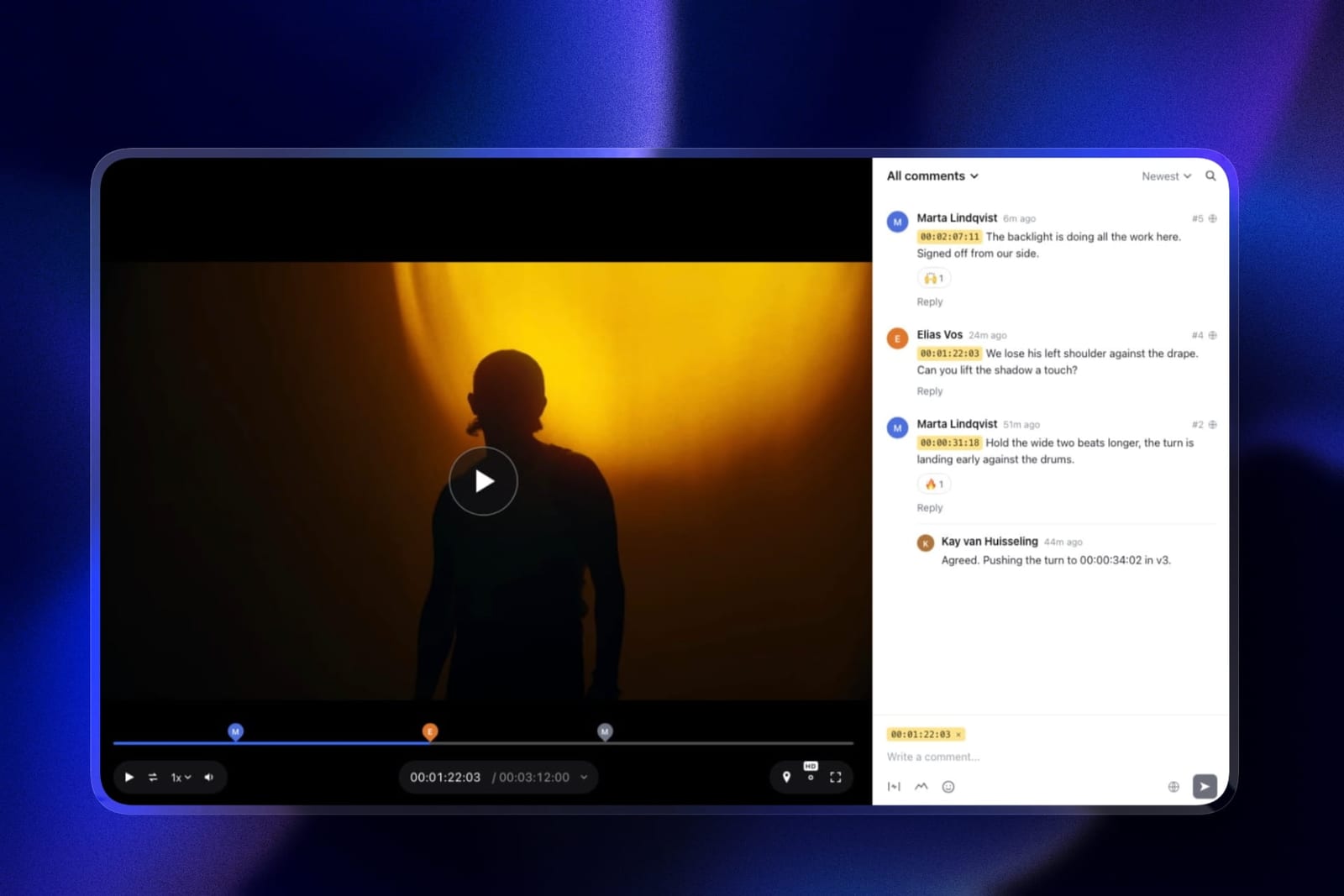
Framekit is an AI website builder that also runs client galleries and Frame.io-style video review, and each has a per-file ceiling that makes compression settings matter: 500MB on free, 1GB on Starter at $9 a month, 2GB on Pro at $19 and 3GB on Business at $39.
A sensible H.264 proxy of a ten-minute cut fits the free cap, a ProRes master does not. Galleries and reviews transcode what you upload for smooth playback, videos are never watermarked, and both can sit behind a password.
The workflow this supports is the one the section above recommends: a compressed proxy for review, where the client comments at the exact frame, and a higher-quality delivery file in the gallery once the cut is approved.
Where this argument loses, plainly. It is not a public streaming host, and a filmmaker with a large public library should read our comparison of video hosting platforms instead.
It does not expose adaptive bitrate ladders or encoding controls the way Mux or Cloudflare Stream do, and it has no per-viewer analytics.
The Decision Guide
Work down this list until a branch matches your situation, because in this category the free tools are genuinely best for most people and the paid ones win only in specific circumstances.
You compress finished video and want the best free answer. HandBrake. Use constant quality rather than bitrate, and queue the batch overnight.
You will run the same conversion more than five times. FFmpeg. Write the command once, keep it in a note, and reuse it for years.
You need professional codecs like ProRes or DNxHD, or you want to rewrap without re-encoding. Shutter Encoder, free, and keep it installed alongside HandBrake.
You edit in Premiere Pro or After Effects. Adobe Media Encoder, which you already pay for. Set up a watch folder and stop thinking about it.
You edit in Final Cut, or you have spare Macs. Apple Compressor at $49.99 once, about $0.08 a compressed hour amortised, with distributed encoding across machines.
You already work in Resolve. Use the deliver page. The free version handles 8-bit up to 60fps at Ultra HD, which covers most independent delivery.
Your product accepts video uploads from users. AWS Elemental MediaConvert, and model your multiplier before budgeting, because the range is 1 times to 84 times.
You cannot install software on this machine. CloudConvert, within its 1GB file and 5-minute task limits on the free tier.
You compress a video twice a year and do not want to learn anything. A browser tool like VEED, accepting that upload time will exceed encode time.
Your files are too big and you are shopping for a tool. Stop shopping. Drop the resolution, switch to constant quality, and use a slower preset in HandBrake, which is free and will almost certainly solve it.
Frequently Asked Questions
What is the best free video compression tool?
HandBrake, for almost everyone. It is open source, produces excellent H.264 and H.265 output through a preset system that does not require technical knowledge, batches unlimited files, and costs nothing at any volume.
FFmpeg, which HandBrake is built on, is the better answer if you want to automate the job.
How much does it cost to compress an hour of video?
Nothing on any desktop encoder. On AWS Elemental MediaConvert it is $0.45 an hour at the basic tier rate of $0.0075 a minute with no multiplier applied, and up to $37.80 an hour once the maximum 84 times multiplier applies.
Apple Compressor at $49.99 once works out at about $0.08 a compressed hour across 600 hours.
Does paying for a compression tool give better quality?
No. Most tools in this comparison, paid and free, use the same underlying encoders, so a paid product will not produce a visibly better file than HandBrake at equivalent settings.
What money buys is speed through parallel processing, integration with an editing application, automation, or a friendlier interface.
Should I use H.264 or H.265?
H.264 for anything a client or a general audience will open, because compatibility is near universal.
H.265 when file size matters more than compatibility and you know the destination supports it, since it produces roughly comparable quality at meaningfully smaller sizes.
Older browsers and some editing software still do not handle H.265 reliably.
Why did my video get bigger after compressing it?
Almost always because you set a bitrate higher than the source, or re-encoded an already-compressed file into a less efficient codec.
The fix is to use constant quality mode rather than a target bitrate, and to always encode from the original master rather than from a file that has already been compressed once.
What is the difference between compressing and rewrapping?
Rewrapping changes the container, for example from MOV to MP4, without touching the video data, so it is instant and lossless. Compressing re-encodes the video, which takes time and loses quality.
If your problem is that a file will not open rather than that it is too large, rewrapping is what you want, and Shutter Encoder does it for free.
How do I compress video without losing quality?
You cannot compress without losing some quality, only without losing visible quality.
Encode once from the master, use constant quality mode at a conservative setting, choose a slow encoder preset, and reduce the resolution to what the destination actually needs.
Those four steps produce far better results than any tool choice.
Is cloud video compression worth it?
For your own deliverables, rarely, since it costs from $0.45 an hour against nothing for a desktop encoder that runs overnight.
For a product that transcodes video uploaded by other people, it is the only sensible architecture, because you cannot run a queue of stranger's uploads through a laptop.
What file size should a review proxy be?
Small enough to clear your review tool's upload cap with room for versions: a ten-minute 1080p H.264 at a moderate bitrate typically lands in the low hundreds of megabytes.
Framekit's video review accepts up to 500MB per cut on free and 2GB on Pro, and Frame.io's limits depend on plan storage.
The Verdict
HandBrake is the best video compression tool in 2026, it is free, and every paid product in this comparison competes with it on workflow rather than on output quality.
Use constant quality rather than a target bitrate, queue your batch overnight, and the file will be as good as anything a subscription produces.
FFmpeg is the better answer the moment the job repeats, because a command written once runs for years without anybody opening an application.
Apple Compressor at $49.99 is the best paid purchase here for Final Cut users and for studios with idle Macs, at about $0.08 a compressed hour amortised against AWS's $0.45.
The finding that ran through every table in this article is that the encoders are shared. x264 and x265 sit underneath most of these products, free and paid alike, which is why the top of this ranking costs nothing and why a badly configured expensive pipeline loses to a well configured free one.
So the last recommendation is the one that saves the most money and the most disappointment. If your files are too big, the answer is almost never a different tool.
Drop the resolution to what the destination needs, switch from bitrate to constant quality, pick a slower preset, and encode from the master rather than from a copy.
Those four changes are free, they are available in the tool ranked first here, and they will outperform anything you can buy.