Framekit templates
Start from a designer-made template
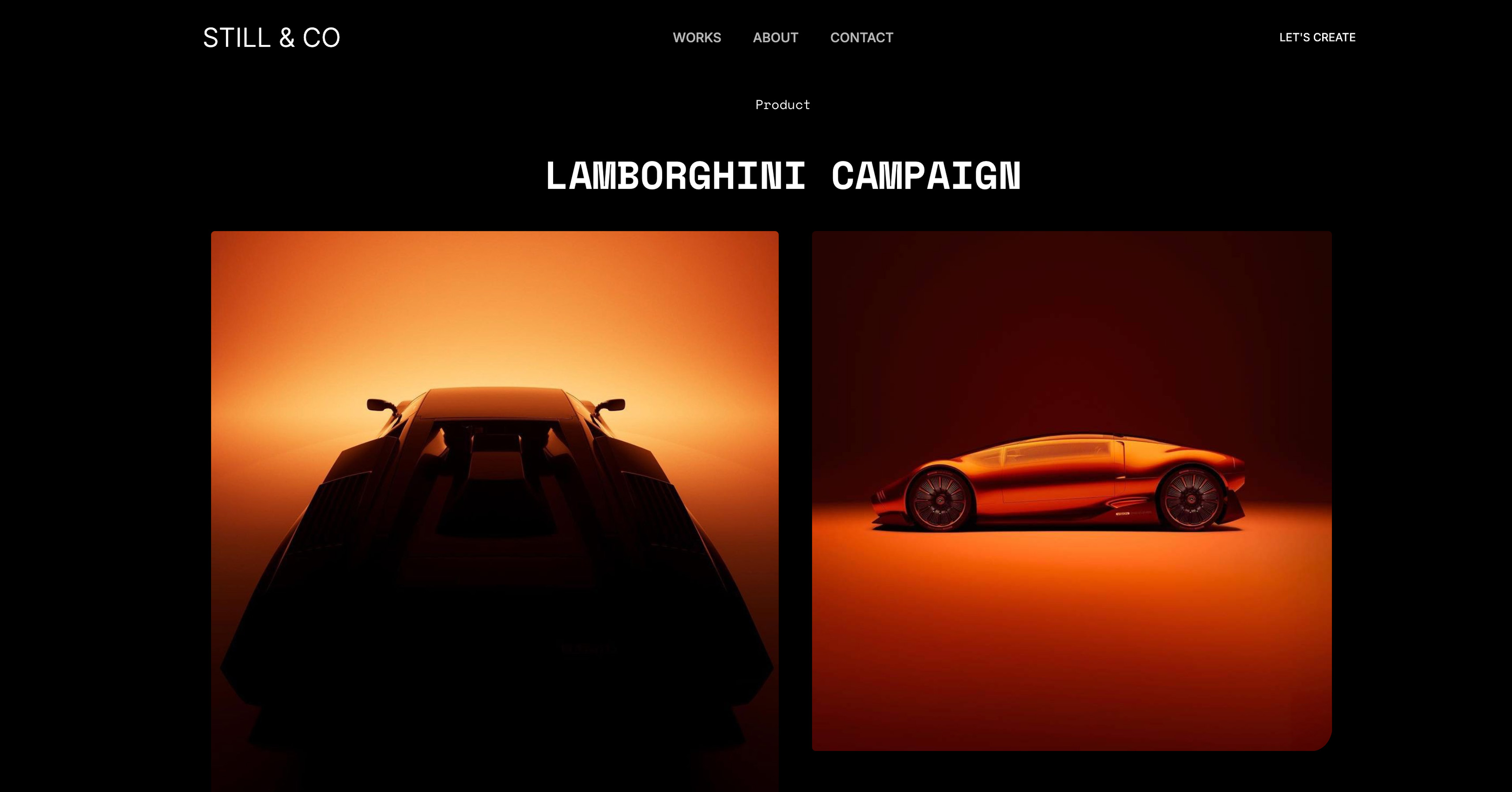 Use template
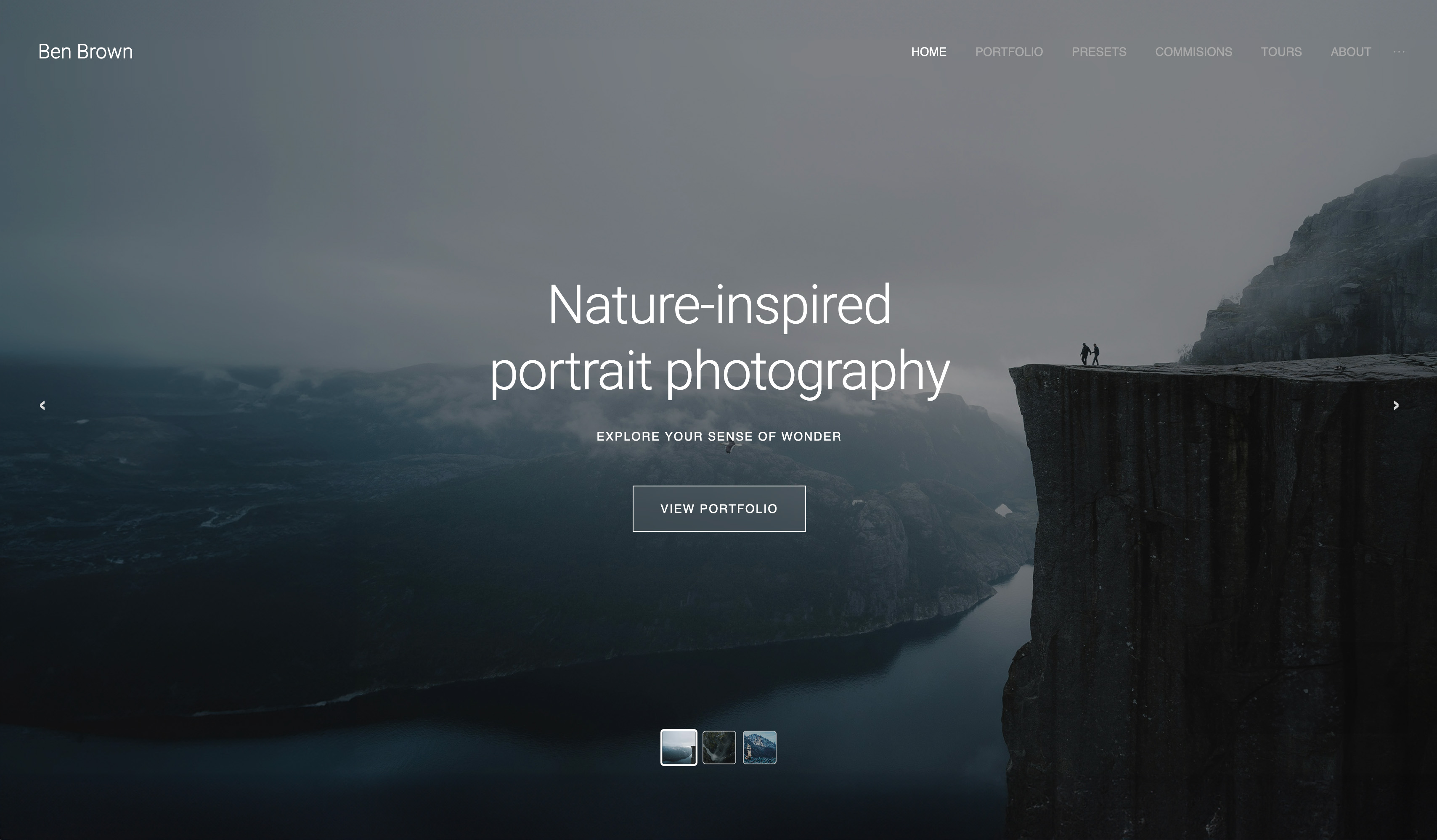 Use template
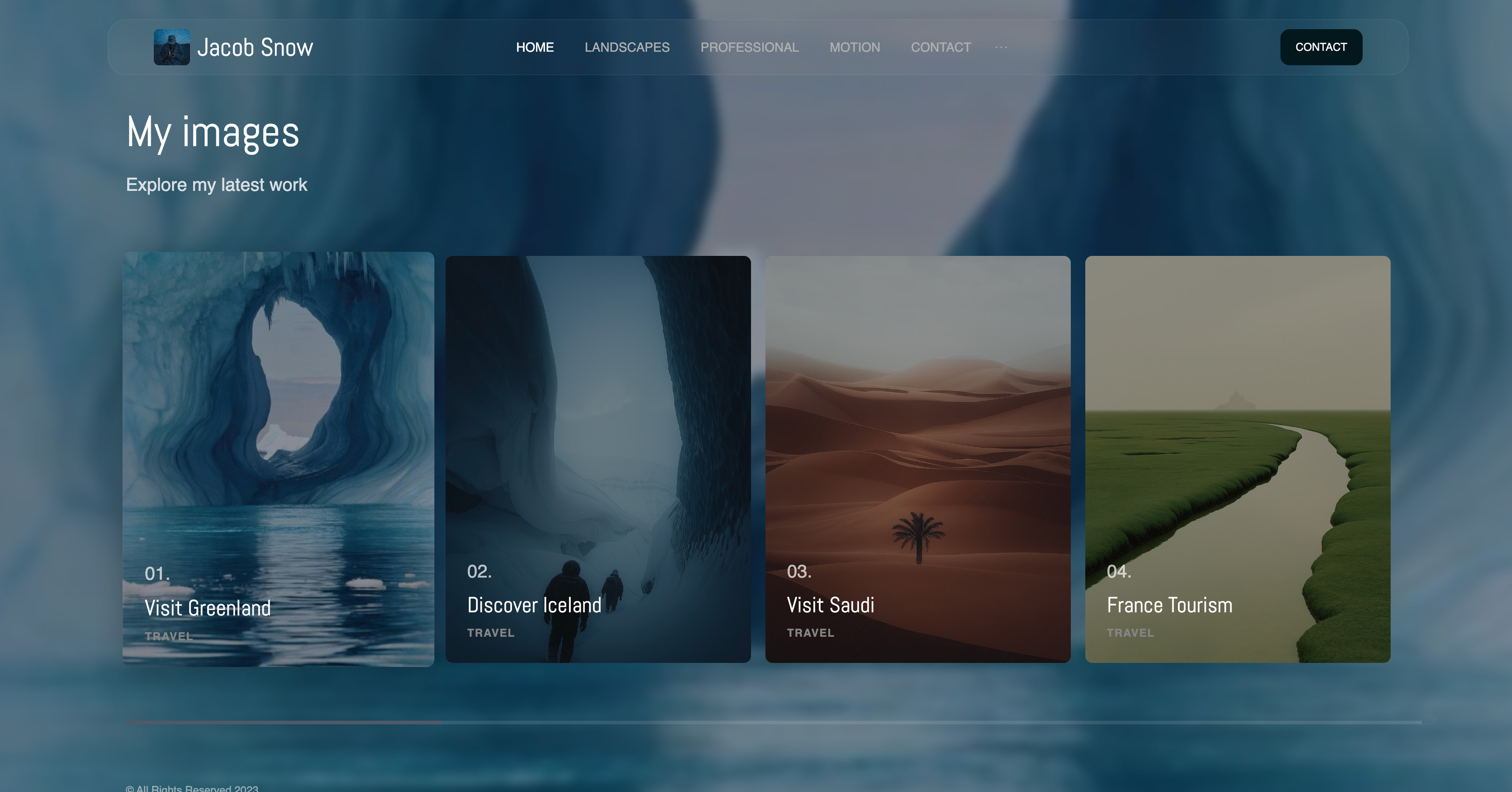 Use template
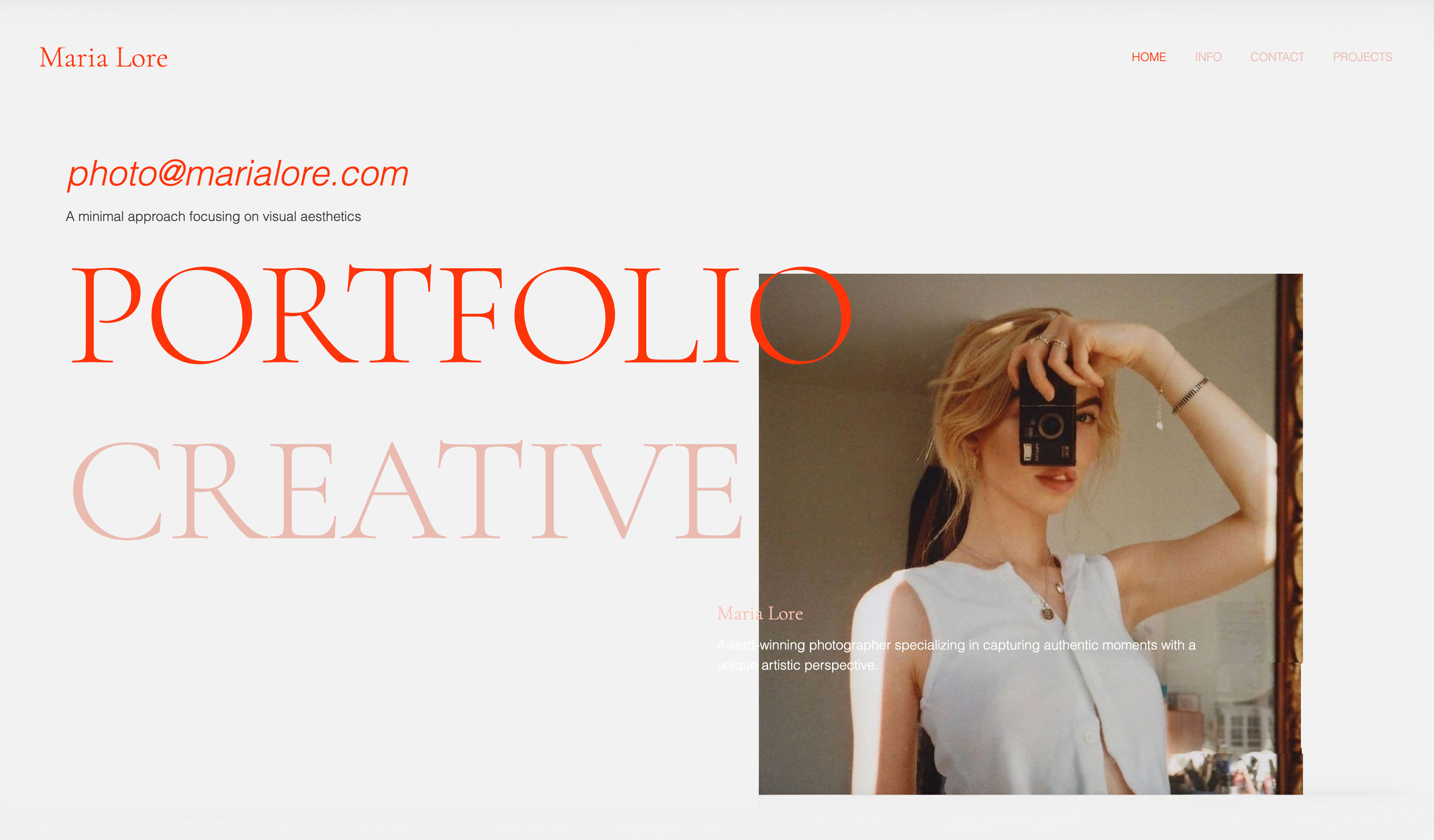 Use template
 Use template
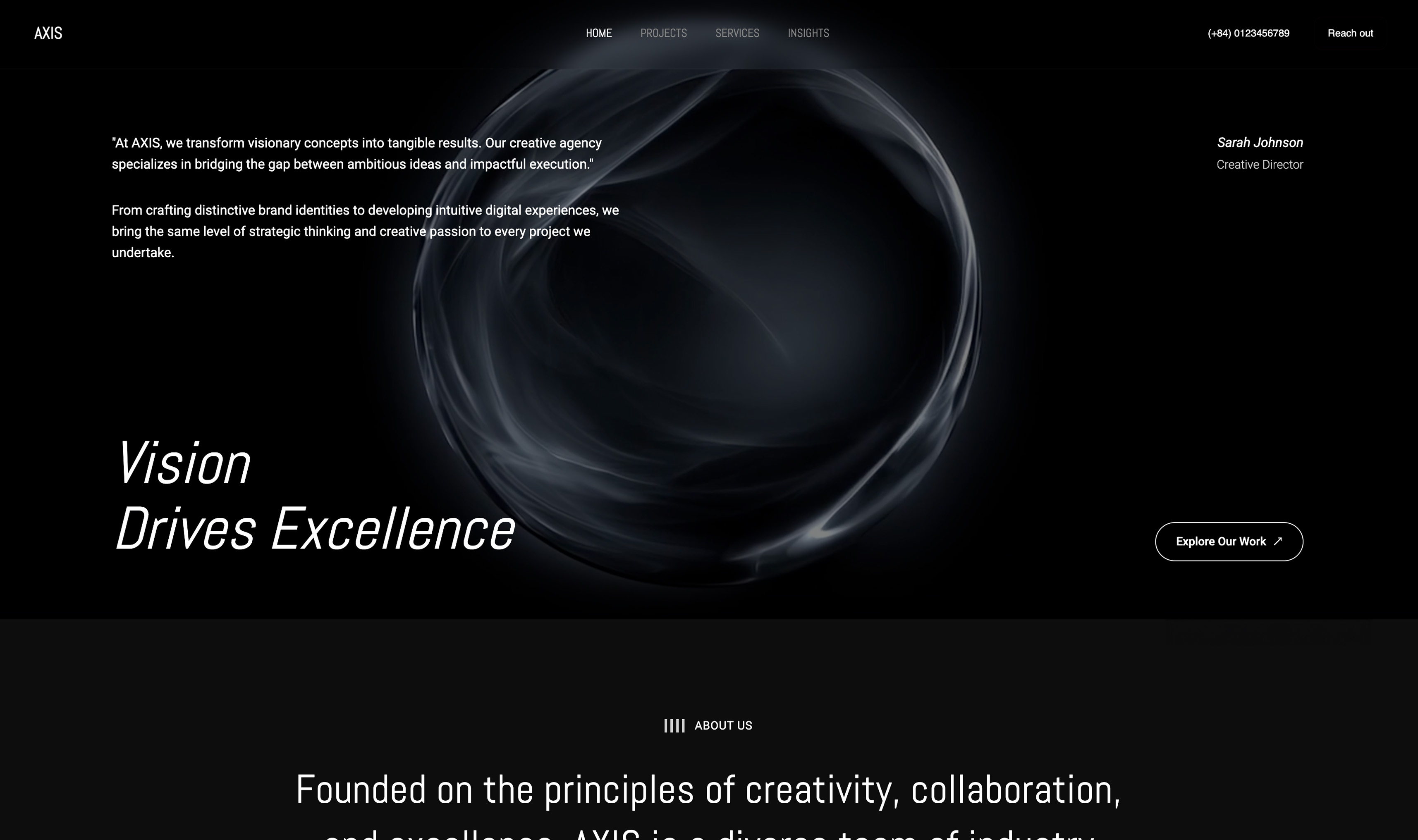 Use template
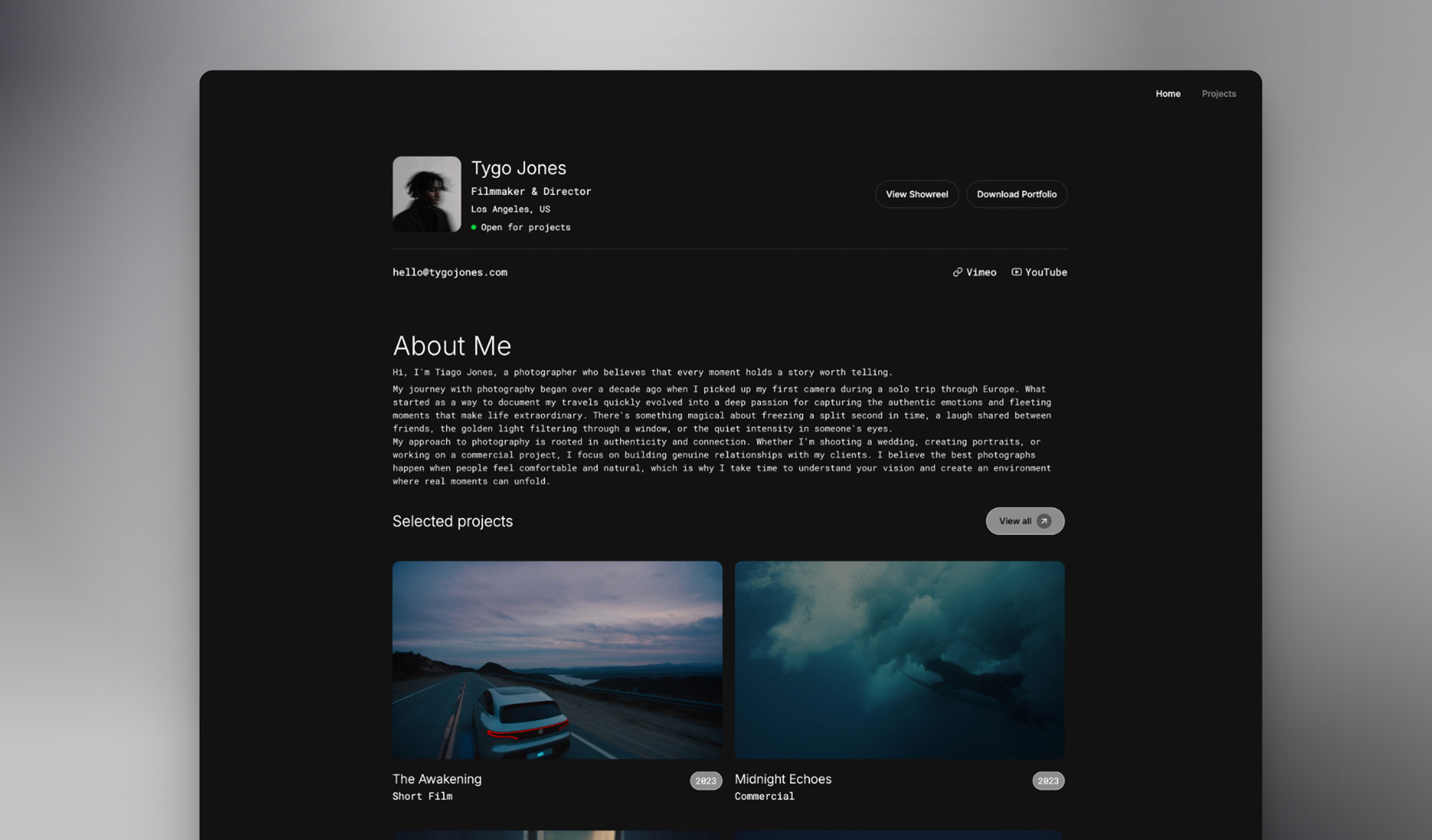 Use template
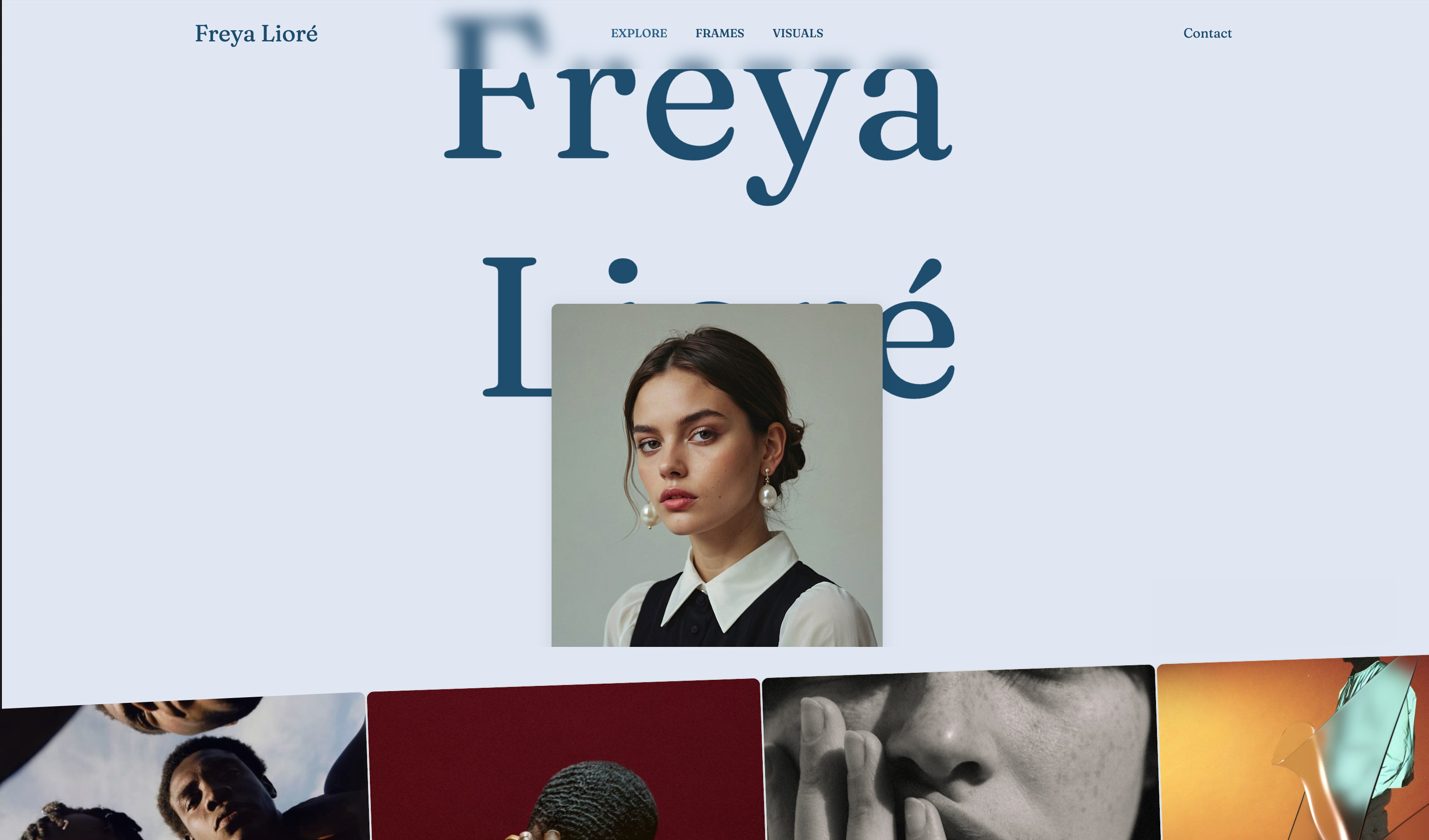 Use template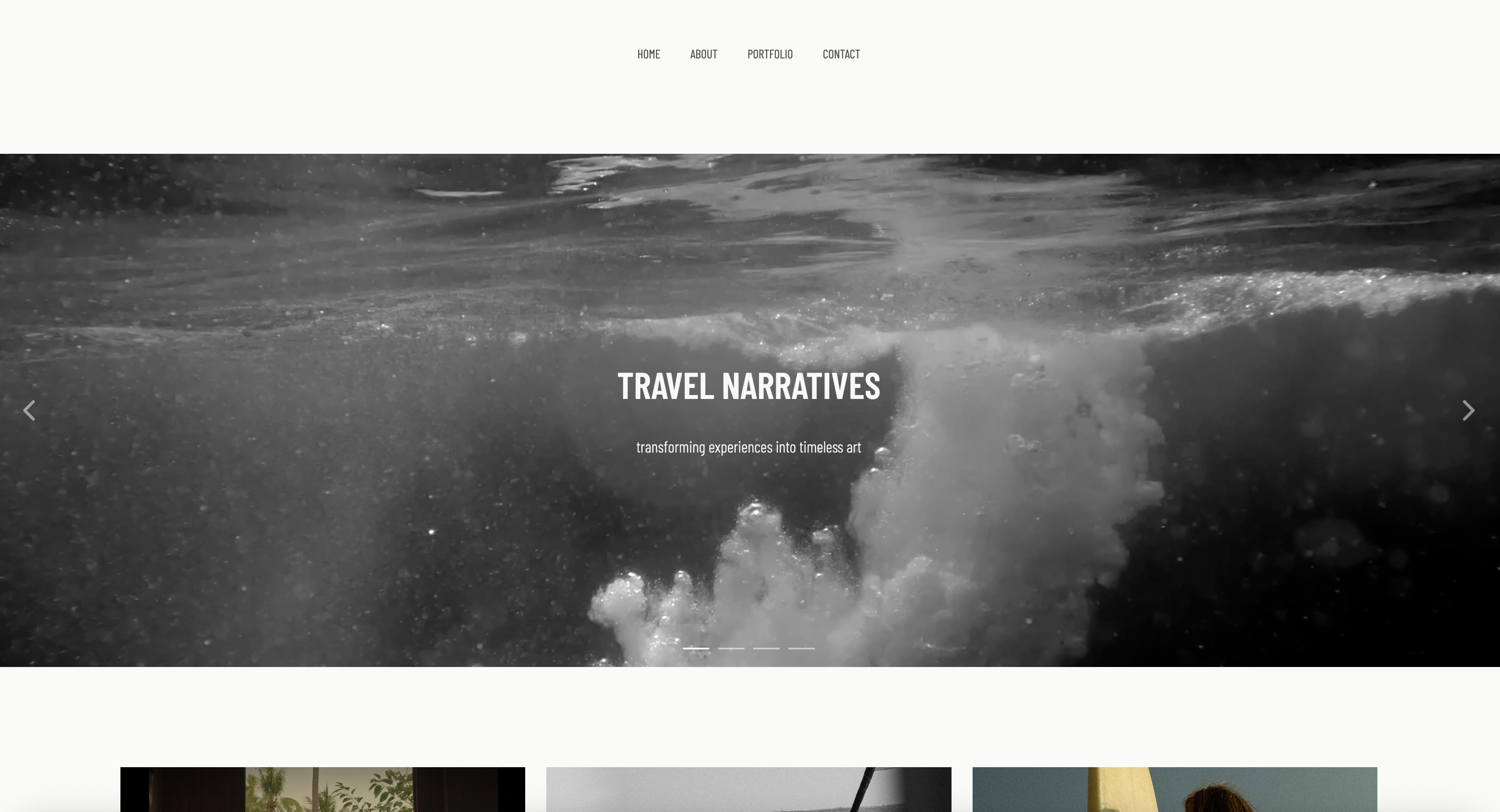
The most valuable tool in this category is free, built into YouTube Studio, and it is not a thumbnail maker.
Test and Compare lets you run up to three thumbnails against each other on the same video and tells you which one won. Since a global rollout on 4 December 2025 it also tests titles and title-plus-thumbnail combinations.
It costs nothing, and it decides the winner on watch time share rather than on clicks, which is a distinction with consequences most creators have not absorbed.
A thumbnail that wins the click and loses the viewer can lose the test.
A YouTube thumbnail maker is a design tool for producing the 1280 by 720 pixel still that represents a video in search, suggested feeds and subscriptions.
Creators use them because the thumbnail, together with the title, decides whether a video that took days to make gets watched at all.
A thumbnail earns the click, and then the work has to hold up somewhere you own. Framekit is where a lot of channel owners build that second home: a site carrying the videos, the services behind them and a way to get in touch, on a domain the platform does not control.
The best YouTube thumbnail workflow in 2026 costs nothing: design in Photopea, Figma or Canva's free tier, then test with YouTube's own Test and Compare, which is free for eligible channels and judges on watch time rather than clicks.
If you want a paid tool, Snappa at $10 a month billed annually is the best value at about $2.31 a published thumbnail, and Pikzels is the strongest AI-native generator at a reported $20 a month.
The trade-off with the AI generators is that they produce thumbnails resembling thumbnails that already exist, which is the opposite of what a feed rewards.
Updated in September 2026: we re-verified Framekit's plans and refreshed our section on the site that sits beside a channel. Thumbnail tool prices are as checked in August 2026.
How We Compared 11 Thumbnail Tools
We built the same three thumbnails in every tool: a talking-head thumbnail with a cut-out subject, bold text and a coloured background; a product thumbnail requiring an accurate cut-out and a clean type lockup; and a text-led thumbnail with no photograph, which is the hardest to make work at small sizes.
We then checked each export against YouTube's specification and viewed every result at the size it actually appears on a phone.
Three kinds of claim appear here and each is marked. How each tool handled cut-outs, text control and export specification is from building those thumbnails.
Vendor pricing was read from published pages on 9 August 2026 where the pages rendered figures, and the entries state where they did not.
Anything about YouTube's own testing feature comes from its published documentation and reporting, cited inline.
Several vendors would not give us numbers. TubeBuddy and Thumbnail.ai returned a 403, Adobe blocks automated access to its pricing entirely, Canva does the same, and vidIQ and Pikzels redirected. Those figures are third-party sourced and labelled in place.
In one lineeleven tools, three identical thumbnails including the hard text-only case, every result judged at phone size rather than on a desktop preview.
What Making the Same Three Thumbnails Showed
The design tools have converged and the interesting differences are elsewhere: in what happens after you upload, in whether the tool understands the specification, and in whether an AI generator produces something distinctive or something average.
- The cost of a published thumbnail ranges from $0.00 to about $9.23 at a weekly publishing schedule.
- 4 of the 11 tools produce fully usable thumbnails at no cost.
- The single most useful tool in the category is free, native to YouTube, and tests rather than designs.
- YouTube's own test decides on watch time share rather than click-through, so a misleading thumbnail can win clicks and lose the test.
- The most expensive route here costs about $480 a year and is an AI generator, not a professional design application.
- Every AI thumbnail generator we tried produced results resembling thumbnails that already perform well, which is a structural problem rather than a quality one.
For the tool matched to how you actually work, jump to the decision guide.
What a Published Thumbnail Actually Costs
A weekly channel publishes about 52 thumbnails a year, and most creators iterate at least twice on each. Pricing every route against 52 published thumbnails puts free tools, design subscriptions and AI generators on one scale.
| Tool | How it is priced | Cost a year | Cost per published thumbnail |
|---|---|---|---|
| YouTube Test and Compare | Free, native | $0 | $0.00 |
| Photopea | Free, browser | $0 | $0.00 |
| Figma | Free tier | $0 | $0.00 |
| Canva free tier | Free | $0 | $0.00 |
| Snappa free | 3 downloads a month | $0 | $0.00 up to 36 a year |
| Pixlr Premium, annual | About 7.99 euro a month | About 95.88 euro | About 1.84 euro |
| Snappa Pro, annual | $10 a month | $120.00 | About $2.31 |
| vidIQ Boost, annual | Reported $199 a year | $199.00 | About $3.83 |
| Pikzels Essential | Reported $20 a month | $240.00 | About $4.62 |
| Snappa Team, annual | $20 a month for 5 users | $240.00 | About $4.62 |
| Pikzels Premium | Reported $40 a month | $480.00 | About $9.23 |
The four zeroes at the top are not a compromise. A thumbnail is a 1280 by 720 image with a cut-out, some text and a background, and Photopea, Figma and Canva's free tier all produce that at full quality with no watermark and no export limit.
The row that deserves scepticism is the most expensive one. Paying about $9.23 a thumbnail for AI generation is defensible only if the generated result outperforms what you would have made, and the section below explains why that is a harder claim than it sounds.
In one linea published thumbnail costs $0.00 to about $9.23, four tools do it free, and the tool that most affects your results is the free one that tests rather than designs.
The 11 Best YouTube Thumbnail Tools in 2026: Full Comparison
Scores are out of 10 across four weighted criteria: how well the tool produces a thumbnail that reads at phone size (30%), control over cut-outs, type and composition (25%), whether it helps you learn what works rather than just produce images (25%), and cost at a weekly publishing schedule (20%).
The learning criterion carries a quarter because in this category a tool that tells you which thumbnail won is worth more than one that makes a slightly prettier one.
| Tool | Type | Price | Best for | Score |
|---|---|---|---|---|
| YouTube Test and Compare | Native testing | Free | Knowing what actually works | 9.3 |
| Photopea | Browser editor | Free, $5 a month | Full control at no cost | 8.6 |
| Canva | Template editor | Free tier, paid above | Speed and templates | 8.3 |
| Figma | Design tool | Free tier | Precise, reusable templates | 8.0 |
| Photoshop | Professional editor | Adobe subscription | The highest ceiling | 7.8 |
| Snappa | Template editor | Free, $10 a month annual | Cheapest paid template tool | 7.5 |
| Pikzels | AI generator | Reported from $20 a month | Fast AI-native concepts | 7.0 |
| Pixlr | Browser editor | From about 1.99 euro a month | Cheap editor with AI tools | 6.8 |
| vidIQ | Analytics and testing | Free, reported $199 a year | Channel data around the thumbnail | 6.5 |
| TubeBuddy | Analytics and testing | Not readable | Alternative testing suite | 6.0 |
| Photoroom | Cut-outs only | From about $7.50 a month | The cut-out half of the job | 5.7 |
A testing feature topping a list of design tools is the argument of this article. Every tool below it can make a good thumbnail, and only the top one can tell you whether the thumbnail you made is better than the one you nearly made instead.
1. YouTube Test and Compare: Free, and the Only One That Knows
YouTube's built-in A/B testing lets you upload up to three thumbnails for the same video and have the platform decide between them using real audience data, and it costs nothing.
What it feels like to useslow and definitive, which is the correct trade.
You upload the variants, the test runs against real viewers, and after typically one to two weeks and thousands of impressions it returns one of three verdicts: a clear winner, performed the same, or inconclusive.
That third outcome is honest in a way most analytics are not.
The real numberfree for eligible creators inside YouTube Studio. Against Pikzels Premium at a reported $480 a year, the tool that actually tells you which thumbnail works costs nothing.
The detail nobody writes about, and it should change how you design: YouTube picks the winner on watch time share rather than on clicks alone.
A thumbnail that overpromises can pull more clicks and still lose, because the viewers it attracted left early. That single design choice by YouTube penalises exactly the clickbait the rest of this category optimises for.
The gotchaeligibility is not universal. You need advanced features enabled on your channel, the feature is available on desktop through YouTube Studio rather than mobile, and Shorts, scheduled live streams and Premieres cannot be tested.
Since a global rollout on 4 December 2025 it also covers titles and title-plus-thumbnail combinations.
Skip it ifyour channel is not eligible yet, in which case vidIQ or TubeBuddy offer their own testing approaches at a price.
Verdict: the most useful tool in this entire comparison and the only free one that generates information rather than images. Whatever you design with, test with this.
2. Photopea: Full Control, No Cost
Photopea is a browser-based editor with a Photoshop-shaped interface, and for thumbnails it does everything the paid design tools do without an account or an install.
What it feels like to usefamiliar to anyone who has used Photoshop and immediately capable. Layer masks for a clean cut-out, proper type controls, blend modes for the background glow that thumbnail design relies on, and a 1280 by 720 canvas you set once and reuse.
On our text-only thumbnail it was the only free tool with the type control to make that work.
The real numberfree with advertising, or $5 a month for Premium, whose own developer's blog states the upgrade currently adds no features beyond removing ads. At 52 thumbnails a year the free tier costs nothing and the paid one about $1.15 each.
The detail nobody writes aboutit opens PSD files, which means thumbnail templates built by a designer in Photoshop work here without conversion. For a creator who commissioned a template once and produces thumbnails weekly, that removes the subscription entirely.
The gotchait is a browser tab, so an unsaved file and a closed window is a lost thumbnail. Save early, and keep your templates as PSDs on your own disk rather than only in the browser.
Skip it ifyou want templates and speed rather than control, where Canva is faster for someone who does not want to think about layers.
Verdict: the best free design tool for thumbnails and the one we would give a creator who wants to improve rather than to move quickly. Full control, no cost, no account.
Publishing beyond YouTube? We compared where else video can live in the best video hosting platforms.
3. Canva: Fastest From Nothing to Published
Canva is where the overwhelming majority of thumbnails are actually made, and the reason is that it removes every decision that is not about the thumbnail itself, from canvas setup to export format.
What it feels like to useimmediate. A correctly sized template, a background remover, a font library and an export in the right format, with no setup. For a creator publishing weekly who does not want a design hobby, that speed is the product.
The real numberCanva blocks automated access to its pricing page, so we are not quoting figures. What matters here is that the free tier covers thumbnail work: correct dimensions, no watermark on your own uploads, and unlimited exports.
The gotchatemplate recognisability. The most-used thumbnail templates are used a great deal, and a feed is exactly the context where looking like everything else costs you the click.
Use Canva for the mechanics and change the type, colour and layout enough that the template is not the thing people see.
Skip it ifyou want precise typographic control, where Figma and Photopea both give you more.
Verdict: the right tool for speed and the wrong one for distinctiveness unless you work at it. Free tier is sufficient; the discipline is on you.
4. Figma: Templates You Build Once
Figma is a design tool rather than a thumbnail tool, and it suits creators who publish often enough to want a system rather than a series of one-off files.
What it feels like to usestructured. You build a thumbnail template as a component with the text, the subject cut-out and the background as swappable pieces, then produce each week's thumbnail by replacing three things. After the first hour it is the fastest workflow in this comparison.
The real numberthe free tier covers an individual creator doing this comfortably, so the cost is $0.00 at 52 thumbnails a year.
The detail nobody writes aboutbecause components update everywhere, changing your channel's thumbnail style updates the template rather than requiring 52 edits. For anyone rebranding a channel, that is the difference between an afternoon and a week.
The gotchait has no background remover of its own, so cut-outs happen elsewhere and get imported. That is one extra step every time, and it is the reason some creators prefer Canva or Photopea.
Skip it ifyou publish irregularly, where the setup cost of a component system never pays back.
Verdict: the best choice for a consistent channel identity at no cost, and overhead for someone publishing occasionally. Build the template once and the weekly job takes minutes.
5. Photoshop: The Highest Ceiling
Photoshop remains the tool with the most headroom for thumbnail work, and for a channel where the thumbnail is a significant production step it is still the professional answer.
What it feels like to useunmatched on the hard parts. Hair against a busy background, complex compositing, precise colour work on a subject cut out from footage rather than a photograph. On our product thumbnail the edge quality was visibly better than anything else here.
The real numberpart of a Creative Cloud subscription. Adobe blocks automated access to its plan pages, so we quote no figure, and the relevant comparison is that Photopea does most of this free.
The gotchathe gap between Photoshop and Photopea on thumbnail work specifically is much smaller than the gap on professional retouching. Thumbnails are simple compositions viewed small, and the ceiling Photoshop offers is largely above the level thumbnails operate at.
Skip it ifyou are subscribing for thumbnails alone, which is difficult to justify when a free browser tool covers the job.
Verdict: excellent if you already have it and hard to recommend buying for this purpose. If you edit video in Premiere and hold a Creative Cloud plan, use it and skip everything else in this list.
6. Snappa: Cheapest Paid Template Tool
Snappa is a straightforward template-based graphic editor with a feature set aimed squarely at social and thumbnail work, and it publishes the clearest low-cost pricing of any paid tool in this comparison.
What it feels like to usesimpler than Canva with less to navigate. Correct preset sizes, a background remover, a large stock library and custom font uploads on the paid tier, which is the feature that lets a channel's typeface stay consistent.
Pro at $10 a month works out at about $2.31 a thumbnail at 52 a year.
The detail nobody writes aboutthree downloads a month on the free tier is the constraint, not the feature set. A weekly channel exhausts it before the month is out, which makes the free tier a trial in a way Canva's genuinely is not.
The gotchacustom font upload sits on the paid tier, and for a channel with a defined visual identity that single feature is the reason to pay rather than the unlimited downloads.
Skip it ifthe free tools cover you, which for most creators they do.
Verdict: the best value paid template tool here at $10 a month annually, and unnecessary for anyone happy in Canva's free tier or Photopea.
7. Pikzels: AI-Native Thumbnail Generation
Pikzels generates finished thumbnails from prompts and reference images rather than handing you a canvas to work on, which makes it a genuinely different proposition from every design tool ranked above it here.
What it feels like to usefast at concepts and imprecise at execution. Generating six directions in a minute is useful early in a channel's life when you do not yet know what your thumbnails should look like. Getting a specific idea out of it is harder than making that idea yourself.
The real numberreported at $20 a month for Essential with 2,400 credits, $40 for Premium with 18,000 credits plus face swap and thumbnail recreation, and $80 for Ultimate with 54,000 credits and private generations.
Pikzels redirected rather than serving readable pricing, so these are third-party sourced. Essential works out at about $4.62 a thumbnail at 52 a year.
The gotcha, and it is structural rather than a flaw in this product: AI thumbnail generators are trained on thumbnails that already exist and already performed.
What they produce therefore resembles the current average, and a feed rewards standing out from the current average. The tool is optimising for the opposite of the outcome you want, which no amount of prompt quality fixes.
Skip it ifyour channel already has a visual identity, where generation pulls you back toward the mean.
Verdict: useful for generating ideas when you have none, and a poor way to produce a channel's actual thumbnails. Treat the output as reference and rebuild the good ones yourself.
8. Pixlr: Cheap Editor With AI Attached
Pixlr is a browser-based layered editor with generative tools built directly into the toolbar, priced well below the established design subscriptions and comfortably above the free options in this comparison.
What it feels like to usea competent layered editor with generative fill and background removal in the toolbar, which for thumbnail work covers the two operations you perform most.
The real numberread from a European address, Plus is 2.49 euro a month or 1.99 billed annually, Premium is 9.99 or 7.99 annually with 1,000 monthly AI credits, and Ultra is 24.99 or 19.99.
Pixlr shows no dollar figures to a European visitor, so these are euros. Premium annual works out at about 1.84 euro a thumbnail.
The gotchaalmost everything interesting consumes credits that do not roll over, so a heavy month and a quiet month cost the same. For thumbnail work specifically the credit consumption is modest, which makes the cheaper tiers viable in a way they are not for other uses.
Skip it ifPhotopea covers you free, which for most thumbnail work it does.
Verdict: reasonable value for a creator who wants generative tools without a design subscription, and hard to justify against a free browser editor that does the same layered work.
9. vidIQ: Data Around the Thumbnail
vidIQ is a channel analytics and optimisation suite rather than a design tool, and it is here because thumbnail decisions are downstream of understanding what your audience responds to.
What it feels like to useinformational. Competitor thumbnail analysis, keyword and trend data, and its own testing approach sit alongside the channel metrics, which for someone growing deliberately is more useful than another editor.
The real numberreported with a free plan including 150 AI credits a month, a Boost plan at about $16.58 a month on annual billing at $199 a year or $39 monthly with 2,000 AI credits, a Max tier at roughly $39 a month annually, and a Coaching plan at about $99 a month. vidIQ redirected rather than serving readable pricing.
The gotchaat a reported $199 a year it is more expensive than every design tool here, and you are buying channel strategy rather than thumbnails. Judge it on whether the analytics change your decisions, not on its thumbnail features.
Skip it ifYouTube's own Test and Compare is available to you, which covers the specific thumbnail question free.
Verdict: a legitimate purchase for a channel being grown as a business, and the wrong line item if thumbnails are the problem you are solving.
10. TubeBuddy: The Other Optimisation Suite
TubeBuddy occupies broadly similar territory to vidIQ, combining channel management, bulk editing tools, competitor research and its own approach to thumbnail testing in a single subscription.
What it feels like to usebrowser-extension-led, sitting inside YouTube Studio rather than in a separate application, which some creators prefer and others find cluttered.
The real numbernot readable. TubeBuddy returned a 403 to automated requests, so we are not quoting plan figures.
The gotchathird-party thumbnail testing tools existed because YouTube's own did not. Now that Test and Compare is rolled out and free for eligible channels, the case for paying for testing specifically is narrower than it was, and these suites are better judged on their other features.
Skip it iftesting was the reason you were considering it.
Verdict: a capable suite whose headline thumbnail feature has been substantially commoditised by YouTube itself. Evaluate it on the rest.
11. Photoroom: Just the Cut-Out
Photoroom does exactly one part of the thumbnail job, separating a subject cleanly from its background, and it does that single operation noticeably better than the general-purpose design tools above.
What it feels like to usenarrow and quick. Drop in a frame grab, get a clean cut-out, take it into whichever editor you compose in. On our talking-head thumbnail the edge quality on hair beat every all-in-one tool here.
The real numberPro is reported at $7.50 a month billed annually, roughly $12.99 to $15 monthly, with higher tiers above.
The gotchait is half a workflow. You still need something to compose in, so this is a second subscription rather than a replacement, and free background removers in Canva, Photopea and Snappa are adequate for most thumbnails.
Skip it ifyour subject is easy to cut out, which for a straightforward talking-head frame it usually is.
Verdict: worth it only if hair and edge quality are visibly letting your thumbnails down, and unnecessary otherwise.
The Specification, and the Corner That Gets Covered
In one linea thumbnail is 1280 by 720 pixels at 16:9 under 2MB, and the bottom right corner is not yours, because the video duration sits there on every surface where your thumbnail appears.
Getting the specification right is trivial and getting the safe areas right is where most thumbnails lose information.
Size and format. 1280 by 720 is the recommended dimension, 16:9 is the aspect ratio every surface uses, and the file must come in under 2MB.
Exporting larger than 1280 by 720 does no harm and does not help; exporting at a different aspect ratio produces letterboxing you did not design.
The duration stamp. The runtime badge overlays the bottom right corner. Any text, face or detail placed there is partly obscured on the surfaces that matter most. Leave that corner deliberately empty rather than discovering the collision after publishing.
Progress bars on rewatched videos. For a viewer who has partly watched a video, a red progress bar overlays the bottom edge. Anything within roughly the bottom eighth of the frame is at risk for that audience.
Platform chrome varies by surface. The same thumbnail appears in search, on the home feed, in suggested videos beside a playing video, on a channel page and inside notifications, at several different sizes and with different elements overlaid.
A composition that only works in one of those is a composition that fails most of the time.
The habit that catches all of it: after exporting, view your thumbnail at about 210 pixels wide, which is roughly its size in a suggested-videos column on a laptop, and again at phone size.
If the text is unreadable or the subject is unrecognisable at those sizes, the design is wrong regardless of how it looks at full size in your editor.
Design for the Size It Is Actually Seen At
In one linethumbnails are designed at 1280 pixels wide and seen at somewhere between 120 and 360, and almost every common mistake in this category comes from designing at the wrong scale.
Four consequences follow, and they are the whole craft.
Three or four words maximum. Text on a thumbnail is not a sentence, it is a label. Anything longer becomes an unreadable grey band at the size a viewer sees it. If you cannot say it in four words, the words are not the right approach for that thumbnail.
One subject, large. A composition with three elements at full size has three unrecognisable smudges at thumbnail size. The thumbnails that work are almost always one face, one object or one contrast, filling a large share of the frame.
Contrast beats colour. A thumbnail competes with every other thumbnail on the screen, and what separates it is luminance contrast rather than a distinctive hue.
Convert your thumbnail to greyscale: if the subject still separates from the background, it will read in the feed.
Faces work because of what they express, not because they are faces. A face at thumbnail size communicates one thing, an emotion, and that emotion should match what the video actually delivers.
This is where the watch-time-based test punishes overreach: an expression promising drama the video does not contain wins the click and loses the retention.
The practical exercise: take your last three thumbnails, shrink them to 210 pixels wide, and put them side by side with three thumbnails from channels you compete with.
What you notice in that comparison is what to fix, and it is usually text length and contrast rather than production quality.
What to Test, and in What Order
In one linetesting works when the variants differ on one meaningful dimension, and most creators waste their tests on variations too similar for any result to be readable.
Since YouTube typically needs one to two weeks and thousands of impressions to return a verdict, and since a good proportion of tests come back inconclusive, choosing what to test is the whole skill.
Test concepts, not tweaks. A face versus an object, text versus no text, a wide shot versus a close-up. Those differences produce readable results.
Two versions of the same layout with a different shade of yellow will come back as performed the same, and you will have spent two weeks learning nothing.
Test the title and the thumbnail together at least once. Since the December 2025 rollout added titles and combinations, you can test whether the pairing works rather than each half separately.
The pairing is what a viewer actually sees, and a thumbnail that duplicates the title in text is wasting half its surface.
Run the test on a video with enough traffic. An inconclusive verdict usually means insufficient impressions rather than an equal result. Testing on your smallest videos produces the least information.
Keep a record of what won and why you think it did. After ten tests you have a channel-specific design brief that no general advice about thumbnails can give you, and it is worth more than every tool in this comparison.
The pattern that produces the most learning fastest: test one structural decision per video for ten videos, then apply what you learned as your default and start testing refinements against it.
Run This Test Before You Buy Anything
Before spending anything in this category, open your last ten published thumbnails side by side at about 210 pixels wide, which is roughly the size they appear at in a suggested-videos column.
Ask two questions. Can you tell at a glance which channel they belong to? And can you read the text without leaning in?
If the answer to the first is no, your problem is consistency, and the fix is a reusable template in Figma or Photopea, which costs nothing.
If the answer to the second is no, your problem is text length and contrast, and the fix is fewer words and more luminance separation, which also costs nothing.
If both answers are yes and your click-through is still disappointing, then your problem is concept rather than execution, and the tool that helps is YouTube's own testing rather than any design software.
In none of those three cases is a paid thumbnail generator the answer, which is worth knowing before spending $480 a year on one.
Where the Videos Should Also Live
A thumbnail exists to win a click inside somebody else's feed. What it cannot do is give the work a home, which matters when a viewer wants to hire you, buy something or see what else you have made.
Framekit is an AI website builder for creators, filmmakers and photographers, so a channel's work can also live on a site you control, with the videos embedded, the context around them and a contact route attached.
For a creator building a business alongside a channel, that page is where an audience becomes an enquiry, and it does not disappear when a platform changes what it recommends.
Two honest limits. Framekit does not design thumbnails and is not an alternative to anything ranked above. And it is not a video host, so the videos themselves stay on YouTube or another platform and get embedded rather than uploaded to us.
The Decision Guide
Work down these questions in order and stop at the first yes, noting that the first one is about testing rather than designing, which is the point this whole comparison has been making.
Is your channel eligible for Test and Compare? If yes, use it on every video regardless of what you design with. It is free and it is the only tool here that produces information rather than images.
Do you want full design control at no cost? If yes, Photopea, which opens PSD templates and gives you real layer and type control in a browser tab.
Do you publish weekly and want a consistent look? If yes, Figma's free tier, building one component-based template you swap three elements into each week.
Do you want the fastest route from nothing to published? If yes, Canva's free tier, with the discipline to change enough that the template is not what people see.
Do you need custom fonts and unlimited exports on a small budget? If yes, Snappa Pro at $10 a month billed annually.
Do you already hold a Creative Cloud subscription? If yes, use Photoshop and buy nothing else in this category.
Are you early enough that you do not know what your thumbnails should look like? If yes, Pikzels at a reported $20 a month for concept generation, treating the output as reference rather than as final artwork.
Is your channel not yet eligible for YouTube's own testing? If yes, vidIQ or TubeBuddy, judged on their whole feature set rather than on testing alone.
Frequently Asked Questions
What is the best YouTube thumbnail maker in 2026?
The best YouTube thumbnail workflow in 2026 costs nothing: design in Photopea, Figma or Canva's free tier, then test with YouTube's own Test and Compare, which is free for eligible channels.
Among paid tools, Snappa at $10 a month billed annually is the best value at about $2.31 a published thumbnail, and Photoshop has the highest ceiling if you already hold a Creative Cloud subscription.
Is there a free YouTube thumbnail maker?
Yes, and there are four genuinely capable ones. Photopea is a free browser editor with full layer and type control that also opens PSD templates. Figma's free tier lets you build a reusable component template.
Canva's free tier produces correctly sized thumbnails with no watermark. Snappa's free tier allows three downloads a month, which is a trial rather than a workflow for a weekly channel.
Does YouTube let you A/B test thumbnails?
Yes. YouTube's Test and Compare feature lets eligible creators run up to three thumbnails against each other on the same video, and since a global rollout on 4 December 2025 it also tests titles and title-plus-thumbnail combinations.
It is free inside YouTube Studio, requires advanced features to be enabled, is available on desktop rather than mobile, and cannot test Shorts, scheduled live streams or Premieres.
How does YouTube decide which thumbnail wins?
YouTube picks the winner based on watch time share rather than clicks alone, which is the most important design consequence in this whole category.
A thumbnail that overpromises can attract more clicks and still lose the test, because the viewers it brought in left early.
Tests typically need one to two weeks and thousands of impressions, and return one of three verdicts: a winner, performed the same, or inconclusive.
What size should a YouTube thumbnail be?
A YouTube thumbnail should be 1280 by 720 pixels at a 16:9 aspect ratio and under 2MB.
Leave the bottom right corner clear, because the video duration badge overlays it on every surface, and keep important detail out of the bottom eighth of the frame, where a red progress bar appears for viewers who have partly watched the video.
How much do thumbnail makers cost?
A published thumbnail costs between $0.00 and about $9.23 at a weekly publishing schedule. Photopea, Figma, Canva's free tier and YouTube's testing feature are free.
Snappa Pro at $10 a month billed annually works out at about $2.31 a thumbnail, and AI generators are the most expensive route, with Pikzels reported at $20 to $80 a month, or roughly $4.62 to $18.46 a thumbnail.
Are AI thumbnail generators worth it?
They are useful for generating concepts when you do not yet know what your thumbnails should look like, and they have a structural problem for established channels.
These tools are trained on thumbnails that already exist and already performed, so their output resembles the current average, and a crowded feed rewards standing out from that average rather than matching it.
Treat generated results as reference and rebuild the good ones yourself.
Do I need Photoshop for thumbnails?
No. Photoshop has the highest ceiling and thumbnails rarely approach it, because they are simple compositions viewed at small sizes.
Photopea provides the same layer masks, type controls and blend modes free in a browser and opens PSD templates directly.
If you already hold a Creative Cloud subscription, use Photoshop; buying one for thumbnails alone is difficult to justify.
How many words should be on a thumbnail?
Three or four at most. Thumbnails are designed at 1280 pixels wide and viewed at somewhere between 120 and 360, so anything longer becomes an unreadable band at the size that matters.
The text is a label rather than a sentence, and it should add something the title does not already say, since a thumbnail repeating the title wastes half its surface.
Should my face be on the thumbnail?
Faces work when the expression communicates something specific that the video actually delivers, and not simply because they are faces.
Since YouTube's own test judges on watch time rather than clicks, an expression promising drama the video does not contain is penalised rather than rewarded.
One face, large, with a clear emotion matched to the content is the version that works.
How do I know if my thumbnail is any good?
Shrink it to about 210 pixels wide, which is roughly its size in a suggested-videos column, and check two things: whether the text is readable and whether the subject is recognisable.
Then convert it to greyscale, and if the subject still separates from the background it has enough contrast for a crowded feed. Beyond that, YouTube's Test and Compare answers the question with real audience data.
What should I test first?
Test concepts rather than tweaks. A face against an object, text against no text, a close-up against a wide shot: those differences produce readable results.
Two versions of the same layout in slightly different colours will come back as performed the same, and you will have spent two weeks learning nothing.
Run tests on videos with enough traffic, because inconclusive verdicts usually mean too few impressions.
Are third-party thumbnail testing tools still worth paying for?
Less than they were. Tools such as vidIQ and TubeBuddy built their thumbnail testing when YouTube offered none, and now that Test and Compare is free for eligible channels the case for paying specifically for testing is much narrower.
They remain worth evaluating on their wider analytics, competitor research and channel management features, and if your channel is not yet eligible for YouTube's own testing.
Final Verdict: The Best YouTube Thumbnail Tool in 2026
The honest answer is that the thumbnail workflow that works best costs nothing.
Design in Photopea if you want control, Figma if you want a repeatable template, or Canva if you want speed, then test with YouTube's own Test and Compare, which is free, uses real audience data, and judges on watch time rather than clicks.
If you want to pay for something, Snappa Pro at $10 a month billed annually is the best value paid design tool here, and Photoshop is the right choice if a Creative Cloud subscription is already on your card.
Where this category loses, plainly: almost every paid tool in it is priced as though making the image were the hard part. It is not.
The hard part is knowing which of two reasonable thumbnails your audience prefers, and the tool that answers that is free.
AI generators have the additional structural problem that they produce work resembling what already exists, in a context that rewards the opposite.
Where Framekit loses, and it is worth stating directly: we do not design thumbnails, we do not host video, and we are not an alternative to anything ranked above. If a thumbnail tool is what you came for, the eleven here are your list and we are not on it.
The short version. Test everything with YouTube's free Test and Compare. Design in Photopea for control, Figma for consistency, or Canva for speed, all free. Pay $10 a month for Snappa if you want custom fonts and unlimited exports.
Use Photoshop if you already have it. Use AI generation for ideas, not for output.
Related readingthe best video hosting platforms, the best AI video clipping tools, the best background remover tools, the best Canva alternatives, and the best website builder for UGC creators.