Framekit templates
Start from a designer-made template
 Use template
 Use template
 Use template
 Use template
 Use template
 Use template
 Use template
 Use template
This comparison usually gets answered badly, because people argue about which tool is better rather than about which failure they can live with.
Canva produces a deck that looks like a designer touched it and behaves unpredictably when it leaves the tool. Google Slides produces a deck that behaves perfectly and looks like a document.
Pick the failure that costs you less, and the decision takes about a minute.
Google Slides is a tool for building presentations in a browser, free and designed around simultaneous editing, and Canva is a platform for making designed documents whose presentation module produces slides from a very large template library.
Both are free to use, and they fail in opposite directions. Framekit Slides sits to one side of that pair: it drafts a deck from a written description and publishes the website the last slide points at from the same free account.
Use Canva when the deck goes to a client, an investor or anyone judging you on presentation, and Google Slides when several people are writing it or when it needs to survive being exported, edited and reused by someone else.
Canva's advantage is design and its cost is export fidelity and a $144-a-year gate on brand fonts; Google Slides is free permanently, handles co-editing and .pptx more reliably than anything else, and will never make your deck look considered on its own.
Framekit is the runner-up worth knowing about if the deck and the site behind it should come out of one account, though it has no simultaneous editing and tells you nothing about who opened the link.
Full disclosure: Framekit is our own product and it is not on trial here. Framekit Slides does build decks, but we did not put it through this head-to-head, and below we say plainly what it does and does not do rather than score it against these two.
How We Compared Canva and Google Slides
We built the same deck in both: eighteen slides with a title, a positioning statement, four sections of body copy, two data charts, a five-logo client wall, a team slide with photographs, a pricing table, and a closing slide.
Then we exported each one to PDF and to .pptx, opened both exports on another machine, and had three people edit each deck simultaneously.
What was measured by hand: build time, export fidelity in both formats, simultaneous editing behaviour with three editors, and what happened to a licensed brand font in each.
What was verified from published sources: pricing, checked against each vendor's own published pages in August 2026.
What is reported as community sentiment rather than our result: complaints about Canva export drift, which we mention because they match what we saw but are widely reported independently.
We re-verified this comparison on 20 September 2026, rechecking both vendors' published prices and correcting what we say about Framekit, whose Slides deck editor had not shipped when this was first written.
The Short Version
Google Slides wins on collaboration, export reliability, price and predictability. Canva wins on design output, template range and how the finished deck makes your work look.
Neither wins on the other's ground, and no amount of effort in Google Slides produces a Canva-quality deck in the time available.
| Criterion | Canva | Google Slides |
|---|---|---|
| Design output | Far stronger | Weak without effort |
| Template library | The largest available | Small and dated |
| Simultaneous editing | Works, occasionally laggy | The most reliable here |
| .pptx export fidelity | Drifts on complex slides | The cleanest of any tool |
| PDF export | Reliable | Reliable |
| Custom brand fonts | Pro only, $144 a year | Not supported at all |
| Offline use | No | Limited, with setup |
| Price | Free, or $18 a month | Free permanently |
| Best for | Client-facing decks | Team-written decks |
Our build times were close: about two hours in Canva starting from a template, and about two hours forty minutes in Google Slides, with the extra time spent making it not look like a default deck.
Where Canva Wins
Canva's advantage is not subtle and it is not only aesthetic. On a client-facing deck, presentation carries part of the argument, and the gap between the two tools on this dimension is the largest single difference in the comparison.
The template library. Canva's is the deepest of any tool in this category, and it matters most for people who cannot design.
A non-designer starting from a Canva template lands somewhere respectable; the same person starting from a Google Slides theme lands somewhere that looks like a school project.
Image handling. Our team slide with five photographs and the client logo wall both came out visibly better in Canva, because the tool assumes images are content rather than decoration and gives you proper cropping, masking and background removal.
Brand consistency across a team. Canva's brand kit holds five people to one typeface and palette. In Google Slides, consistency is a matter of everyone remembering, which in practice means a deck with three typefaces in it by Friday.
The real costthe free plan finishes an eighteen-slide deck. Pro is $18 a month or $144 billed annually, about $12 a month, and the specific line that pushes most people onto it is uploading a licensed brand typeface.
Where Google Slides Wins
Google Slides wins on everything that happens around the deck rather than inside it, which is why it remains the default at companies where decks are written by teams.
Simultaneous editing. With three editors in the same deck, Google Slides was noticeably steadier than Canva, which occasionally lagged and once showed a stale slide until refreshed.
For a deck being written by several people the night before a meeting, that reliability is the whole product.
Export fidelity. This is the difference most people discover too late. Our .pptx export from Google Slides opened on another machine essentially intact.
The same export from Canva shifted spacing on the pricing table and re-flowed one chart caption, which is exactly the kind of damage that appears after you have stopped checking.
Price. Free permanently, with nothing gated that an eighteen-slide deck needs.
On a company domain, Google Workspace Business Starter is $7 per user a month on annual billing, per Google's published pricing, and that buys email and storage rather than presentation features.
Version history. Slides keeps a deeper, more usable revision history, and recovering a slide someone deleted three weeks ago is a two-minute job rather than a search through your own exports.
The Font Problem Nobody Mentions Until It Bites
In one lineif your brand uses a licensed typeface, neither of these tools handles it the way you would hope, and the difference between them is a $144 subscription against a flat refusal.
Google Slides does not support uploading a custom font at all. Your options are the fonts Google offers, and if your brand typeface is not among them, your deck is not on brand and no plan changes that.
Canva does support it, on Pro, at $18 a month or $144 billed annually. That single feature is the most common reason a Canva user upgrades, and it is worth knowing that it is what you are buying rather than discovering it after the fact.
The workaround both tools share. Set headlines as images exported from a design tool, keep body copy in a supported font, and accept that text in images is not searchable or editable.
It is ugly, it works, and it is what a surprising number of studios actually do.
If fonts are non-negotiable, the free answers are Apple Keynote on a Mac and PowerPoint on the desktop, both of which handle licensed fonts properly at no additional cost.
Our best Canva alternatives for presentations comparison covers that path in full.
What Happens When You Export
In one linethe export step is where this comparison is actually decided, because most decks leave the tool they were made in.
We exported the same eighteen slides from both tools to PDF and .pptx and opened them elsewhere. The PDFs were fine from both, which is the good news and the reason most people never notice a problem.
The .pptx files were not equivalent. Google Slides produced a file that looked like the original, with text as text and the pricing table intact.
Canva's export shifted the pricing table's spacing, re-flowed a chart caption onto two lines, and substituted a font on the title slide.
Why this matters more than it sounds. If a client, an investor or a colleague is going to edit your deck, they will ask for a .pptx. Every time you revise the deck, you repeat the repair.
Across a six-week sales cycle with four revisions, that is four rounds of fixing the same three slides.
When it does not matter at all. If you only ever send a PDF, Canva's export weakness is irrelevant and you should choose on design. That describes most freelancers and most client presentations.
Cost Over a Year
In one linethe honest cost difference is $144 a year for one person, and it buys brand fonts and premium assets rather than a fundamentally better tool.
| Scenario | Canva | Google Slides |
|---|---|---|
| One person, free plan | $0 | $0 |
| One person, brand fonts needed | $144 a year | Not possible |
| Five people, brand controls | About $1,500 a year on Business | $0, or $420 with Workspace |
| Offline presenting | Not supported | Limited |
Run this on yourself. Open the last five decks you sent and check two things: whether anyone asked for an editable file, and whether you substituted your brand typeface.
If nobody asked for a file and you did substitute the font, Canva Pro is the right $144. If someone asked for a file and the font never mattered, you should be in Google Slides and saving the money.
Which Should You Use? A Short Decision Guide
In one lineanswer these four questions in order and stop at the first yes.
1. Will several people write this deck at the same time? Google Slides. Nothing else in this comparison is as steady with three editors.
2. Will anyone need an editable .pptx? Google Slides, because the export survives and Canva's does not.
3. Is the deck client-facing and currently unattractive? Canva, free plan first, and only pay the $144 when brand fonts become the blocker.
4. Is your brand typeface non-negotiable and licensed? Canva Pro, or move to Keynote or PowerPoint, which both handle it for nothing.
5. Is the website the deck links to as out of date as the deck used to be? Framekit, because one free account drafts the slides and publishes the page they point at, which is the one job neither tool above attempts.
If you answered no to all five, use Google Slides and spend the saved time on the content, which is what the audience is actually judging.
The Page Your Deck Points At
In one linewhichever tool you choose, the deck usually ends with a link, and the page behind that link is doing work neither Canva nor Google Slides can do.
A deck gets forwarded to people who were not in the meeting. Those people almost always look you up before deciding anything, and what they find is the first impression you did not frame.
A deck cannot fix a website that is out of date, and no template in either tool addresses it.
Framekit is an AI website builder that generates a real, publishable site from a description, on your own domain, which is one straightforward way to make sure the page behind the link matches the deck in front of it.
The free plan needs no credit card.
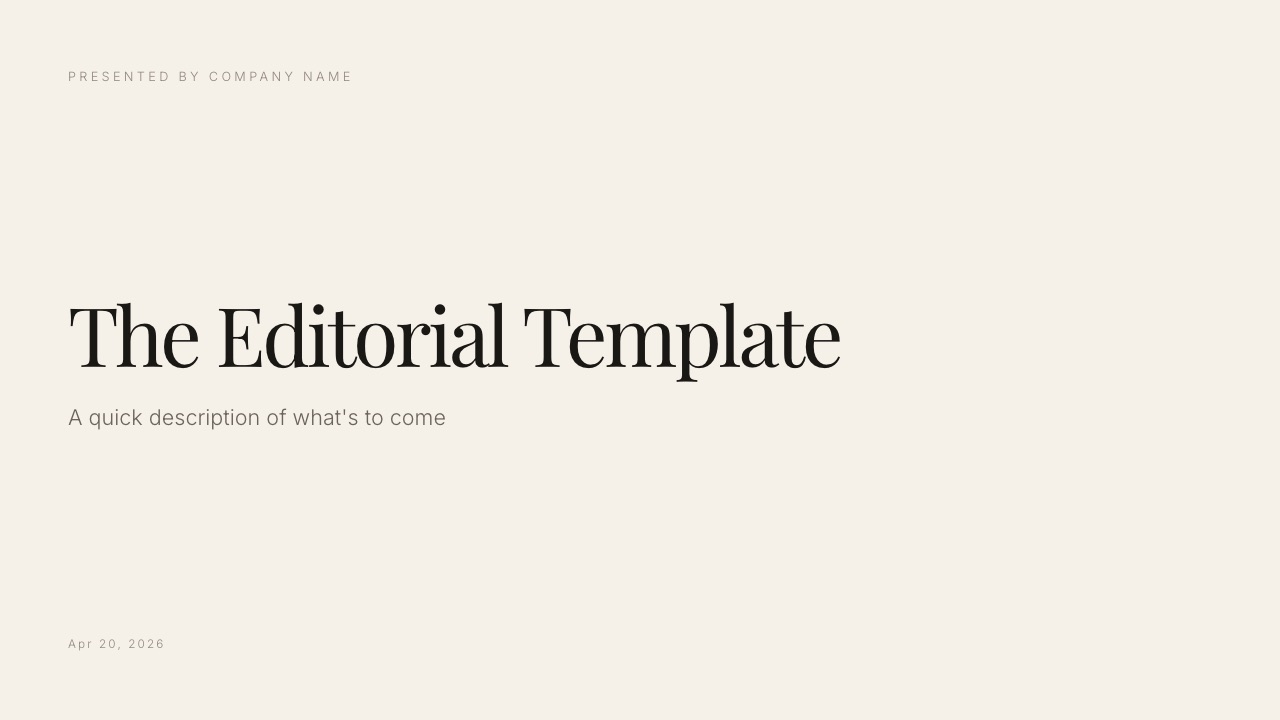
Its Slides editor does build decks now, with AI drafting, speaker notes, full-screen presenting and PDF export on every plan, but there is no live co-editing, no password on a shared deck link, and the .pptx export is picture-based and needs Pro, so it is not a drop-in replacement for either tool above.
Frequently Asked Questions
Is Canva better than Google Slides?
Canva is better at design output and Google Slides is better at collaboration, export fidelity and price, so the answer depends on which failure costs you more.
For a client-facing deck where presentation carries part of the argument, Canva wins clearly. For a deck several people write together, or one that will be exported as an editable .pptx, Google Slides wins just as clearly.
Is Canva free for presentations?
Yes, Canva's free plan produces a complete presentation with no watermark and no slide limit, and it finished our eighteen-slide test deck without hitting a paywall.
The features behind Pro at $18 a month or $144 a year are custom brand-font upload, premium stock assets, and brand-kit controls, none of which a normal deck strictly requires.
Does Canva export properly to PowerPoint?
Not reliably on complex slides. Our .pptx export from Canva shifted table spacing, re-flowed a chart caption and substituted a font on the title slide, which matches widely reported user experience.
PDF export from Canva is reliable, so the practical rule is to send PDFs from Canva and build in Google Slides or PowerPoint whenever an editable file is part of the process.
Can Google Slides use custom fonts?
No. Google Slides supports only the fonts available through Google Fonts and offers no upload path for a licensed brand typeface at any plan level.
If your brand typeface is essential, your options are Canva Pro at $144 a year, Apple Keynote or desktop PowerPoint, which both handle licensed fonts at no extra cost, or setting headlines as exported images.
Which is better for collaboration?
Google Slides, and not by a small margin. With three simultaneous editors it stayed steady where Canva occasionally lagged and once served a stale slide until we refreshed.
Comment threads in Slides are also easier for someone outside your organisation to use without an account conversation, which matters when a client is reviewing the deck.
Can I import a Canva deck into Google Slides?
Yes, by exporting from Canva as .pptx and uploading that file to Google Slides, and you should expect the same drift on complex slides that any Canva .pptx export produces.
Simple text-and-image slides survive the trip well; tables, charts and precise layouts usually need repair. Moving in the other direction, from Slides to Canva, is generally cleaner.
Which is faster to build a deck in?
Canva, if you use a template, and the gap is smaller than people assume.
Our build took about two hours in Canva and about two hours forty minutes in Google Slides, with the extra time in Slides spent making it not look like a default theme. If you skip that effort, Slides is faster and the result shows it.
Do investors or clients care which tool made the deck?
No, they care about the result. Nobody has ever declined a proposal because it was made in Google Slides, and plenty of funded companies used exactly that.
What people do notice are fidelity failures: a substituted font, a broken table in the PDF, a chart that overflows its slide, all of which read as carelessness rather than as a software limitation.
What about offline presenting?
Google Slides has limited offline support that requires setup in advance, and Canva has none worth relying on.
If you regularly present in venues with unreliable connections, both are risky and the correct answer is to export a PDF to your laptop before you travel.
For frequent offline presenting, Keynote or desktop PowerPoint are better tools than either of these.
Which is better for a pitch deck?
Canva for the design and Pitch or Google Slides for the process, depending on what your raise needs.
Canva produces the better-looking document, but neither tool in this comparison reports who opened your deck, which for a founder sending to forty investors is the feature that changes follow-up.
Our best pitch deck software comparison covers tools that do.
Is there a better option than both?
For most people, no, and that is why these two dominate. If design is the problem and you own a Mac, Keynote handles images and licensed fonts better than either at $0.
If you need to know what recipients read, Pitch and Storydoc do that and these do not. Our best presentation software roundup compares the full field.
Final Verdict
Use Google Slides to write the deck and Canva to finish it, which is what a surprising number of teams do without ever describing it that way.
Draft where collaboration is reliable and free, then rebuild the client-facing version where design is strong, and send a PDF so Canva's export weakness never reaches anyone.
If you have to pick one and keep it, pick Google Slides when several people touch your decks or anyone edits your files, and Canva when you send finished documents to people who are judging you on how they look.
The $144 a year is worth it only for brand fonts and premium assets, so do not pay it until one of those two is actually blocking you.
Where this comparison does not help: if your problem is that nobody reads the deck after the meeting, neither tool addresses it, because neither reports anything about what recipients do. That is a different purchase and a different guide.
Keep reading: our best free presentation software comparison, the best Google Slides alternatives, and the best Canva alternatives for presentations.