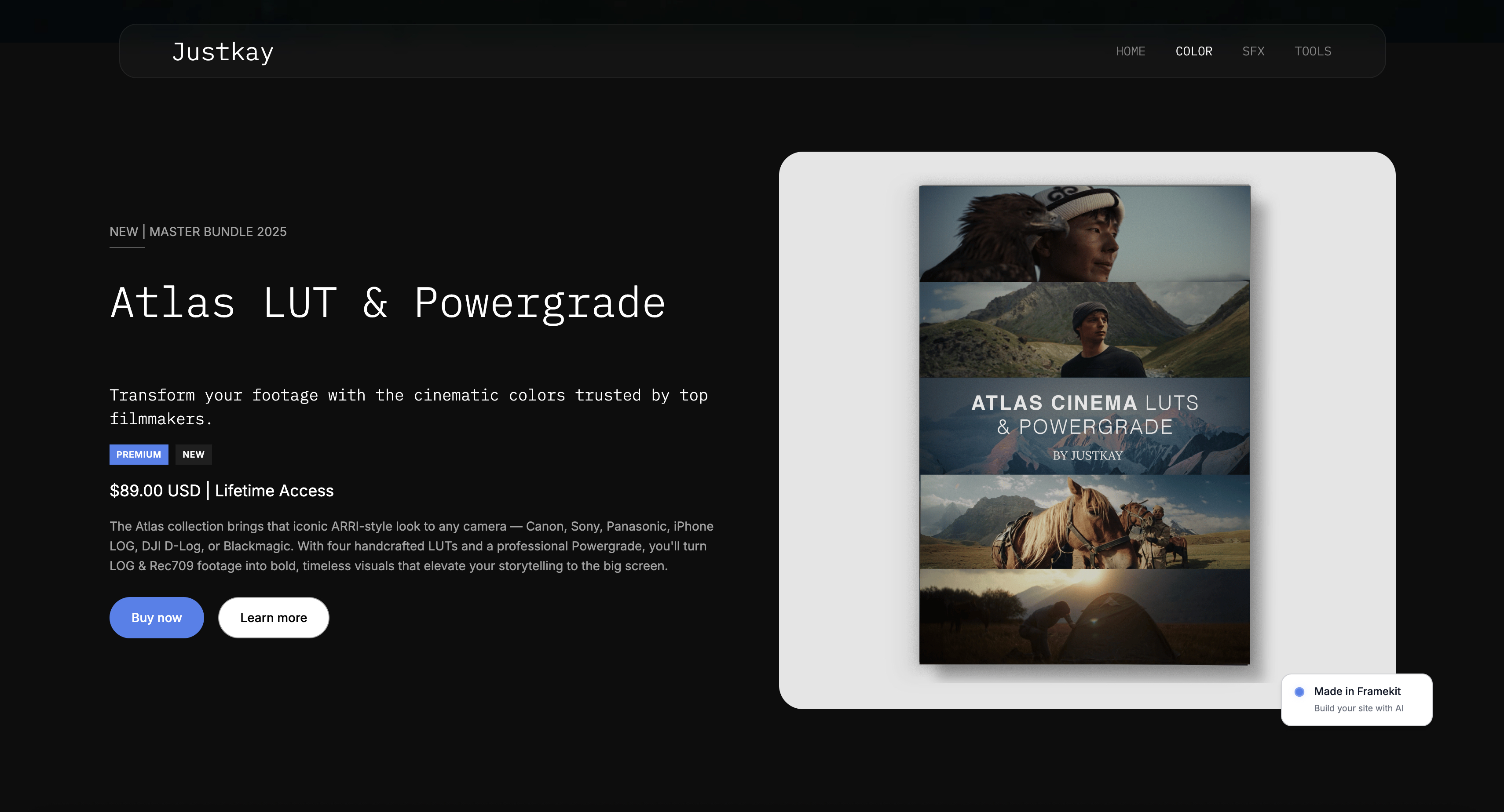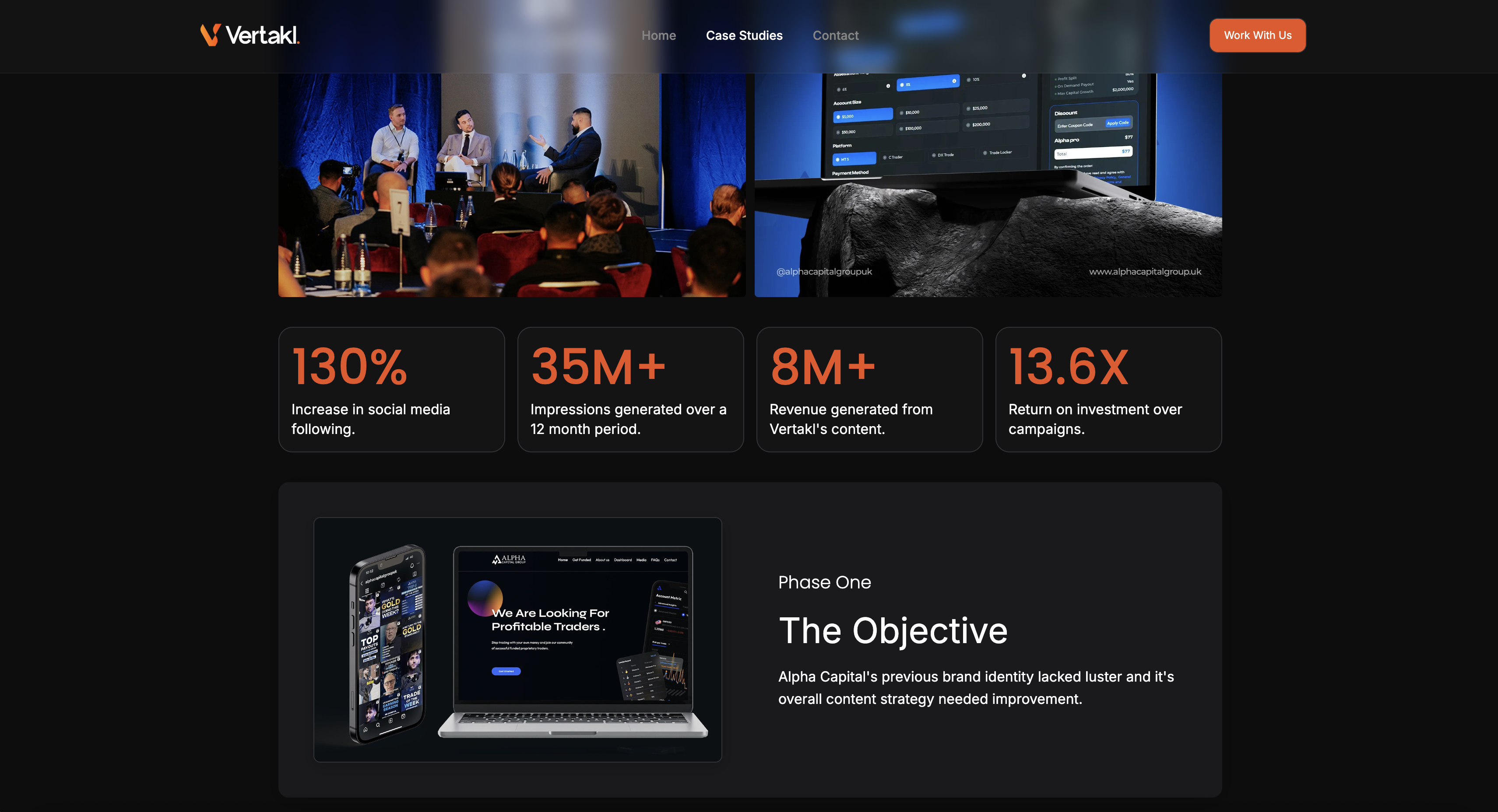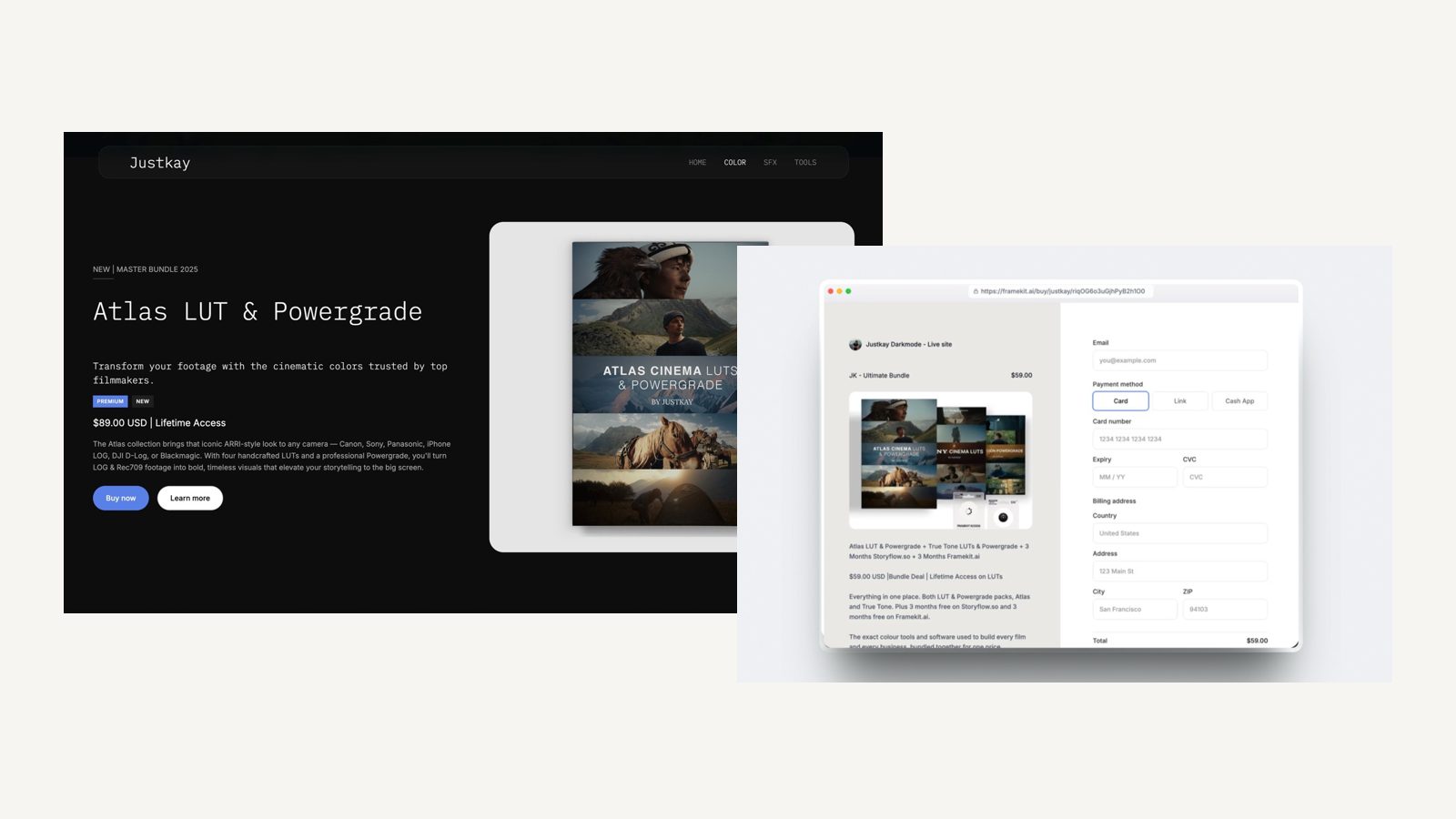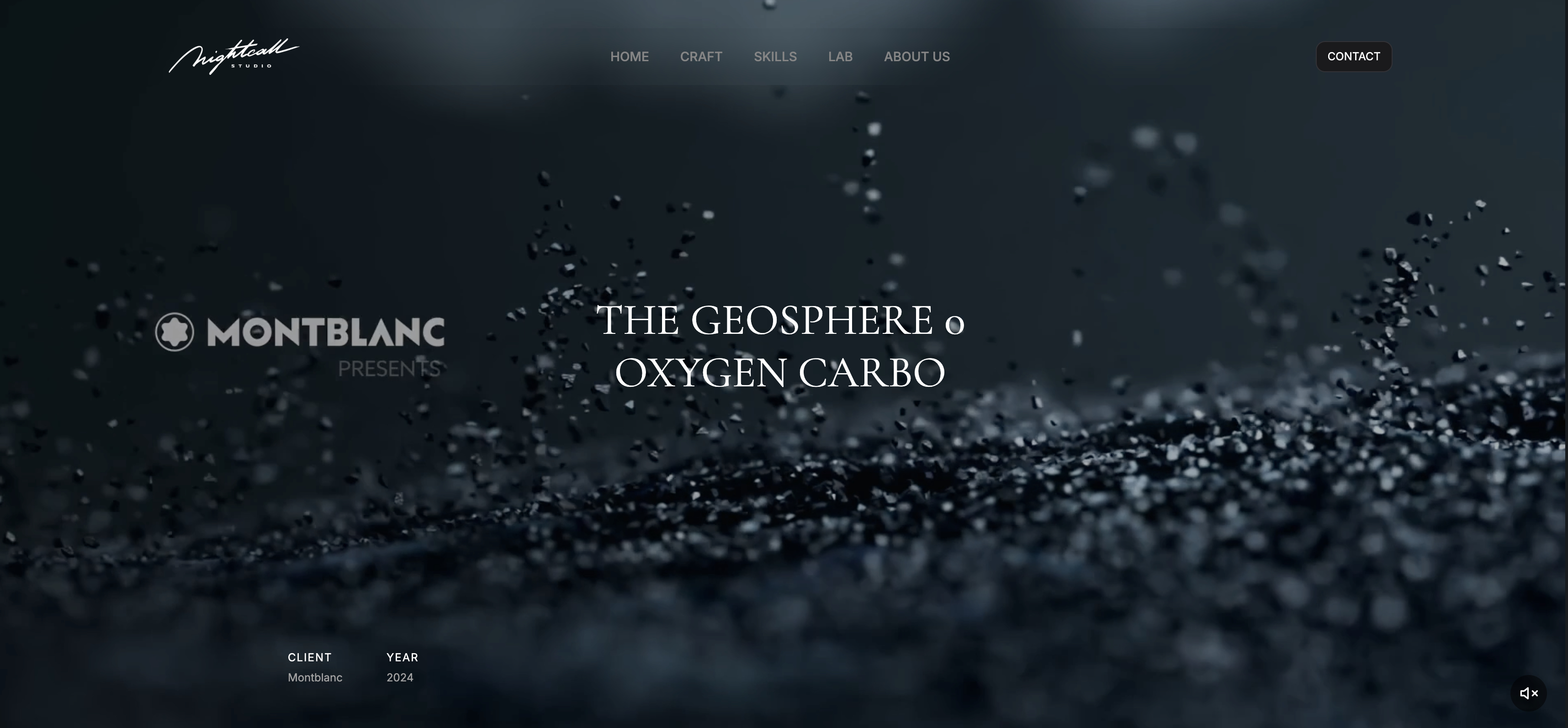
Framekit templates
Start from a designer-made template
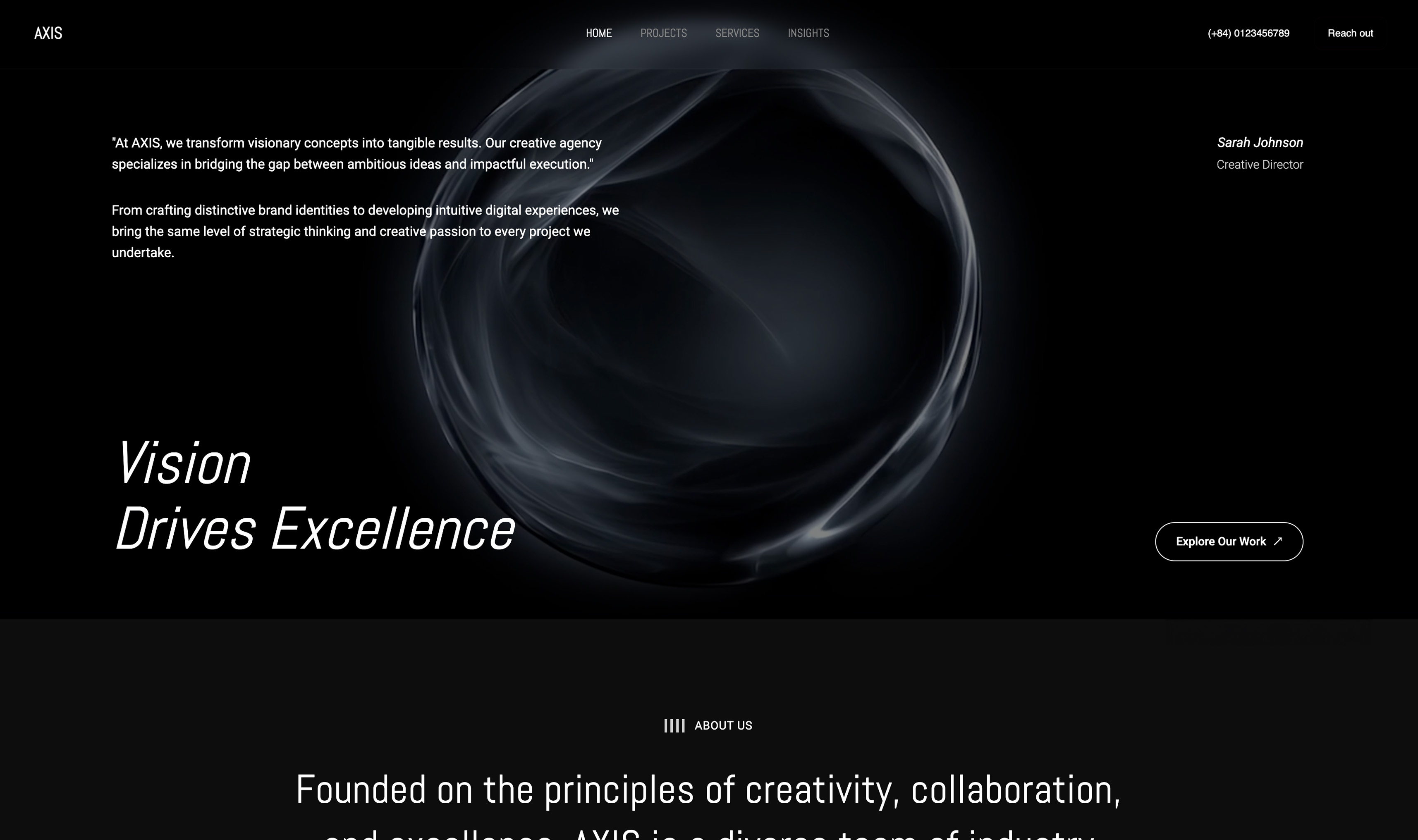 Use template
 Use template
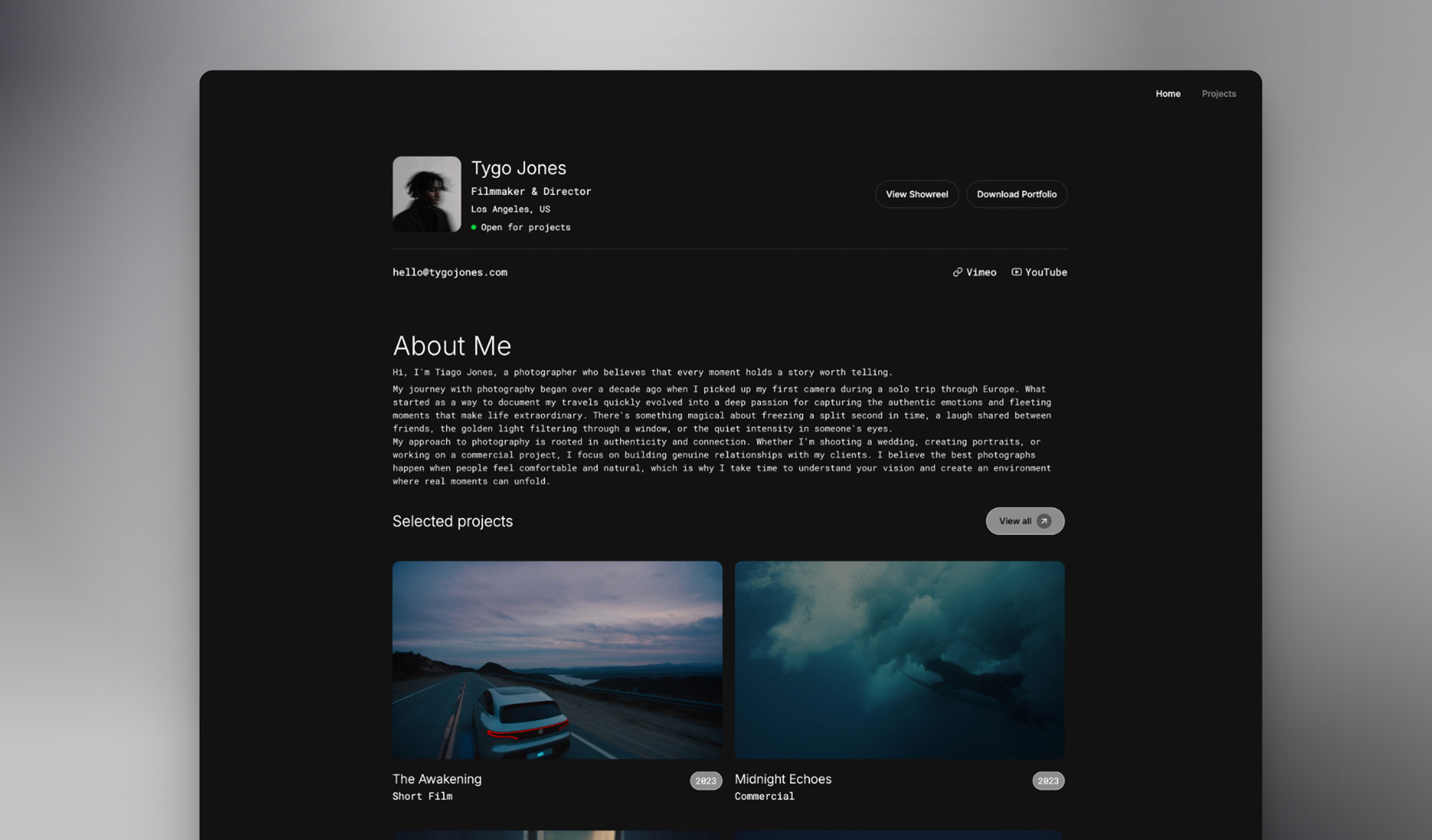 Use template
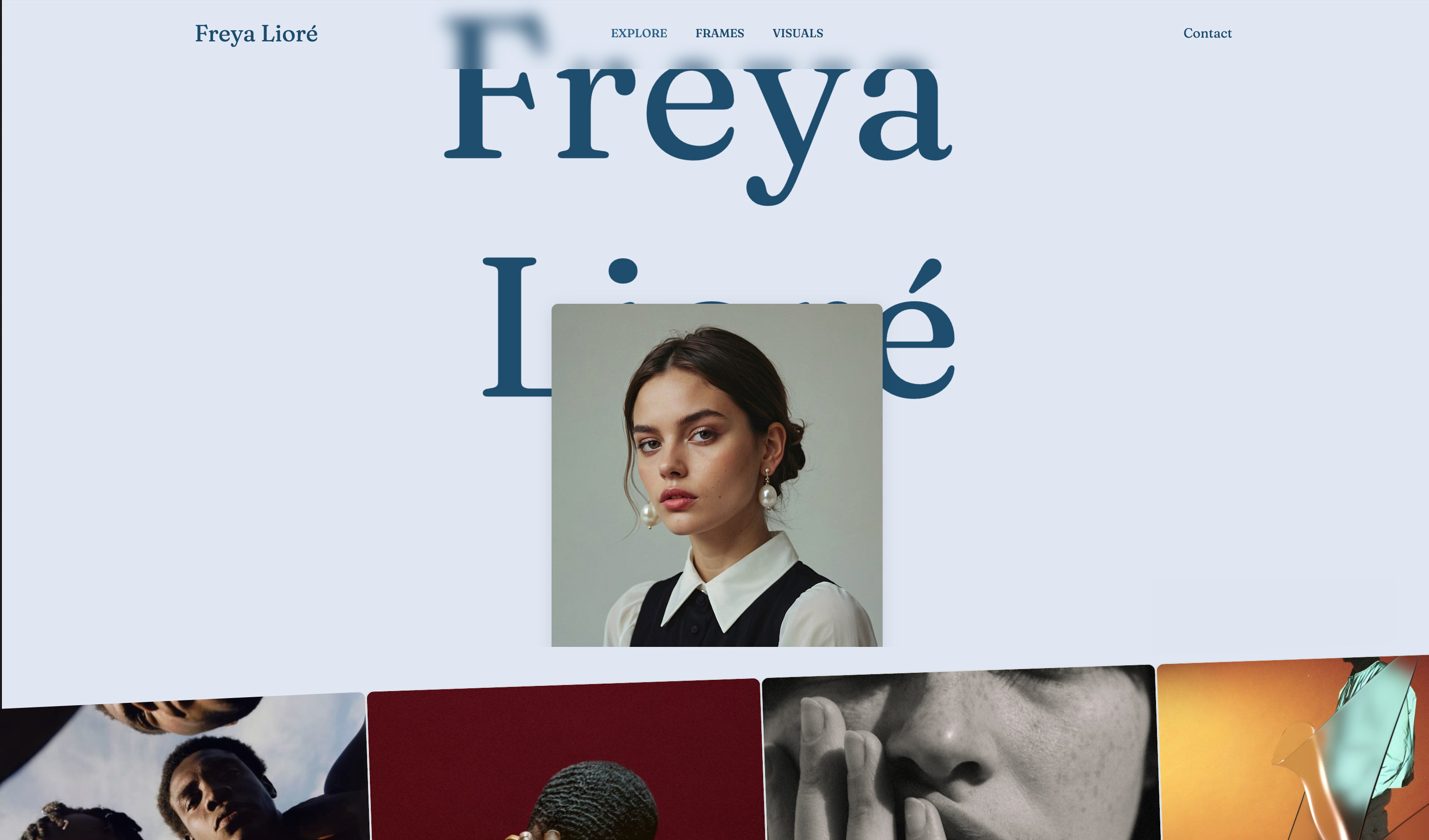 Use template
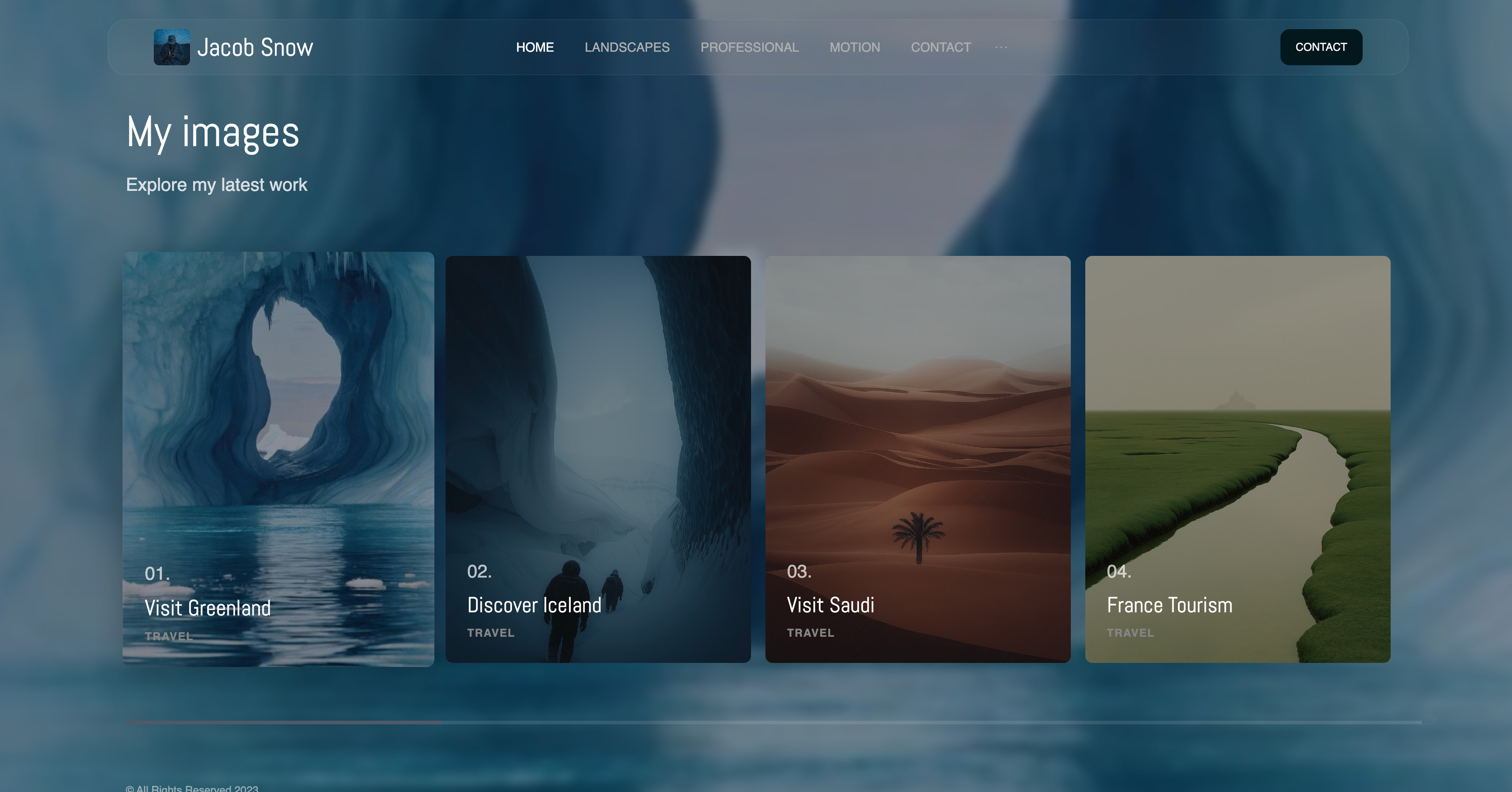 Use template
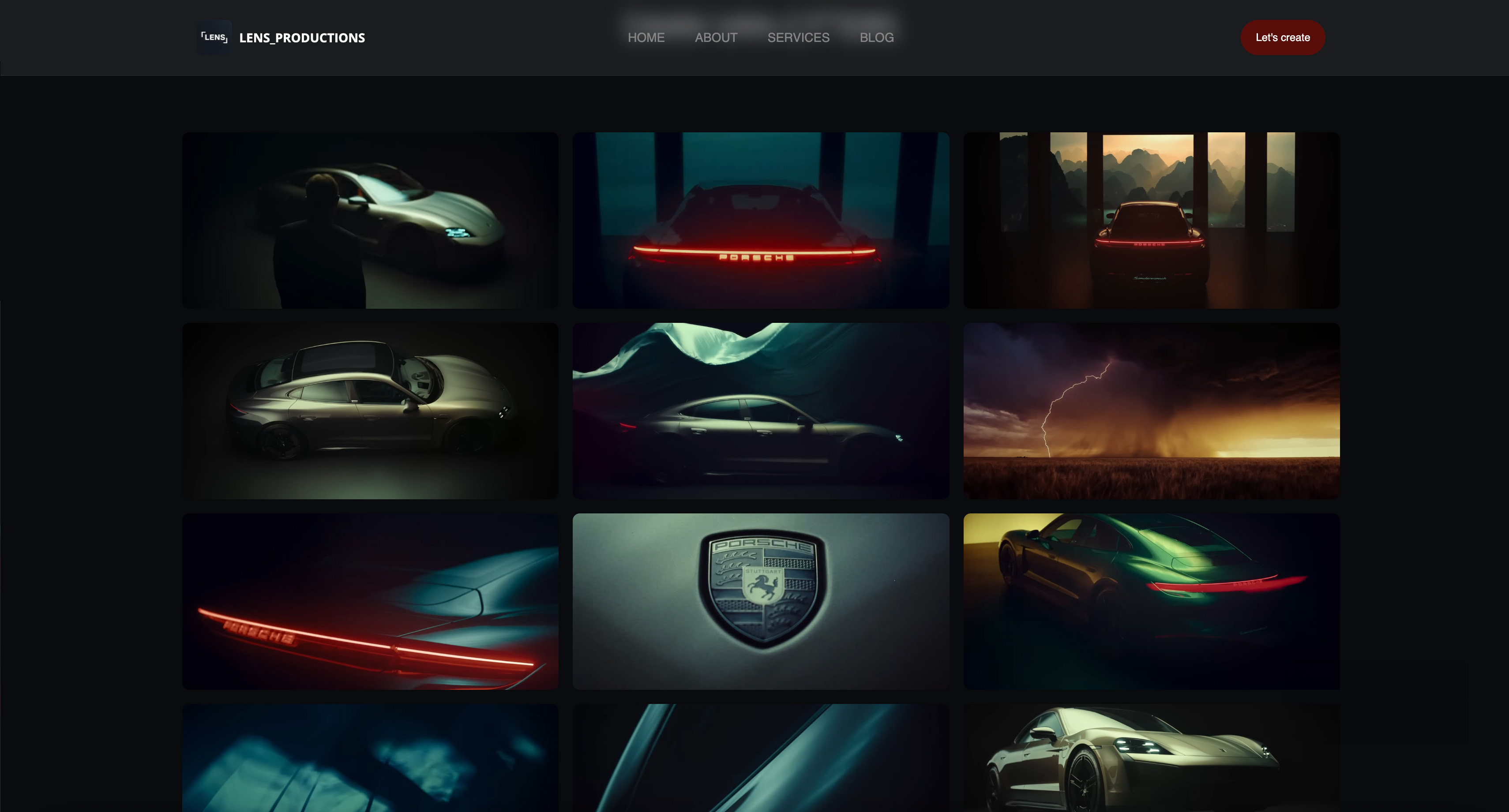 Use template
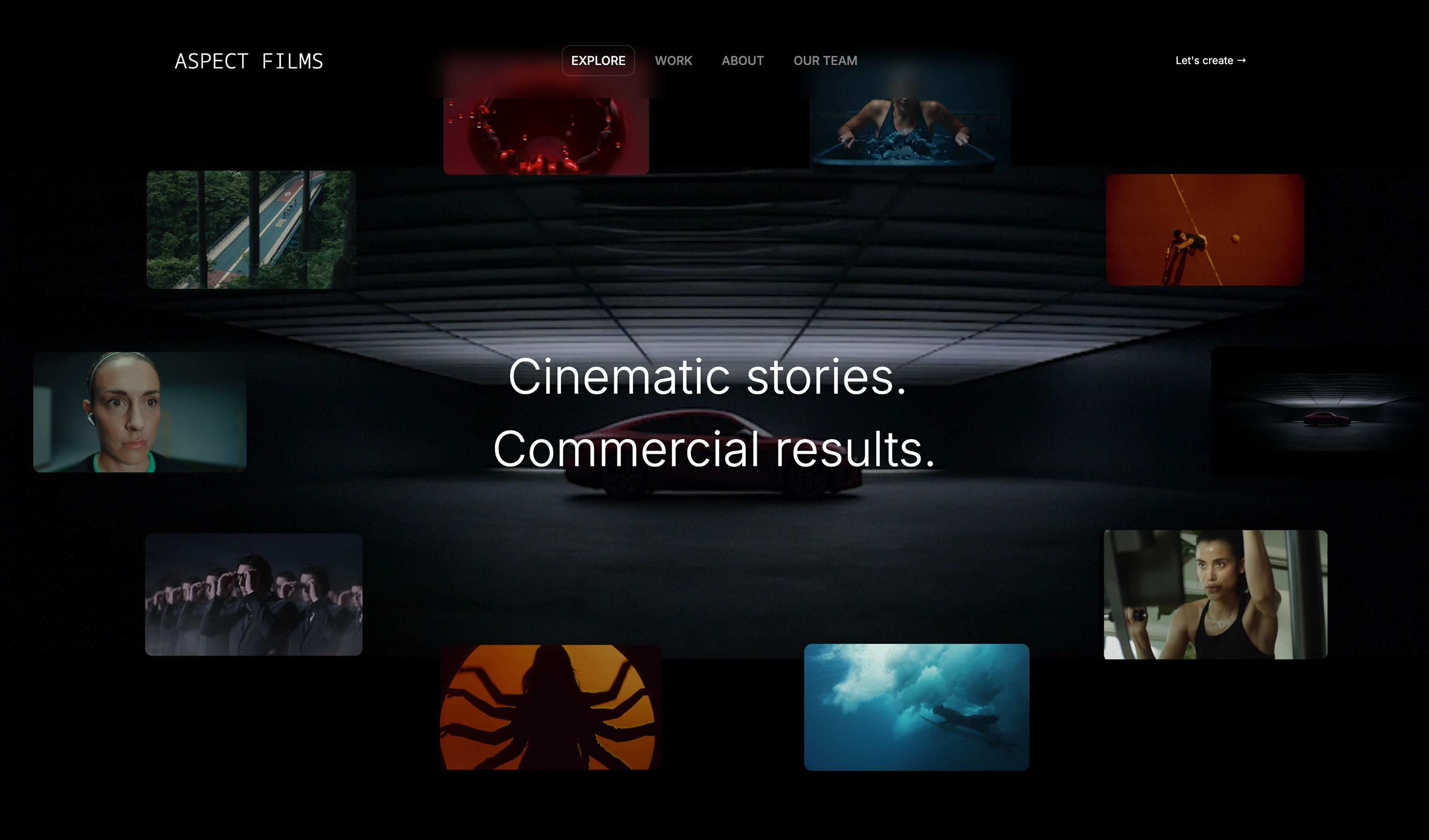 Use template
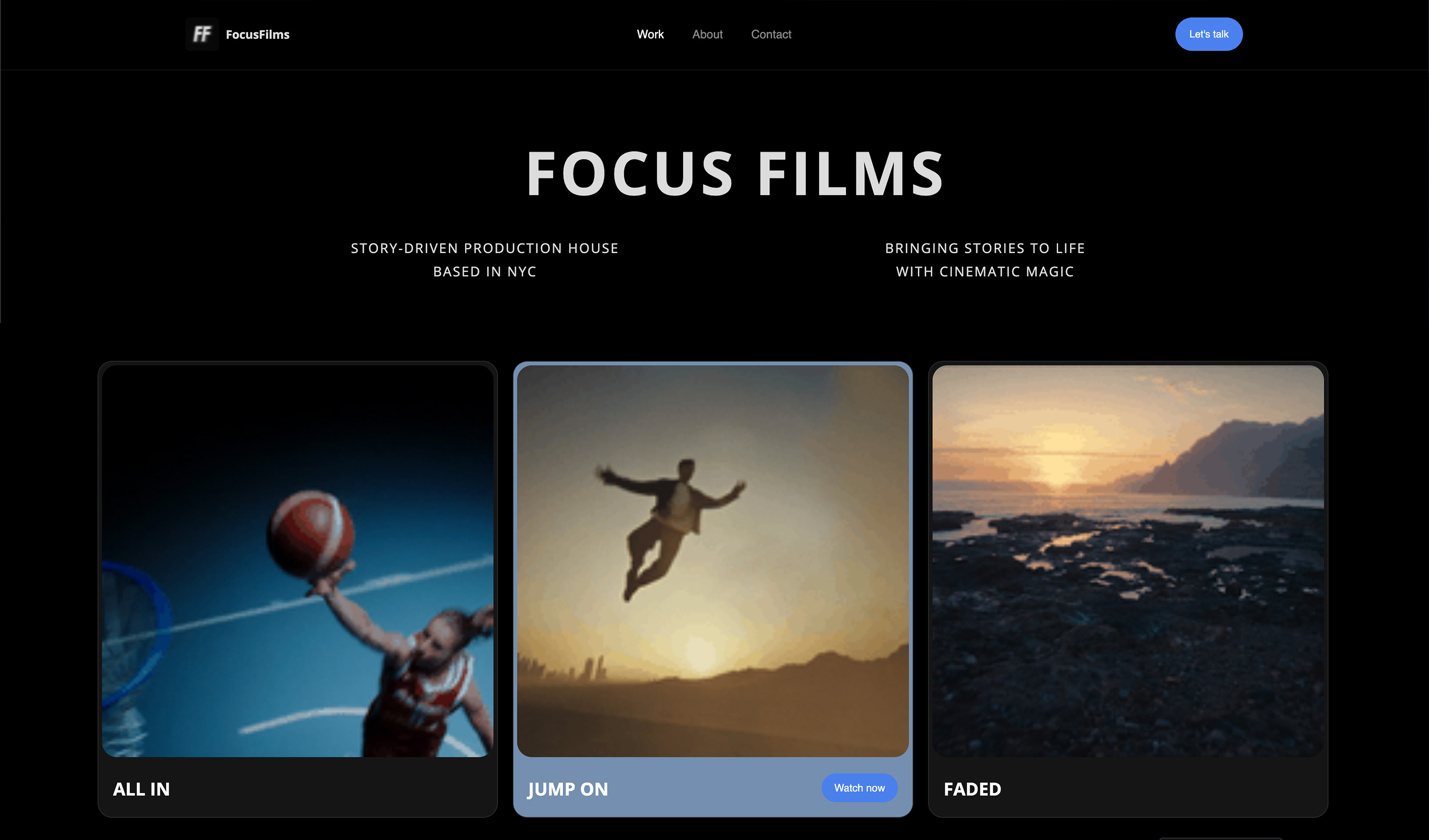 Use template
It is 4:40 on a Tuesday and the client has asked the question that eats an hour: can you walk me through what changed? Writing it out takes forty minutes and still gets misread.
So you record your screen instead, talk over the revisions for six minutes, and paste a link. Total elapsed time, eleven minutes. That recording is the most efficient thing you will do all week.
Then, on Thursday, you sit down to cut a two-minute promo of the same project for your portfolio, and every tool that made Tuesday easy makes Thursday miserable. The link-first recorder has no real timeline. The editor has no link.
So you subscribe to both, and to a third thing for the transcript, and by the end of the year you are paying $18 a month for Loom Business, $24 a month for Descript Creator, and $24 a month for Riverside Pro.
That is $66 a month, or $792 a year, to do two jobs that a single $29 purchase used to cover.
One job needs a link in ninety seconds. The other needs a timeline and an afternoon.
A screen recording tool is software that captures what is on your display along with your microphone, your webcam, and ideally the audio your computer is producing, then turns that capture into either a file you edit yourself or a hosted link you can send to someone who does not have an account.
Almost every buying mistake in this category comes from paying for one of those halves while needing the other.
The best screen recording tool for creators in 2026 is Screen Studio, because its automatic zoom and cursor smoothing make an unedited take look directed and it exports 4K without a feature gate; the honest trade-off is that it is macOS only and, since September 2025, no longer sold as a one-time purchase, so you now rent it at $29 a month or $108 a year.
If your real job is client walkthroughs with a link, Loom is the better buy at $18 per user per month. If you want to spend the least across five years, CleanShot X costs $29 once plus an optional $19 a year, and OBS Studio costs nothing at all.
Every tool below was checked against its own pricing page or help documentation in August 2026, and where a vendor page would not load for us, we say so rather than quoting a number we could not see.
September 2026 update: we re-verified Framekit's plans and added where a finished recording goes next, since Framekit hosts client-facing video in galleries and collects notes pinned to the exact frame of a cut; recorder prices are as checked in August 2026.
Two things shape everything below. The one-time purchase is quietly disappearing from this category, and macOS still refuses to record its own audio through Apple's bundled tools, which is the most common reason a first recording comes back silent.
How We Compared These Screen Recording Tools
We held one job constant across all eleven tools so the comparison means something: the same six-minute walkthrough of a website revision round, recorded on a 2560 by 1600 display with a webcam bubble and browser audio playing, then cut down to a ninety-second promo version of the same footage.
Every claim below refers to that pair of jobs.
Five criteria decided the ranking, and each one gets its own section further down.
Cost over five years, not per month. A $9 a month subscription is $540 across five years. A $29 purchase is $29. We priced every tool on a sixty-month horizon because that is the realistic life of a working setup.
Free-tier honesty. Not whether a free plan exists, but exactly where it stops: recording-length caps, video-count caps, resolution ceilings, watermarks, and what happens to the library you already built when you stop paying.
Hosting and the link. Whether the tool gives you a URL your client can open, whether that client needs an account, and whether you get view analytics, or whether you get a file and have to find it a home yourself.
The craft layer. Automatic zoom, cursor smoothing, keystroke display, webcam framing, captions, and transcripts. This is the difference between a recording that looks like a screen share and one that looks produced.
Capture reliability. System audio, multi-display handling, webcam quality, and whether the app survives a long take without dropping frames.
Three kinds of finding, kept separate, because they carry different weight.
What we handled hands-on: the six-minute walkthrough and the ninety-second cut in Screen Studio, Loom, CleanShot X, OBS Studio, Descript, and both built-in recorders, on macOS and on Windows 11.
What we verified from primary sources rather than a full year of use: every price, plan name, cap and policy here comes from the vendor's own pricing page or help documentation, checked in August 2026 and linked inline where it carries the argument.
Camtasia, ScreenFlow, Tella, Riverside and Zight were previewed on trials or read from documentation rather than paid for across a year, and each entry says so.
What we report as community sentiment: recurring reviewer complaints, labelled as such, never presented as our own result.
One transparency note. Screen Studio's pricing page would not load from our connection on repeated attempts in August 2026, and Zight's plans page blocked us, so both are quoted from vendor announcements carried by price trackers.
Where we could not see a page ourselves, we say reported rather than verified.
What Comparing 11 Screen Recorders Showed
Before the individual reviews, here are the extractable facts that shaped the ranking, each checked against a vendor page or help document in August 2026 unless the line says otherwise.
- 2 of 11 are true one-time purchases today: CleanShot X at $29 and ScreenFlow at about $199. Five years ago that list would have been twice as long.
- 1 of 11 abandoned its one-time purchase during this cycle: Screen Studio retired its $229 perpetual licence in September 2025, and existing owners were given updates through 2027 rather than forever.
- 3 of 11 cost nothing at all: OBS Studio, the macOS Screenshot toolbar, and the Windows Snipping Tool.
- 1 of 11 has no ongoing free plan despite being widely described as having one: Tella states plainly that there is no forever-free plan, only a trial.
- The strictest free-tier cap belongs to Loom: 5 minutes per recording and 25 videos per person, with quality held at 720p, on Loom's published pricing.
- 4 of 11 host the video and hand you a link with viewer analytics: Loom, Tella, Riverside and Zight. CleanShot X does it for short clips through its own cloud.
- 6 of 11 will export 4K, but only 3 do it without a mid-tier upgrade: Screen Studio, OBS Studio and ScreenFlow. Descript gates 4K behind the $24 a month Creator plan.
- 0 of the built-in recorders on macOS capture system audio. Apple's own documentation lists a microphone option and nothing else.
- The cheapest capable five-year path is $29 total: CleanShot X bought once and never renewed, paired with free OBS Studio for anything long-form.
- The most expensive realistic five-year path among mainstream picks is $1,440, reached by either Loom Business at $18 per user per month or Descript Creator at $24 a month billed annually.
For a pick shaped around how you actually work, skip to the decision guide near the end. First, the full field.
The 11 Best Screen Recording Tools in 2026: Full Comparison
How the ratings work: every tool is scored on the five criteria above, weighted by what costs creators money and time rather than what looks good on a feature grid.
The craft layer takes 25%, five-year cost 25%, hosting and the link 20%, free-tier honesty 15%, capture reliability 15%. We do not sell a screen recorder, so no weight here is bent toward a house pick.
Craft carries a quarter of the score on purpose.
Automatic zoom and cursor smoothing are the only features in this category that change how the finished video is received, and a tool that lacks them costs you an hour of manual keyframing per video forever.
That is why Screen Studio takes 9.2 while being the least flexible tool on this page, and why OBS Studio, which can capture anything, sits at 8.6 with no craft layer at all.
| Tool | Best For | Price | Hosted Link | Our Rating |
|---|---|---|---|---|
| Screen Studio | Polished demos and tutorials on Mac | $29/mo or $108/yr (reported) | Limited | 9.2/10 |
| Loom | Fast client walkthroughs with a link | Free, or $18/user/mo | Yes | 9.0/10 |
| CleanShot X | The cheapest serious setup | $29 once, $19/yr optional | Short clips | 8.8/10 |
| OBS Studio | Long-form, multi-source, free | $0 | No | 8.6/10 |
| Descript | Editing by transcript and captions | Free, or $16-$50/user/mo | Yes | 8.4/10 |
| Camtasia | Structured tutorials on Windows | About $39-$599/yr by tier | Limited | 8.0/10 |
| ScreenFlow | A Mac editor you buy once | About $199 once | No | 7.8/10 |
| Tella | Branded video pages, no free plan | $13-$19/mo | Yes | 7.6/10 |
| Riverside | Guests, cameras and separate tracks | Free, or $24-$79/mo | Yes | 7.4/10 |
| Built-in recorders | The zero-cost baseline | $0 | No | 7.0/10 |
| Zight | Link-first capture for teams | Free, Pro about $9.95/user/mo | Yes | 6.6/10 |
Prices verified against each vendor's pricing page or help documentation in August 2026, except Screen Studio and Zight, which are marked reported because their pages would not load for us.
Annual billing changes several of these figures and we use the annual number wherever we quote a five-year total.
Hosting, captions and 4K at a glance
The headline price hides the two decisions that actually determine which side of the split a tool sits on: whether it hands you a URL, and whether it hands you a file good enough to publish. This grid puts both in one place.
| Tool | Hosted link included | Viewer needs an account | Captions or transcript | 4K export |
|---|---|---|---|---|
| Screen Studio | Only for short shares | No | Yes, generated from voice-over | Yes, no gate |
| Loom | Yes, core feature | No, on link sharing | Yes, on every plan | Yes, paid plans only |
| CleanShot X | Yes, via CleanShot Cloud | No | No | Records at display resolution |
| OBS Studio | No, file only | Not applicable | No | Yes, no gate |
| Descript | Yes, share pages | No | Yes, transcript is the editor | Yes, from $24/mo |
| Camtasia | Limited, via TechSmith | No | Yes | Yes |
| ScreenFlow | No, file only | Not applicable | Yes, caption track | Yes |
| Tella | Yes, core feature | No | Yes, 106 languages | Yes, on Pro |
| Riverside | Yes, plus hosting tools | No | Yes, unlimited on Pro | Yes, on Pro |
| Built-in recorders | No, file only | Not applicable | Windows only, via transcription | Yes, at display resolution |
| Zight | Yes, core feature | No | Paid tiers | Not documented for us |
Two rows deserve a second look. Loom is the only tool here that puts a hard 720p ceiling on its free plan while also capping length, so its free tier is the most likely to force an upgrade.
And ScreenFlow and OBS Studio are the only tools that will hand you a 4K master with no subscription attached to the export button.
1. Screen Studio: Best Overall
Our rating: 9.2/10
Screen Studio is the reason this category changed.
You record normally, badly even, moving the cursor in the jerky way everyone actually moves it, and the app rebuilds the take: it smooths the cursor path into an eased curve, zooms into whatever you clicked, holds the zoom for as long as the action needs, and pulls back out.
Our six-minute walkthrough came out of it looking like someone had spent an afternoon keyframing, and we had spent nothing but the six minutes.
The detail nobody writes about is what that does to your speaking. Because the zoom follows the click, you stop narrating your mouse and start describing what the thing does.
Our promo cut lost about twenty seconds of navigational filler against the same script recorded into a plain capture tool, which is a script improvement rather than a video effect.
Best forMac creators publishing product demos, tutorials, and course lessons where the video is the deliverable rather than a message.
Key features:
- Automatic zoom that follows clicks, with editable timing per zoom
- Cursor smoothing and click highlights, with adjustable cursor size
- 4K at 60fps export with no tier gating, plus GIF and platform presets
- System audio and per-application audio capture, alongside microphone and webcam
- Keystroke display for keyboard-heavy tutorials, and generated captions from voice-over
The real numberScreen Studio's economics inverted during this cycle. It sold for $229 once, and buyers of that licence were promised updates for two years rather than forever.
New buyers now pay $29 a month or $108 a year, which is $540 across five years on the annual plan and $1,740 on monthly billing.
If you bought the old licence at $229, your five-year cost is $229 and stops there, which is why so many owners are annoyed.
The gotchait is macOS only, with no Windows version and no plan for one that we could find, so a mixed studio cannot standardise on it.
And because there is no ongoing free tier, the trial is your only chance to test whether the automatic zoom suits your material; fast, small-target interfaces sometimes zoom more often than reads well, and you will want to check that on your own product before the card is charged.
Skip it ifyou record on Windows, you need a hosted link with viewer analytics more than you need polish, or you are a once-a-quarter recorder for whom $108 a year buys four videos.
What reviewers say elsewhereScreen Studio holds a 4.7 out of 5 rating from the community on Product Hunt, where it was named a product of the year, but it has effectively no presence on G2, Capterra or TrustRadius.
That is a real signal, not an oversight: it is bought by individual creators, not procurement departments, so enterprise review sites never see it.
Verdict: Screen Studio wins because it fixes the one thing you cannot fix in post without an hour of work per video. The trade-off is now explicit rather than hidden: you are renting the polish, on one platform, forever. If you publish video regularly on a Mac it is still the cheapest hour you will ever buy back. Pair it with a portfolio that shows the work off properly, and see our best AI tools for filmmakers for what sits around it in a production workflow.
2. Loom: Best for Client Walkthroughs
Our rating: 9.0/10
Loom is the tool that made asynchronous video normal, and for the Tuesday job it is still the fastest path from thought to link.
You hit record, talk, stop, and the URL is already on your clipboard while the upload finishes in the background.
Our six-minute walkthrough was shareable before the recording had finished processing, which no file-based tool on this page can match.
What it does after the send matters as much. You can see who opened the link, how far they got, and where they left a timestamped comment, so "did they watch it" stops being a guess.
For a revision round, that view count is a project-management artifact: if the client has not opened it, the silence is not disagreement.
Best forAnyone whose recordings are messages rather than deliverables, especially freelancers running feedback loops with clients who will not install anything.
Key features:
- Instant hosted link with the URL copied before processing finishes
- Engagement insights showing views, watch-through and timestamped comments
- Auto-generated captions and transcripts, including on the free plan
- Password-protected videos, branding removal and downloads on Business
- Unlimited screenshots and meeting recordings even on the free tier
The real numberthe free Starter plan allows 25 videos per person, 5 minutes per recording, and 720p quality, per Loom's pricing page.
Business is $18 per user per month and removes all three limits, which is $216 a year and $1,080 across five years for one seat; Business plus AI is $24, or $1,440 across five years.
Loom advertises up to 17% off on annual billing, so treat those totals as the ceiling rather than the invoice.
The gotcha that bites in week threethe 5-minute cap is per recording, and a walkthrough that runs long does not warn you gracefully.
Worse is what happens later: if you downgrade to Starter with more than 25 videos in the library, Atlassian's documentation states you keep access to all of them but cannot create a new recording until you delete enough to get back under 25.
Archived videos count toward that 25 as well. Your back catalogue is not deleted, but it does become a hostage: every old client walkthrough you want to keep is one fewer new recording you can make.
Skip it ifthe video is the product. Loom's editing is trimming and stitching, not a timeline, and a tutorial you intend to publish will look like a screen share next to a Screen Studio or Camtasia cut.
What reviewers say elsewhereLoom holds 4.7 out of 5 across roughly 2,400 reviews on G2, the largest review base of any tool in this guide. The recurring complaint in that base is per-seat pricing for teams that only need occasional recording.
Verdict: Loom is the correct purchase for the link job and the wrong one for the deliverable job, and most creators only need it for the former. Buy one seat, keep recordings short, and do not let the library grow past what a downgrade would strand. If you are sending client videos regularly, our guide to the best client portal tools for creatives covers where those links should live.
3. CleanShot X: Best One-Time Purchase
Our rating: 8.8/10
CleanShot X is the tool that quietly replaces four others.
It is a screenshot app first, which is why it gets left off screen recording lists, but it records screen and webcam with microphone and macOS audio, trims the result, exports to MP4 or GIF, and uploads to its own cloud for a link, all from a menu bar icon.
During our test week it handled every quick capture without once making us open a heavier app.
The standout detail nobody else here offers: it hides your desktop icons and swaps your wallpaper before a capture. If you have ever re-recorded a client walkthrough because a folder called invoices-final-FINAL was sitting on the desktop, that toggle alone is worth the price.
Best forMac creators who take fifty screenshots for every one recording and want a link without a subscription.
Key features:
- Screen and webcam recording with microphone and macOS system audio
- Scrolling capture for pages taller than the screen, plus text recognition on any image
- Desktop icon hiding, custom wallpapers and a full annotation toolset
- Built-in trimming, MP4 and GIF export, and mouse click plus keystroke highlighting
- CleanShot Cloud links, with custom domain and branding on the Pro tier
The real numberCleanShot X costs $29 as a one-time purchase and includes one year of updates plus 1GB of Cloud Basic storage; keeping updates after that year costs an optional $19 a year, and Cloud Pro with unlimited storage is $8 per user per month billed annually or $10 monthly.
Five-year totals: $29 if you never renew, $105 if you renew updates every year, and $585 if you add Cloud Pro on top.
It is also bundled in Setapp, which is $14.99 a month for the Mac plan, so the standalone purchase beats the bundle unless you use several other Setapp apps.
The gotchathere is no timeline. Trimming ends and begins, and that is the whole editing story, so anything needing a cut in the middle has to leave the app.
The one-year update window also catches people out, because the app keeps working forever but stops gaining features, and macOS updates eventually make that uncomfortable.
Skip it ifyou are on Windows, or your recordings routinely need a mid-video cut, B-roll or a caption track.
What reviewers say elsewhereCleanShot X carries a 4.9 out of 5 rating on G2, though from a small review base of single digits, which tells you the same thing Screen Studio's profile does: this is a creator tool, not an enterprise purchase.
Verdict: at $29 once, CleanShot X is the highest value per dollar in this guide and the only entry that survives a year of not paying anyone. It will not cut your tutorial, but it will kill the four small subscriptions around your tutorial. If you send a lot of files alongside those clips, our best WeTransfer alternatives guide covers the delivery half.
4. OBS Studio: Best Free Recorder
Our rating: 8.6/10
OBS Studio is free, open source, and more capable than anything else on this page.
It runs on Windows, macOS and Linux, and its release cadence is active rather than nominal, with version 32.2.1 shipping in July.
Scenes let you build a layout once and reuse it: screen source, webcam source, a title card, an overlay, each independently positioned, then switched live with a hotkey mid-recording.
Our six-minute walkthrough was the one recording in this test where the capture never once dropped a frame or fell out of sync on a long take, which is exactly what you would expect from the tool that broadcasters use.
It also solved the macOS audio problem without a virtual driver: its own macOS audio capture source picked up browser sound directly.
Best forLong-form recording, multi-source setups, and anyone whose budget for software is zero.
Key features:
- Unlimited recording length, no watermark, no account, no upsell of any kind
- Scenes and sources with live switching, plus studio mode for previewing before you cut
- System audio capture on macOS without a third-party audio driver
- Full control of resolution, framerate, encoder and bitrate, including 4K
- Streaming to any platform, and a plugin ecosystem for everything else
The gotchaOBS records, it does not edit, host, caption, zoom or share. Everything that happens after the file exists is your problem.
And the first-run experience is genuinely hostile to newcomers: audio routing, encoder settings, and canvas resolution all have to be set correctly before your first take, and getting one of them wrong is how people end up with a 480p recording of a 4K screen.
Skip it ifyou want a link, or you want the software to make decisions for you. There is no automatic zoom and there never will be.
What reviewers say elsewhereOBS Studio holds 4.6 out of 5 across roughly 125 reviews on G2, where the split is consistent: reviewers praise the control and criticise the learning curve, in nearly every review.
Verdict: OBS is the correct answer to "what should I use if I refuse to pay," and it is also the correct answer to "what should I use for a ninety-minute course recording." Its weakness is not capability but everything downstream of capture. Budget an afternoon for setup and pair it with an editor you already own.
5. Descript: Best for Captions and Transcript Editing
Our rating: 8.4/10
Descript inverts the editing model: it transcribes your recording and then lets you edit the video by editing the text. Delete a sentence from the transcript, and it is gone from the video.
For a talking-heavy walkthrough this is the fastest editing method that exists, and cutting the ninety-second promo from our six-minute take took about four minutes, most of which was reading.
The feature that earns its keep for creators is filler-word removal. Every "um" and "so basically" in our take was findable and removable in one pass, and the result did not sound chopped. If you narrate tutorials and dislike your own verbal tics, this alone justifies a look.
Best forCreators whose videos are mostly speech, and anyone who needs accurate captions as a deliverable rather than a nicety.
Key features:
- Edit video by editing its transcript, with word-level precision
- Filler-word and silence removal across a whole project in one action
- Captions and subtitles generated in 25 languages, exportable as burned-in or separate
- Screen and webcam recording built in, so capture and edit live in one app
- Studio Sound for cleaning up a bad microphone take
The real numberDescript's pricing is metered in transcription hours, which is the number that catches people out. Free gives 1 hour a month, 720p exports, a watermark and 5GB of storage.
Hobbyist is $16 a month billed annually for 10 hours and 1080p. Creator is $24 a month annually for 30 hours, 4K exports and 1TB. Business is $50.
Across five years, Creator is $1,440, which is the same five-year outlay as Loom Business plus AI, for an entirely different job.
The gotchathe hour cap is a monthly allowance, not a project limit, and long unedited takes eat it fast. A single ninety-minute course module consumes nine hours of the Hobbyist allowance if you record three takes.
On cancellation, Descript's help documentation says you keep access to your projects but lose the features of the plan you left, and you fall back to the 5GB free storage ceiling, so plan an export before the last billing day rather than after.
Skip it ifyour videos are mostly silent screen action, or you need frame-accurate motion work. Transcript editing is superb for speech and clumsy for anything else.
What reviewers say elsewhereDescript holds 4.6 out of 5 across roughly 890 reviews on G2. The recurring complaint in community discussion, which we report as sentiment rather than a measured result, is performance on very long projects.
Verdict: Descript is the best captioning and speech-editing tool in this guide and a mediocre screen recorder, so buy it for the second half of the job rather than the first. Record in Screen Studio or OBS, edit in Descript, and you have covered both sides of the split for less than most all-in-one bundles cost.
6. Camtasia: Best Structured Tutorial Builder
Our rating: 8.0/10
Camtasia has been the default tutorial tool in corporate training for two decades, and that heritage shows in the parts nobody else bothers with: callout shapes that snap to your cursor path, quizzing you can embed in a lesson, and a template system that keeps a twelve-part series looking like one series.
It runs on both Windows and macOS, which no other paid editor in this guide manages.
The pricing story is the reason it dropped to sixth. TechSmith retired its perpetual licences in autumn 2024 and moved entirely to annual subscriptions, so the tool people bought once in 2019 is now rented.
When we opened the TechSmith store in August 2026 it priced in euros for our region: Starter at EUR 39.56 a year, Essentials at EUR 182.49, Create at EUR 252.62 and Pro at EUR 607.71, which correspond to the roughly $39, $180, $249 and $599 tiers quoted in dollars elsewhere.
Across five years the Essentials tier lands near $900.
The trap in the cheap tierStarter costs about $39 a year and watermarks every export. It is a demonstration, not a plan, and buying it because it is the cheapest Camtasia is the most common mistake made with this product.
Skip it ifyou are one person making short videos. Camtasia's strengths are series consistency, quizzing and asset libraries, all of which are team problems.
What reviewers say elsewhereCamtasia holds 4.6 out of 5 across roughly 1,650 reviews on G2, with the subscription change the dominant recent complaint.
Verdict: Camtasia is the right tool for a structured course or an internal training library and an expensive one for anything smaller. Verified from documentation and a trial rather than a paid year on our side. If courses are where this is heading, our best tools to sell online courses guide covers where the finished lessons get sold.
7. ScreenFlow: The Mac Editor You Still Buy Once
Our rating: 7.8/10
ScreenFlow is the last serious screen recording editor on the Mac that you buy rather than rent, and that alone keeps it on this list.
It combines capture with a real multi-track timeline, so unlike every link-first tool here it can hold your screen recording, a second camera angle, B-roll, a music bed and a caption track on separate layers.
Telestream lists it at about $199 for a new licence, with upgrade pricing of $79 from version 9 or 8 and $119 from versions 4 through 7.
Model one paid upgrade inside five years and your total is about $278, which is roughly half of what renting Screen Studio annually costs across the same period and a fifth of a Descript Creator seat.
The Stock Media Library is a separate $99 a year and is genuinely optional.
The catch worth knowing before you buyupgrades are paid and not on a predictable calendar, the trial watermarks exports until you licence it, and the Mac App Store route does not honour upgrade pricing, so buy directly from Telestream if you ever intend to upgrade cheaply.
Version 10 also requires a recent macOS, which on an older machine can mean an OS upgrade you were not planning.
Skip it ifyou want automatic zoom. ScreenFlow will do everything Screen Studio does, but you will be setting the keyframes yourself, and that is the hour per video Screen Studio exists to remove.
Verdict: ScreenFlow is the sensible purchase for a Mac creator who edits regularly and refuses to add another subscription. It is less fashionable than it was and still the best value timeline on the platform. Verified from Telestream's own store and upgrade pages rather than a paid year of use.
8. Tella: Best Branded Video Pages
Our rating: 7.6/10
Tella sits precisely on the fault line this guide is about: it records like a link tool and finishes like an editor.
Recordings drop onto a canvas where you add backgrounds, rounded corners, zooms and layout changes, then publish to a hosted page that can carry your own domain.
For a founder or freelancer sending a polished pitch rather than a scrappy walkthrough, it is the closest thing here to one tool for both jobs.
The detail that surprised us is the honesty of its own documentation.
Tella is widely written up as having a free plan, but its help centre states there is no forever-free plan, only a trial.
Everything else runs from that trial into Pro at $13 a month or Premium at $19 a month, with annual billing advertised at half those rates.
Paid plans record up to 6 hours per clip with no storage or bandwidth limits, export to 4K, and transcribe into 106 languages.
What Premium actually buysa custom domain on your video pages, removal of Tella branding, 60fps export, domain restriction so only people on a client's email domain can watch, and deeper analytics. If the video is a sales asset, that is the tier; if it is a message, Pro is enough.
Skip it ifyou want to test before paying. There is no permanent free tier to fall back to, so a lapsed subscription leaves your hosted pages in a state you should ask about before you rely on them for client-facing links.
Verdict: Tella is the best-looking hosted video product in this guide and the one whose pricing is most misreported online. Assessed on a trial and from documentation, not a paid year.
9. Riverside: Best When Other People Are On Camera
Our rating: 7.4/10
Riverside is a recording studio that happens to capture screens, and it earns its place for one scenario: a screen recording with a guest.
It records each participant locally at full quality and uploads in the background, so a client's poor connection degrades the call rather than the recording, and you get separate tracks to fix audio afterwards.
Riverside's pricing starts with a free tier that gives 2 hours of multi-track recording as a one-off, 720p output and a watermark.
Pro is $29 a month, or $24 billed annually, and unlocks up to 4K video, 48kHz audio, unlimited transcription and text-based editing, and 15 hours of separate-track downloads.
Grow at $34 annually adds a creator website, video hosting and 1080p live streaming. Across five years Pro is $1,440 at the annual rate.
The number to watchseparate-track download hours, not recording hours. Pro's 15 hours is the real cap on a Riverside workflow, and interview-heavy months burn it faster than anyone expects.
Skip it ifyou record alone. Everything that makes Riverside good is about other people being in the session, and paying $288 a year for that when you record solo walkthroughs is the clearest overspend on this page.
What reviewers say elsewhereRiverside holds 4.8 out of 5 across roughly 1,700 reviews on G2, the highest average in this guide.
Verdict: Riverside is a specialist and priced like one. Bring it in when a client, a guest or a co-host is on camera, and use something cheaper for the solo screen work in between. If you publish those recordings publicly, our best Vimeo alternatives guide covers where the finished files should sit.
10. macOS and Windows Built-In Recorders: The Free Baseline
Our rating: 7.0/10
Every comparison in this category should start with the recorder you already own, because for a large share of client walkthroughs it is enough.
On a Mac, Shift plus Command plus 5 opens the Screenshot toolbar, which records the whole screen or a selection and saves a .mov wherever you tell it.
On Windows 11 the Snipping Tool now records a rectangular selection, and Microsoft's documentation confirms it captures audio with an adjustable volume range and can generate captions by transcribing the recording, with editing handed off to Clipchamp.
The two platforms are not equal, and this is the single most important free-tier fact in this guide. Apple's own support documentation for screen recording lists a microphone selector and nothing else.
There is no system audio option, so a Mac recording of a video call, a product demo with sound, or anything playing in a browser comes back with your voice and silence underneath it.
Windows users get audio for free; Mac users have to buy an app to get it.
Where it stopsno zoom, no cursor smoothing, no hosted link, no captions on macOS, and no editing beyond QuickTime's trim. You get a file, and every step after that is manual.
Verdict: use the built-in recorder for anything under two minutes that does not need computer sound, and treat the moment you need system audio on a Mac as the moment your free ride ends. That is the exact purchase trigger CleanShot X was built for.
11. Zight: Link-First Capture for Teams
Our rating: 6.6/10
Zight, formerly CloudApp, is the veteran of instant-link capture: screenshot or record, get a URL on the clipboard, watch the view count.
Teams that adopted it years ago still like the annotation tools and the shared flow for GIFs and video, and it remains a reasonable Loom substitute for short internal clips.
We have to be careful with its numbers.
Zight's plans page returned a block on every attempt we made in August 2026, so what follows is reported rather than verified by us: a free tier with a five-minute recording cap, a Pro tier published at about $9.95 per user per month, team pricing around $8 per user per month with a three-seat minimum, and roughly 23% off for annual billing.
At the Pro figure, five years is about $597. Confirm the current numbers on Zight's own site before you buy, because we could not.
Why it ranks lastit does the link job that Loom does better and the polish job that Screen Studio does much better, and its free cap is as tight as Loom's without Loom's analytics depth or review base. It is a fine tool in a shrinking middle.
Verdict: Zight is worth a look only if you want annotation and capture in one utility and already dislike Loom. For most creators, the same money is better spent on one seat of Loom or one purchase of CleanShot X.
What Screen Recording Costs Across Five Years
In one linethe gap between the cheapest capable setup and the most popular one is roughly $1,400 across five years, and almost all of it is the difference between buying software once and renting it every month.
Monthly pricing hides this completely. A $24 a month subscription reads as pocket change and totals $1,440 by the time your laptop is due for replacement. Here is every tool in this guide priced on the same sixty-month horizon, using each vendor's best annual rate.
| Tool | How it is sold | Best annual rate | Five-year total |
|---|---|---|---|
| OBS Studio | Free, open source | $0 | $0 |
| Built-in recorders | Included with the OS | $0 | $0 |
| CleanShot X, no renewals | One-time purchase | $29 once | $29 |
| CleanShot X, updates renewed | One-time plus updates | $29, then $19/yr | $105 |
| ScreenFlow | One-time plus paid upgrades | $199, then $79 upgrade | About $278 |
| Tella Pro, annual rate | Subscription | About $78/yr | About $390 |
| Screen Studio (reported) | Subscription | $108/yr | $540 |
| CleanShot X plus Cloud Pro | Purchase plus subscription | $29, then $19 and $96/yr | $585 |
| Zight Pro (reported) | Subscription | About $119/yr | About $597 |
| Camtasia Essentials | Subscription | About $180/yr | About $900 |
| Descript Hobbyist | Subscription | $192/yr | $960 |
| Loom Business | Subscription per seat | $216/yr | $1,080 |
| Camtasia Create | Subscription | $249/yr | $1,245 |
| Descript Creator | Subscription | $288/yr | $1,440 |
| Loom Business plus AI | Subscription per seat | $288/yr | $1,440 |
| Riverside Pro | Subscription | $288/yr | $1,440 |
Read the table by pairs. Buying CleanShot X and using OBS for anything long costs $29 across five years and leaves you owning the result.
Subscribing to Loom Business and Descript Creator costs $2,520 across the same period and leaves you owning nothing, in exchange for hosting, analytics, captions and transcript editing.
Both are defensible; only one is usually chosen deliberately.
The renewal trap in this category is not a price rise, it is a model change.
Screen Studio owners who paid $229 in 2024 expected to be finished; the perpetual licence was withdrawn in September 2025 and those buyers were given updates through 2027 instead. TechSmith did the same to Camtasia owners in autumn 2024.
When you buy a one-time licence in 2026, price it as software that works forever and improves for a defined window, not as software that improves forever.
Refunds are thinner than they look. TechSmith advertises a 14-day money-back window on Camtasia, ScreenFlow watermarks trial exports so you evaluate before paying, and subscription tools generally refund nothing on a part-used month.
Run your real job through the trial rather than a test clip, because the failure modes here only appear on a long take.
At three volume levels, the cheapest capable path looks like this. Under one video a month: the built-in recorder plus CleanShot X at $29 if you are on a Mac and need computer audio.
Two to eight videos a month: Screen Studio at $108 a year if the video is the deliverable, or one Loom seat at $216 a year if the link is the deliverable.
More than eight, with captions as a requirement: Descript Hobbyist at $192 a year on top of a free recorder, which beats every all-in-one bundle we priced.
Where the Free Tiers Actually Stop
In one linefree plans in this category do not stop at features, they stop at minutes and counts, and the cap that hurts is the one that applies retroactively to work you already recorded.
There are three kinds of free tier here, and mixing them up is expensive. The first is genuinely free software with no account and no ceiling: OBS Studio, the macOS Screenshot toolbar, the Windows Snipping Tool. Nothing expires, nothing is watermarked, nothing is counted.
The second is a free plan that meters you. Loom Starter allows 25 videos per person, 5 minutes per recording and 720p output. Descript Free allows 1 hour of media a month, exports at 720p with a watermark and gives 5GB of storage.
Riverside Free gives a single 2-hour multi-track recording at 720p with a watermark. Each of these is a real free plan that is designed to break at exactly the moment your work becomes routine.
The third is the one that catches people: no free plan at all, described online as though there is one. Tella's help centre is explicit that there is no forever-free plan, only a trial. Screen Studio has no free tier either.
If a comparison page tells you otherwise, it is repeating an old fact.
Now the question almost nobody asks before signing up: what happens to the videos you already made when you stop paying?
On Loom, downgrading with more than 25 videos leaves every existing recording accessible but blocks you from making a new one until you delete enough to get back under the cap, and archived videos count toward it.
That is a soft hostage situation: your client walkthroughs from last year are still there, and each one is occupying a slot you need this year.
On Descript, cancelling keeps your projects but strips the features of the plan you left and drops you to 5GB of storage, which is the point at which exporting masters before the last billing day stops being optional.
On hosted tools generally, the link is the asset, and a lapsed subscription is what turns a link you sent a client eighteen months ago into a dead end.
The file-based tools have the opposite property and it is worth naming plainly. A recording made in OBS, ScreenFlow, CleanShot X or a built-in recorder is a file on your disk.
Stop paying, cancel everything, switch platforms, and every video you ever made still plays.
That resilience is not a feature anyone markets, and it is the strongest argument for keeping at least one file-based tool in your setup even if you live in a hosted one.
Hosting, Links and Who Can Actually Watch
In one linea hosted link is worth paying for when the recipient is a client and worthless when the recording is a deliverable, and the deciding question is whether anyone needs to open it without an account.
Four tools here host your video and hand you a URL as the primary output: Loom, Tella, Riverside and Zight. CleanShot X does a lighter version through its own cloud. Everything else gives you a file, which means you decide where it lives.
The account question matters more than the analytics.
On Loom, a video shared as anyone with the link opens for anyone who has it, with no login, which is the behaviour you want for a client who will not create an account to watch six minutes of revisions.
Restrict access to specific email addresses and that same client now has to log in, which is the fastest way to turn an efficient walkthrough into a support conversation.
Tella Premium offers domain restriction for exactly the opposite case, where only people on a company's email domain should see a pitch.
Analytics is where hosted tools earn their subscription.
Loom shows views, watch-through and timestamped comments, which converts a silent client into a diagnosable one: opened and stopped at ninety seconds is different information from never opened.
Tella and Riverside both provide view tracking, with Tella putting deeper analytics behind Premium. File-based tools give you nothing here, because there is nothing to instrument.
The trade is permanence. A hosted link belongs to the platform: it dies when your plan lapses, and its address carries someone else's name. A file belongs to you.
Rent the link for a walkthrough that matters for three days; export the file for anything that should still be sending you work in three years.
Our guide to video review and approval tools covers the middle case, where clients need to comment frame by frame rather than just watch.
Automatic Zoom and Cursor Smoothing: The Craft Layer
In one lineautomatic zoom and cursor smoothing are the only features in this category that change how a video is received rather than how it is made, and they are the entire reason a $108 a year Mac app outranks a free one that can do more.
Here is the mechanism.
Raw screen capture has two problems that no amount of editing skill fully solves: your cursor moves in small jerky corrections that read as nervous, and a 2560-pixel-wide screen shown at phone size makes every interface element illegible.
Manual fixes exist. You can keyframe a zoom in any timeline editor, and it takes roughly five to fifteen minutes per video to place them well.
Screen Studio automates both, deriving the zoom from your click positions and easing the cursor path into something that looks intentional. Camtasia and ScreenFlow will do it manually with full control.
OBS, Loom, the built-in recorders and Zight do not do it at all, which is why an unedited Loom looks exactly like what it is.
Captions divide the field differently. Loom generates them on every plan including free, Descript treats the transcript as the editing surface and captions 25 languages, and Tella transcribes 106 languages on paid plans.
The macOS built-in recorder gives you none, while the Windows Snipping Tool transcribes to generate them. If captions are a client requirement, that alone can decide your tool.
The macOS System Audio Trap
In one lineApple's bundled screen recorder captures your microphone and nothing else, so the first Mac recording of anything with sound in it comes back with narration over silence, and fixing that costs either $29 or an afternoon with OBS.
This is the most common failed first recording in the category and it is a platform difference, not a user error.
Apple's screen recording documentation lists a microphone selector under the Options menu and offers no system audio equivalent. QuickTime behaves the same way.
Record a video call, a product with sound design, or a browser playing anything, and the resulting file contains your voice and no computer audio at all.
Windows does not have this problem. The Snipping Tool records with audio and lets you adjust the captured level, so the same job works with nothing installed.
Three fixes work on a Mac. CleanShot X records macOS audio for $29 once. OBS Studio does it free through its own macOS audio capture source.
Screen Studio captures system audio or one application's audio, which is what you want when a notification sound would otherwise land in a client video. Do not discover this after a forty-minute course module.
Where Your Finished Video Actually Lives
Every tool on this page ends its job at the moment the video exists.
That is where the harder question starts, because a tutorial sitting in a hosted library or a folder is not doing any work for you: it is not on your portfolio, it is not attached to the service it sells, and it is not the thing a prospective client watches before they email you.
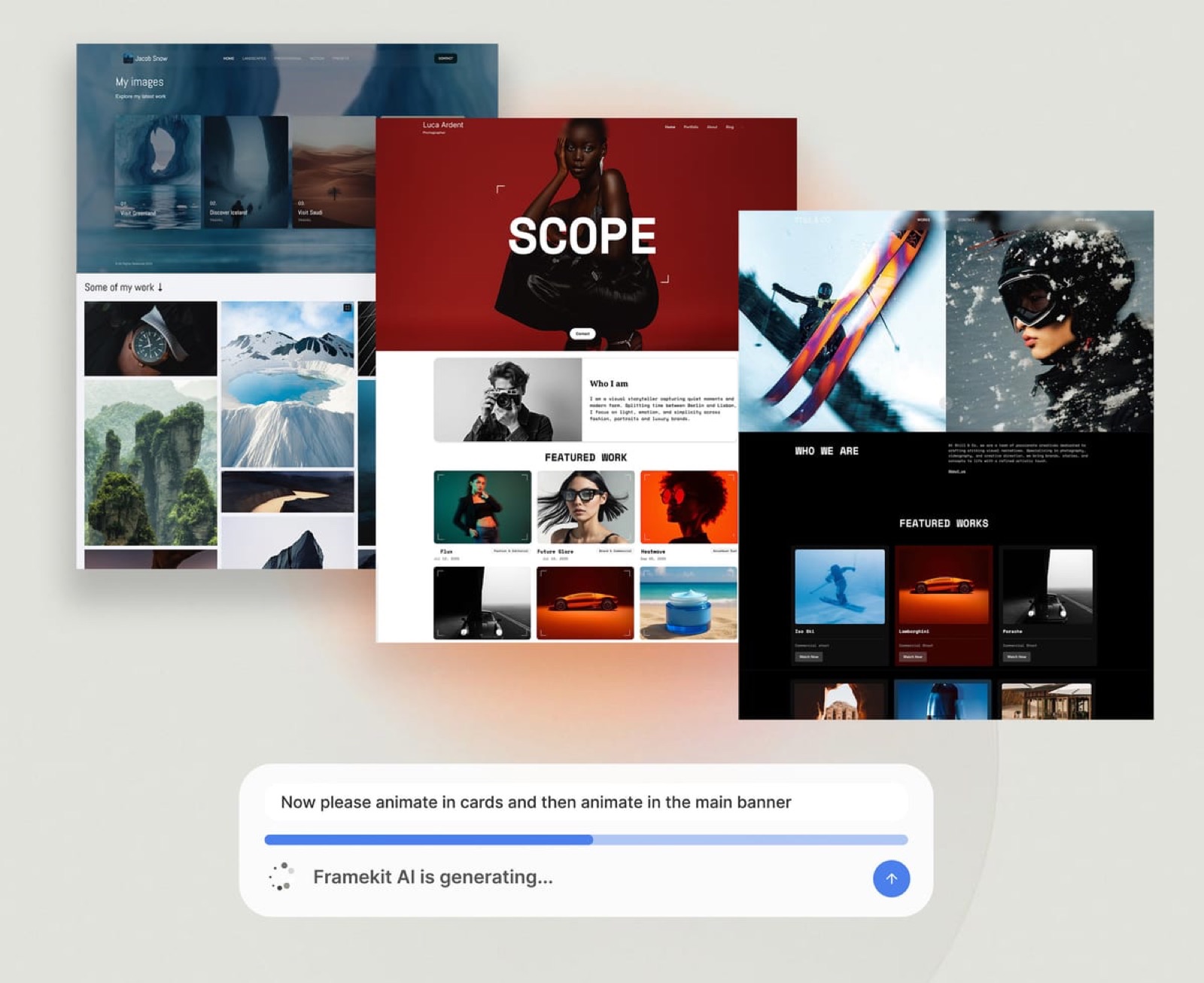
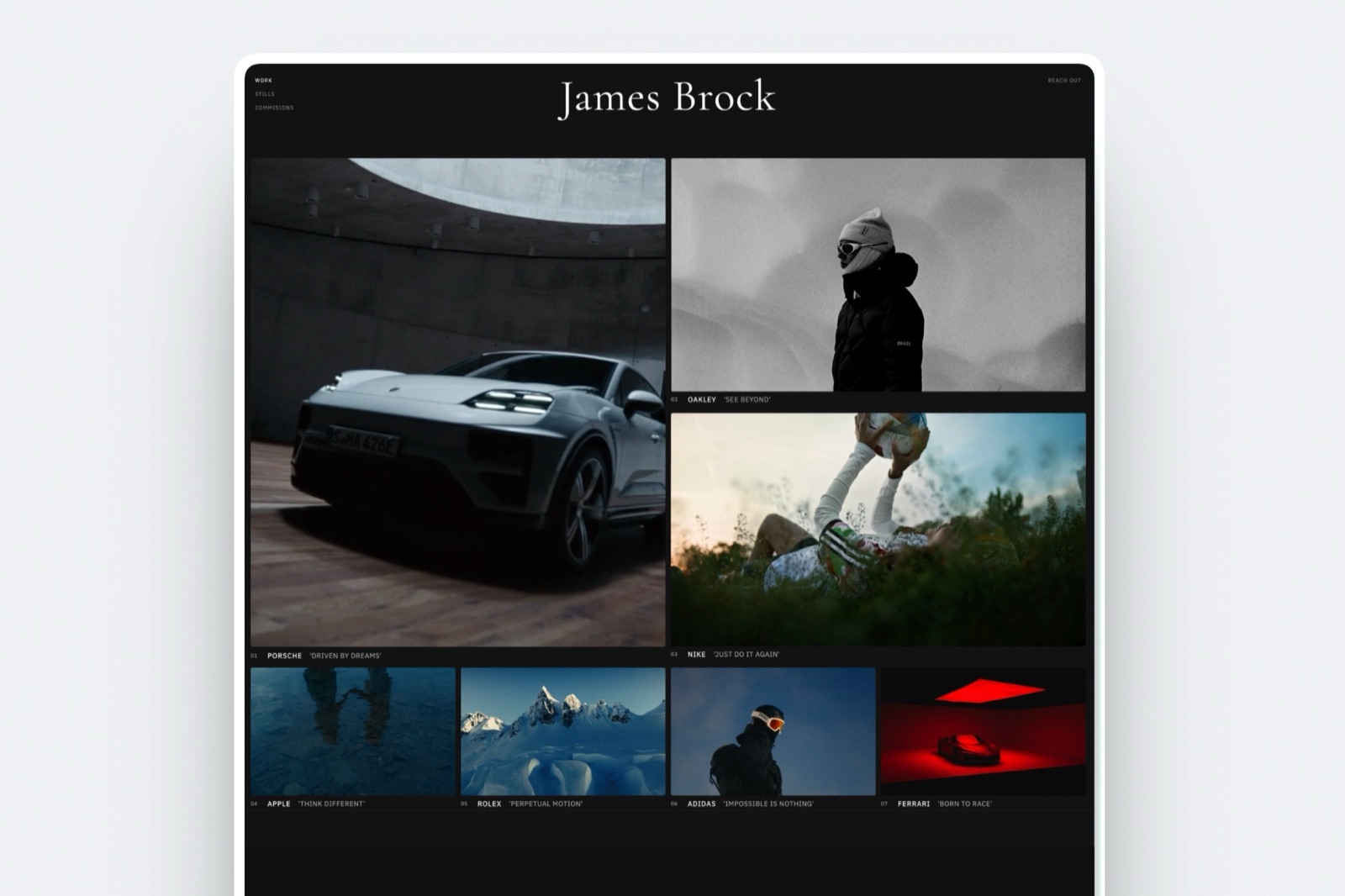
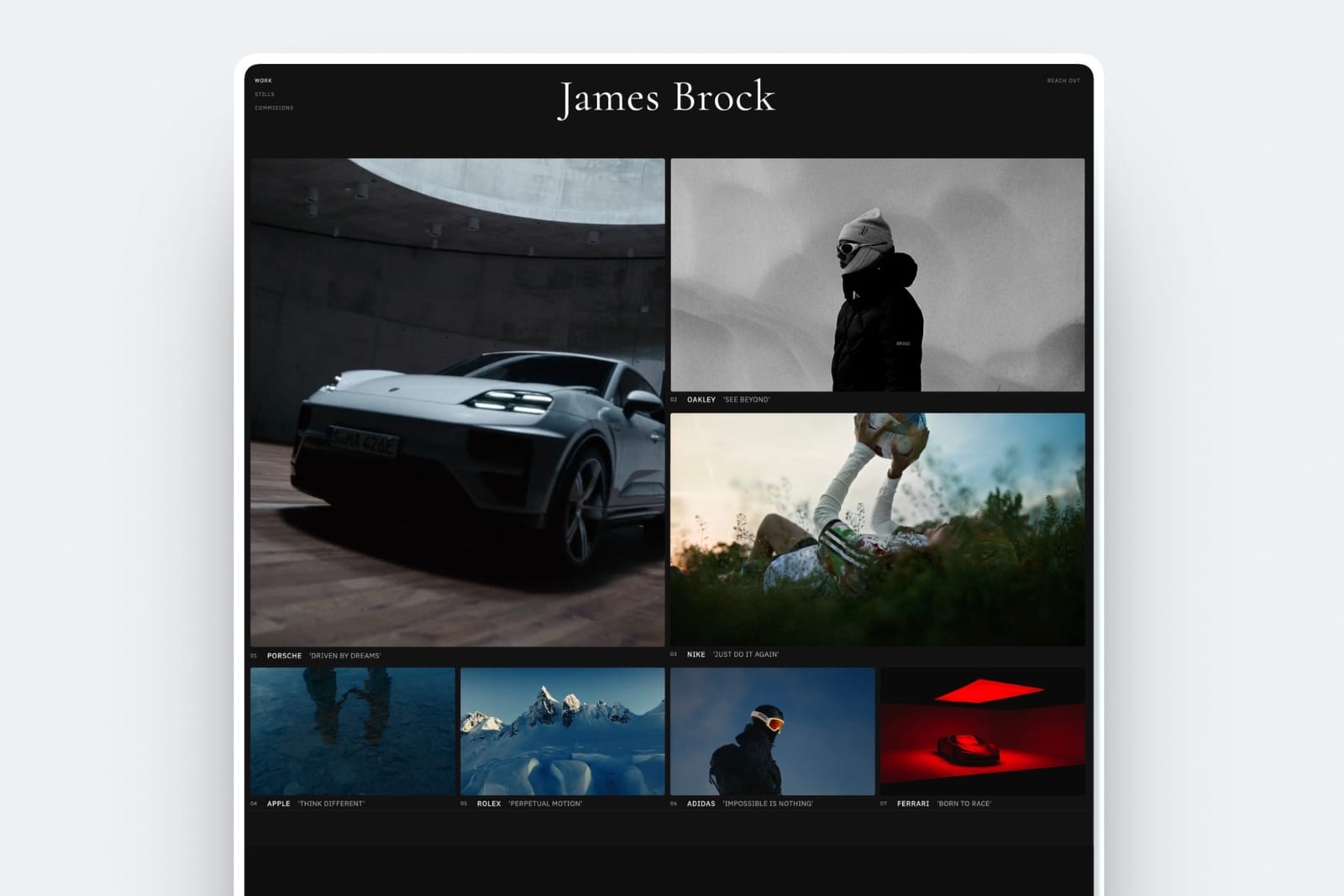
Framekit is an AI website builder for photographers, filmmakers, designers and creators, and the piece it covers here is the one the recorders assume you already have: a site on your own domain where the finished promo sits on your work page, the tutorial series sits on a page that explains what you do, and the digital product the tutorial promotes sits in a store you own.
You describe your studio, Framekit generates the site, and you embed the videos you just made.
The reason this matters is compounding. A hosted link on someone else's domain is a dead end after the watch; a video on your own site is next to your about page, your rates and your contact form.
If you are choosing where a public video should be hosted rather than where it should be recorded, our best Vimeo alternatives guide covers that decision, and how to get clients from your website covers what has to sit around the video for it to actually convert.
Client galleries, a real store and your portfolio run on the same site, from $0 to start with no card required.
Run This Test on Your Own Numbers
Take your last ten recordings and sort them into two piles: ones a specific person watched once, and ones you published or would publish.
If the first pile is bigger, one hosted seat is enough, so cap yourself at Loom Business at $216 a year and stop.
If the second pile is bigger, the link is worthless to you and the polish is not, so price Screen Studio at $108 a year or ScreenFlow at about $199 once against the five to fifteen minutes of manual zoom work each video costs you now, multiplied by the size of that pile.
The Decision Guide
Most people choose a screen recorder by reputation and then fight it for two years. Ask these questions in order instead, and stop at the first branch that matches, because the branches are mutually exclusive by design.
Start here. Does someone specific need to watch this within the hour?
- Yes, it is a message to a client or a teammate. You want a hosted link. Choose Loom, keep recordings under 5 minutes if you are staying free, and pay $18 a month the first time the cap costs you a re-record. Stop here.
- No, the video is a deliverable I will publish. Go to the next question.
Are you on a Mac?
- Yes. Choose Screen Studio at $108 a year if you publish regularly and want the zoom done for you, or ScreenFlow at about $199 once if you edit properly and refuse another subscription. If your recordings are mostly you talking, add Descript Hobbyist at $192 a year for captions and transcript editing.
- No, I am on Windows. Choose Camtasia if you are building a structured series and can justify about $180 a year, or OBS Studio plus any editor you already own if you cannot.
Is budget the binding constraint?
- Yes, absolutely. OBS Studio and your built-in recorder cost nothing and will do the job, at the cost of an afternoon of setup and every polish step being manual.
- No, but I want to buy once. CleanShot X at $29 covers short recordings, system audio and links; ScreenFlow covers everything longer.
Is anyone else on camera?
- Yes, guests or clients appear in the recording. Riverside at $288 a year records each participant locally and gives you separate tracks, which nothing else here does properly.
- No, I record alone. Do not buy it.
Frequently Asked Questions
What is the best screen recording tool for creators in 2026?
Screen Studio is the best screen recording tool for creators in 2026 because its automatic zoom and cursor smoothing turn an ordinary take into a directed one, and it exports 4K with no tier gate. It is macOS only and subscription only.
Loom is the better buy for client walkthroughs; OBS Studio is the best free option.
Is Screen Studio still a one-time purchase?
No. Screen Studio retired its $229 perpetual licence in September 2025 and now sells subscriptions only, reported at $29 a month or $108 a year.
Existing licence holders keep their activation and were given updates through 2027 rather than indefinitely. Across five years the annual plan totals $540, versus $229 for buyers of the old licence.
How long can you record on Loom's free plan?
Loom's free Starter plan caps recordings at 5 minutes each, allows 25 videos per person and holds quality at 720p. Screenshots and meeting recordings are unlimited.
Business at $18 per user per month removes the length cap, the video cap and the resolution ceiling, and adds password protection and branding removal.
Loom vs Screen Studio: which should a freelancer buy?
Buy Loom if your recordings are messages that need a link, viewer analytics and no account for the viewer, at $18 per user per month.
Buy Screen Studio if your recordings are deliverables that need to look produced, at a reported $108 a year. Loom cannot make a tutorial look designed; Screen Studio cannot tell you whether the client watched.
What happens to my recordings if I stop paying?
On Loom, downgrading keeps every existing video accessible but blocks new recordings until your library is back under 25, and archived videos count toward that limit.
On Descript, cancelling keeps your projects, removes the paid features and drops you to 5GB of storage. Files recorded with OBS Studio, CleanShot X, ScreenFlow or a built-in recorder are unaffected because they live on your disk.
How do I record system audio on a Mac?
Apple's built-in screen recorder captures the microphone only, so you need a third-party app.
CleanShot X records macOS audio for a $29 one-time purchase, OBS Studio does it free through its own macOS audio capture source, and Screen Studio can capture either all system audio or the audio of one specific application.
Windows users get audio capture in the Snipping Tool at no cost.
Which screen recorders export 4K without paying extra?
Screen Studio, OBS Studio and ScreenFlow export 4K with no upgrade required beyond the base product.
Descript gates 4K behind the Creator plan at $24 a month billed annually, Loom requires a Business seat at $18 per user per month for high-definition output, and Tella puts 4K on Pro at $13 a month.
What is the cheapest screen recording setup that is actually good?
CleanShot X at $29 once, paired with free OBS Studio for anything long-form, is the cheapest capable setup on a Mac, at $29 across five years if you never renew updates. On Windows the Snipping Tool plus OBS Studio costs nothing at all.
Both paths give you files you keep permanently rather than links that expire with a subscription.
Do clients need an account to watch a screen recording link?
Not usually. A Loom video shared as anyone with the link opens without a login, and Tella, Riverside and Zight behave the same way by default. An account is needed only when you restrict a video to specific email addresses or one domain, which is a setting you choose.
Final Verdict
After pricing eleven tools across five years and running the same two jobs through each of them, the split holds: the tool that makes a client walkthrough effortless is not the tool that makes a tutorial look produced, and buying one expecting the other is the mistake this category runs on.
Screen Studio is the best screen recording tool for creators in 2026. Automatic zoom and cursor smoothing are worth more than any feature list, and 4K without a gate means the file you export is publishable.
Where Screen Studio loses: it is macOS only, it has no free plan to fall back on, its hosted sharing is thin next to Loom's, and it is not for anyone who needs viewer analytics more than polish.
The $229 one-time purchase is gone, so the honest framing is that you now rent the best polish in the category for $540 across five years.
Loom is the pick for client walkthroughs, CleanShot X is the best value at $29 once, OBS Studio is the best free tool, and Descript is the one to add when captions are a deliverable.
Keep one file-based tool in the setup whatever you choose, so the day you stop paying is not the day your archive stops playing.
If you appear on camera as well as sharing a screen, the best teleprompter apps covers the eyeline problem no software in either category fixes.
For more, read our guides to the best Vimeo alternatives, the best AI tools for filmmakers, the best website builder for video editors, and how to get clients from your website.